
Work Order
Closing and Reopening a Job
When all work is done, you can close a job in Swivl. Before closing, a checklist confirms all invoices, tasks, and payments are complete.
Overview
Closing a job marks it as fully complete in Swivl. Before you close, a checklist confirms all invoices are sent, tasks are done, and payments are collected so nothing slips through before the job is wrapped up.
Who can access this
- Super Admin: can close any job.
- Admin: can close any job.
- Lead Technician: can close jobs they are assigned to as Job Lead.
- Technician: cannot close jobs.
When can a job be closed?
A job can be closed when all tasks are completed. When ready:
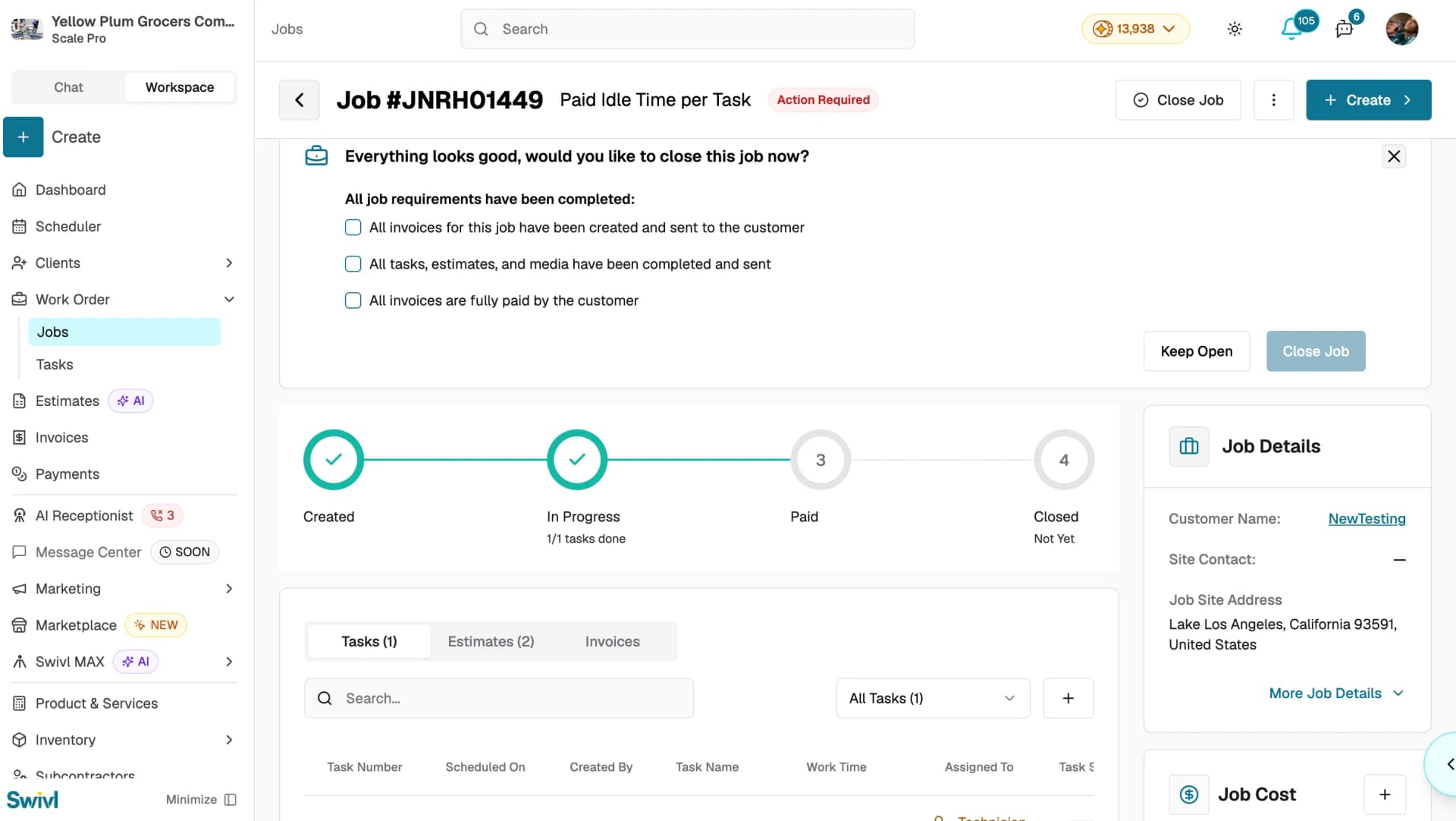
- A banner appears on the job detail page: "Everything looks good, would you like to close this job now?"
- The Close Job button becomes available in the top-right of the job detail page.
If any tasks are still open or in progress, the Close Job button will not be available.
How to close a job
- How to close a job
- Go to Work Order → Jobs and open the job.
- Click Close Job in the top-right.
- Review and confirm the checklist:
- All invoices have been created and sent to the customer
- All tasks, estimates, and media have been completed and sent
- All invoices are fully paid by the customer
- Click Close Job to confirm or Keep Open to go back.
What happens when a job is closed
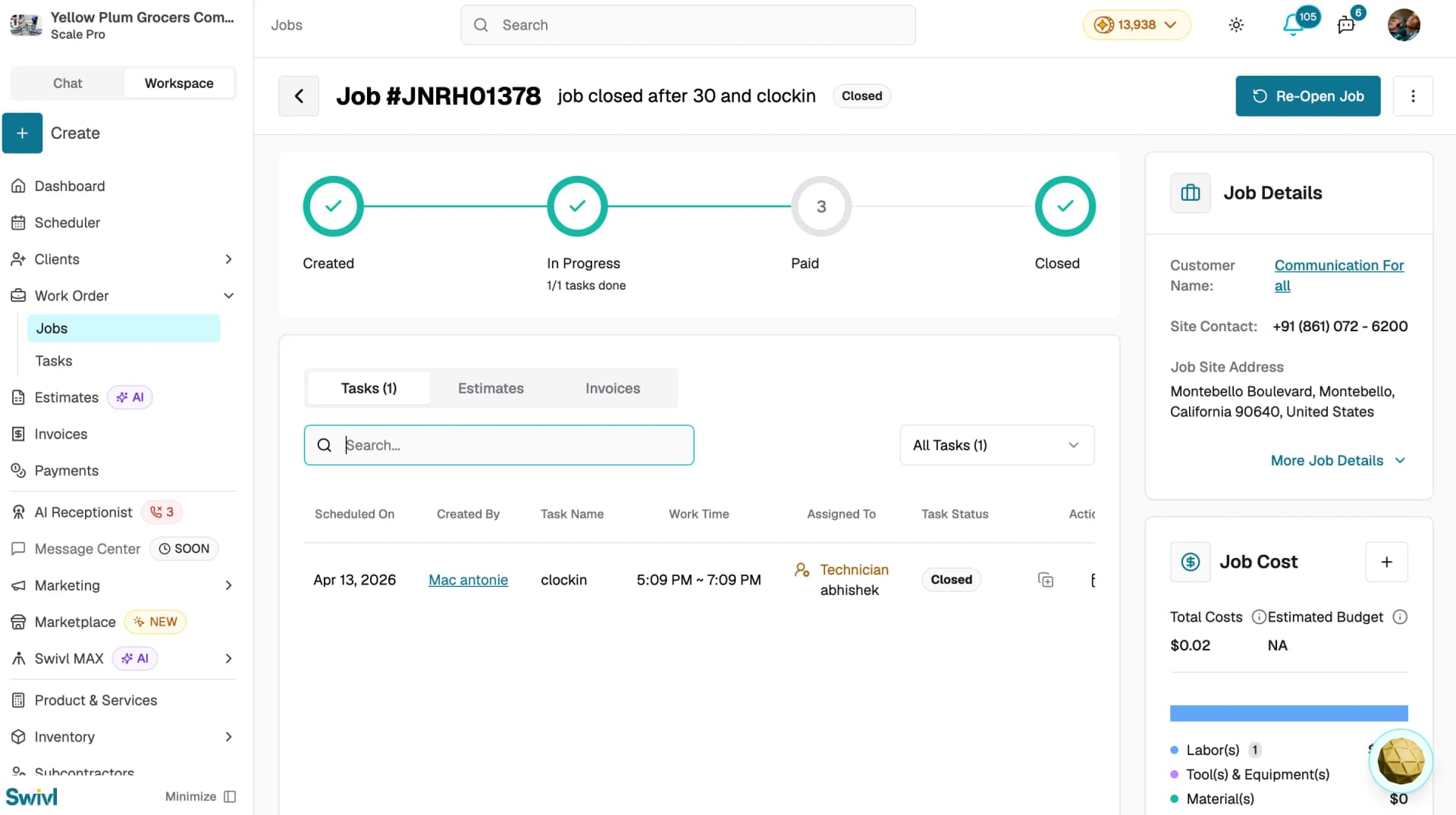
- The job status changes to Closed.
- Tasks, invoices, and estimates remain viewable but cannot be modified.
- A Re-Open Job button appears in the top-right if you need to reopen it.
Reopening a closed job
- Open the closed job's detail page.
- Click Re-Open Job in the top-right.
- The job returns to Open status you can resume editing, adding tasks, and creating invoices.
Tips
- All three checklist items must be confirmed before the Close Job button becomes active so nothing is overlooked before finalising.
- Closing a job does not delete anything all tasks, invoices, and estimates are preserved for reporting and reference.
- If you closed a job by mistake, click Re-Open Job to undo it there is no time limit on reopening.