
Assets overview
The Assets section is where you manage the physical equipment your team uses every day. Swivl organises assets into two categories Vehicles and Tools & Equipment each on its own tab. From here you can add new assets, track costs, and keep your fleet and tool inventory up to date
Overview
The Vehicles tab lets you track your fleet with cost-per-mile data, mileage, and VIN details. The Tools & Equipment tab manages everything else your team carries from power tools to specialist equipment with purchase price, serial numbers, and cost-per-hour tracking. Use AI Extract to digitise tool information quickly without manual data entry.
Who can access this
- Super Admin: full access to view, create, edit, and delete assets.
- Admin: full access to view, create, edit, and delete assets.
- Lead Technicians and Technicians do not have access to Asset Setup.
Navigating Asset Setup
- Go to Inventory → Assets in the sidebar.
- The Asset Setup page opens with two tabs, Vehicles and Tools & Equipment.
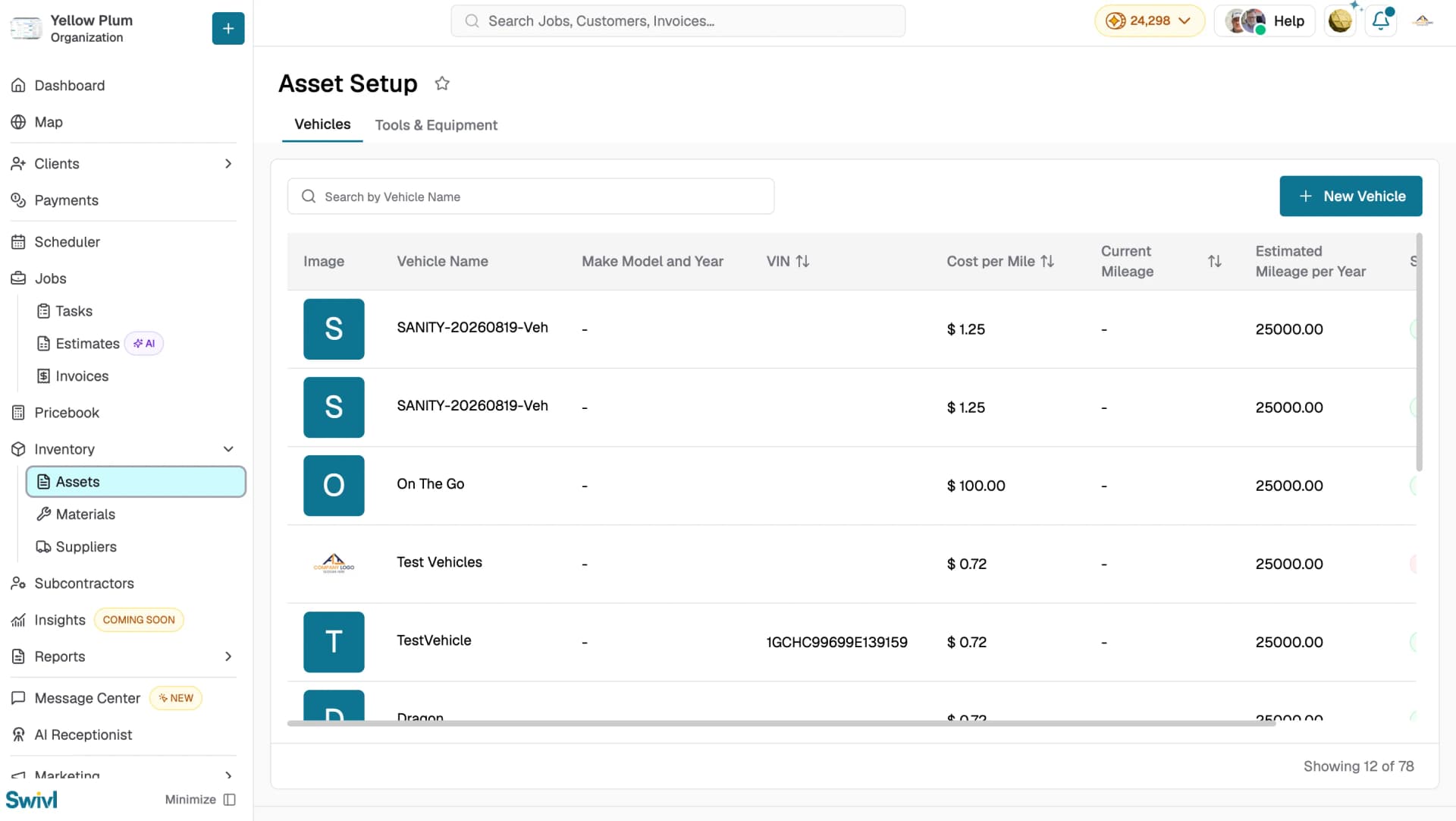
Vehicles tab
The Vehicles tab displays all registered vehicles. Use the Search by Vehicle Name bar to find a specific vehicle, or click + Add New Vehicle to add one.
Column | Description |
|---|---|
Image | A photo or initial placeholder. |
Vehicle Name | The vehicle name and licence plate number. |
Make Model and Year | The vehicle's make, model, and year. |
VIN | Vehicle Identification Number. |
Cost per Mile | The calculated operating cost per mile. |
Current Mileage | The vehicle's current mileage. |
Estimated Mileage per Year | The estimated annual mileage. |
Status | Active or Inactive. |
Actions | Click the edit icon to update vehicle details. |
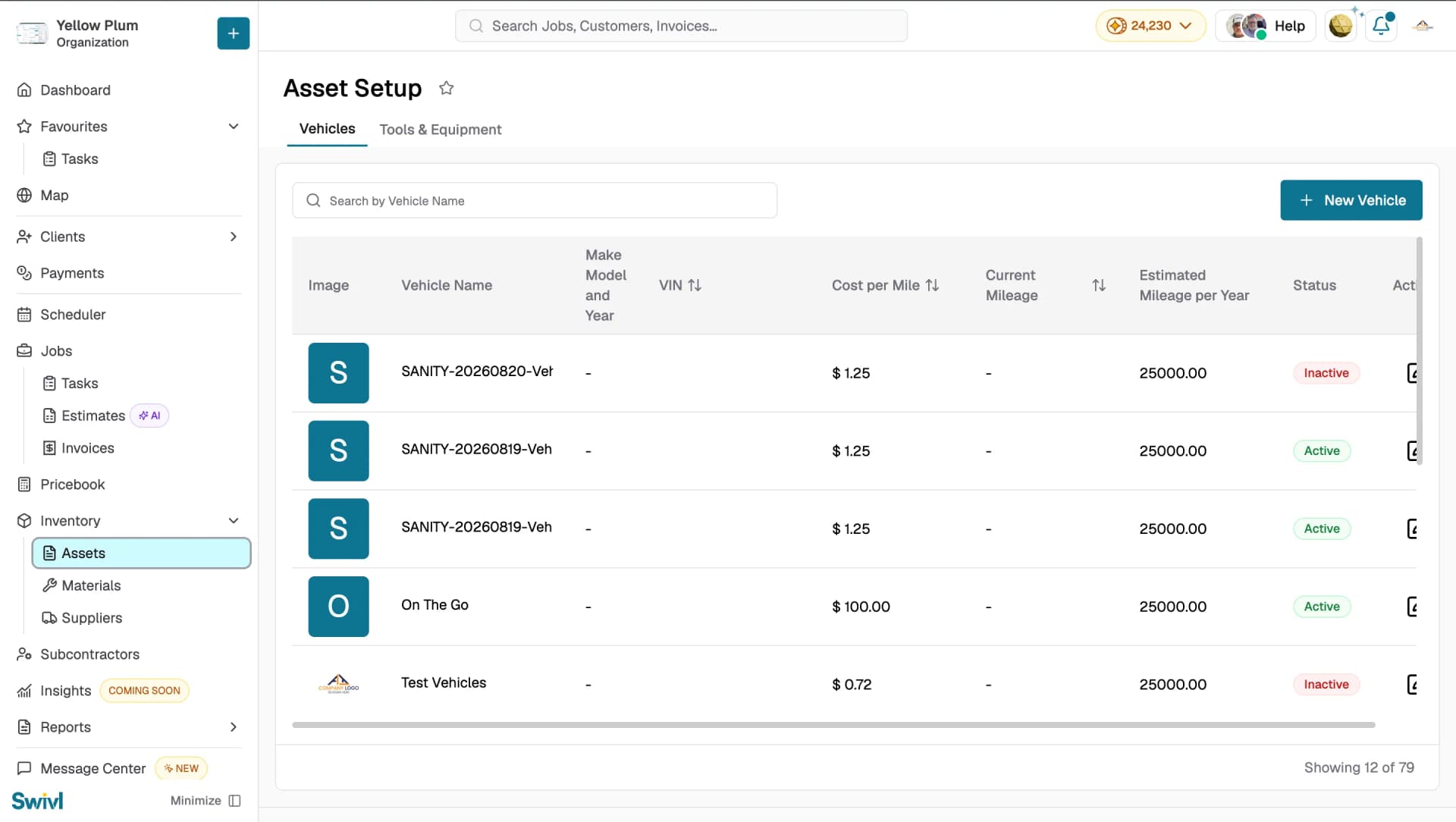
You can search by vehicle name and sort by VIN, cost per mile, or current mileage using the column headers.
Tools & Equipment tab
The Tools & Equipment tab lists all tools and equipment. Use the Search by Name of Tool/Equipment bar to find a specific item, or click + Add Tool/Equipment to add one.
Column | Description |
|---|---|
Image | A photo or initial placeholder. |
Name of Tool/Equipment | The name of the tool or equipment. |
Purchase Date | When the item was purchased. |
Purchase Price | The cost of the item. |
Manufacturer | The item's manufacturer. |
Serial Number | The item's serial number. |
Tool Tracker ID | A unique tracking ID. |
Cost per Hour | Used to calculate job costs. |
Status | Active or Inactive. |
Actions | Edit or delete the item. |
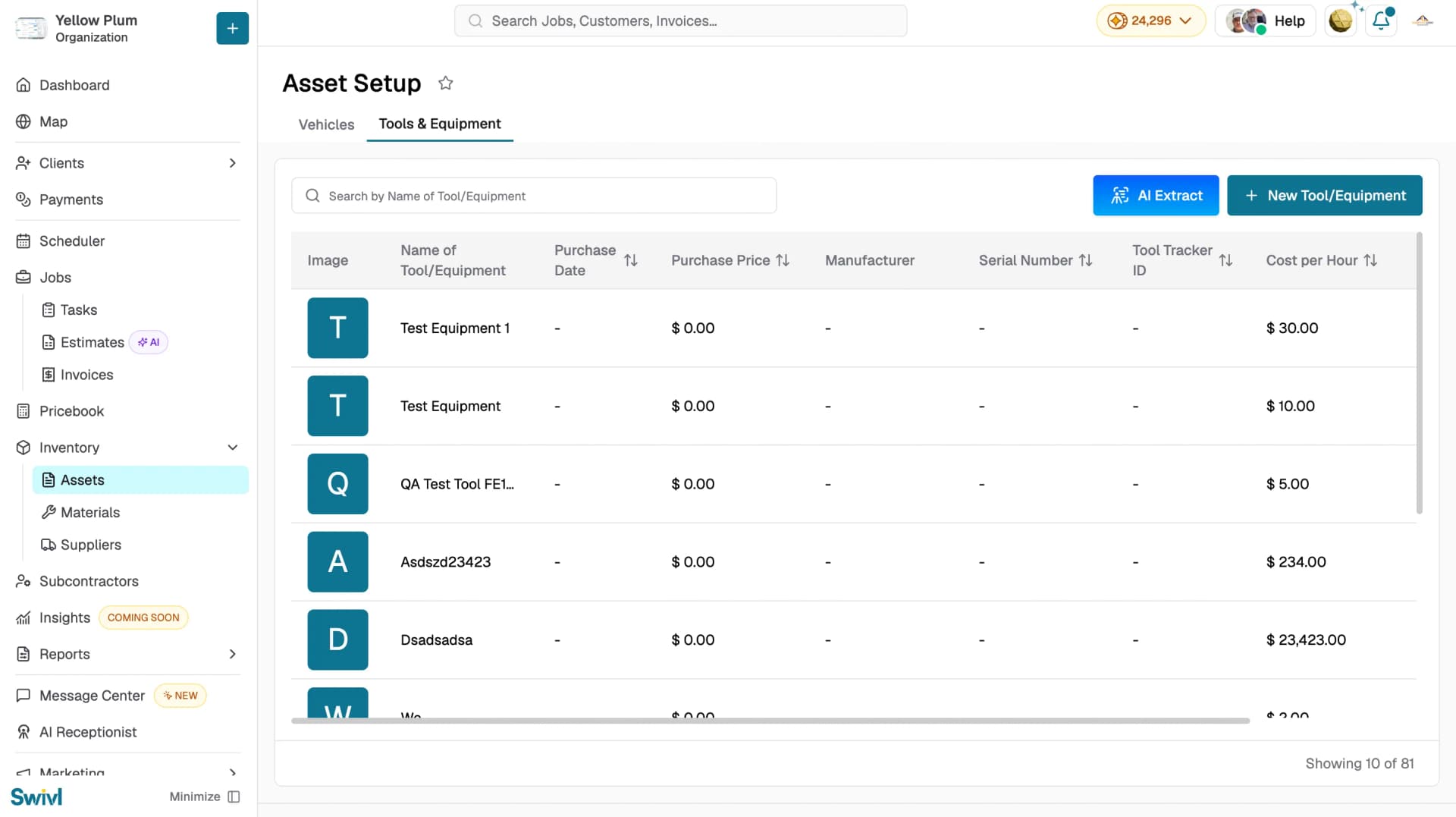
You can search by tool name and sort most columns by clicking the sort icon in the column header.
AI Extract
On the Tools & Equipment tab, click AI Extract to import tool information from a photo or document. Swivl's AI scans the file and extracts the details, pre-filling the form for you without manual data entry. AI Extract is not available on the Vehicles tab.
Tips
- Start with vehicles if your business relies on a fleet, accurate cost-per-mile data improves job costing significantly.
- Upload photos for each asset so technicians can quickly identify the right item in the field.
- Mark assets as Inactive rather than deleting them to preserve historical cost data.
- Use AI Extract on the Tools & Equipment tab to speed up bulk tool entry.