
Communication settings overview
Manage all your customer and team notifications from one place control what triggers each message, who receives it, and whether it goes out via email or SMS.
Overview
The Communication section in Settings is your hub for managing how Swivl sends notifications to your customers and team controlling what triggers each message, who receives it, and how it is delivered.
Who can access this
- Super Admin: full access to all communication settings
- Admin: can view communication settingsCommunication channels
Navigating the Configuration page
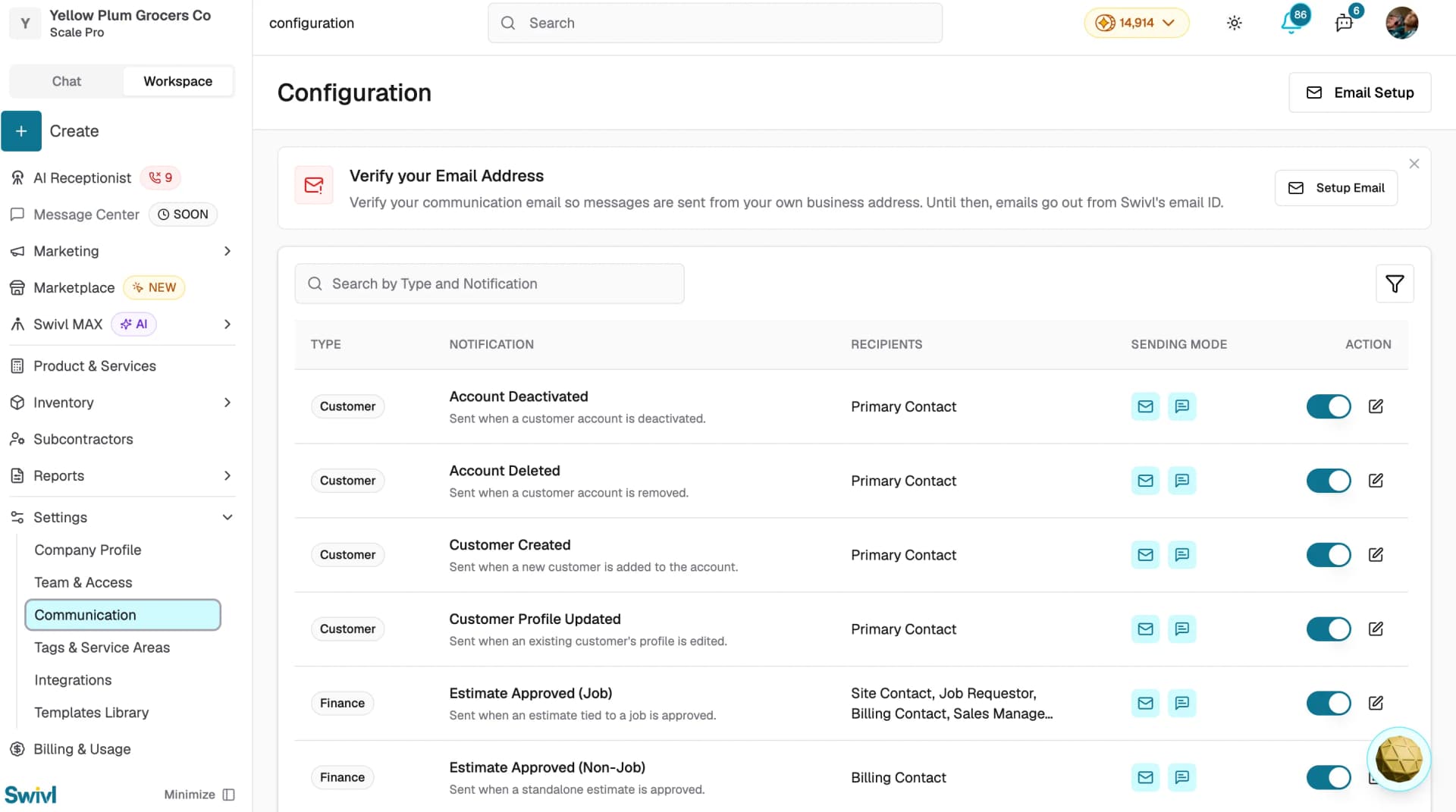
Go to Settings → Communication to open the Configuration page. You will see a notification table with the following columns:
- Type: the category the notification belongs to, such as Customer or Finance
- Notification: the name and description of the notification
- Recipients: who receives the notification, such as Primary Contact
- Sending Mode: whether the notification is sent via Email, SMS, or both
- Action: toggle to enable or disable the notification, and an edit icon to customise it
Use the Search by Type and Notification bar to find a specific notification quickly.
Enabling and disabling notifications
Each notification has a toggle in the Action column. Click the toggle to enable or disable a notification at any time disabled notifications will not be sent even if the trigger condition is met.
Setting up your communication email
A banner at the top of the Configuration page prompts you to verify your email address. Until verified, all outgoing emails are sent from Swivl's default email ID rather than your own business address.
To set up your email:
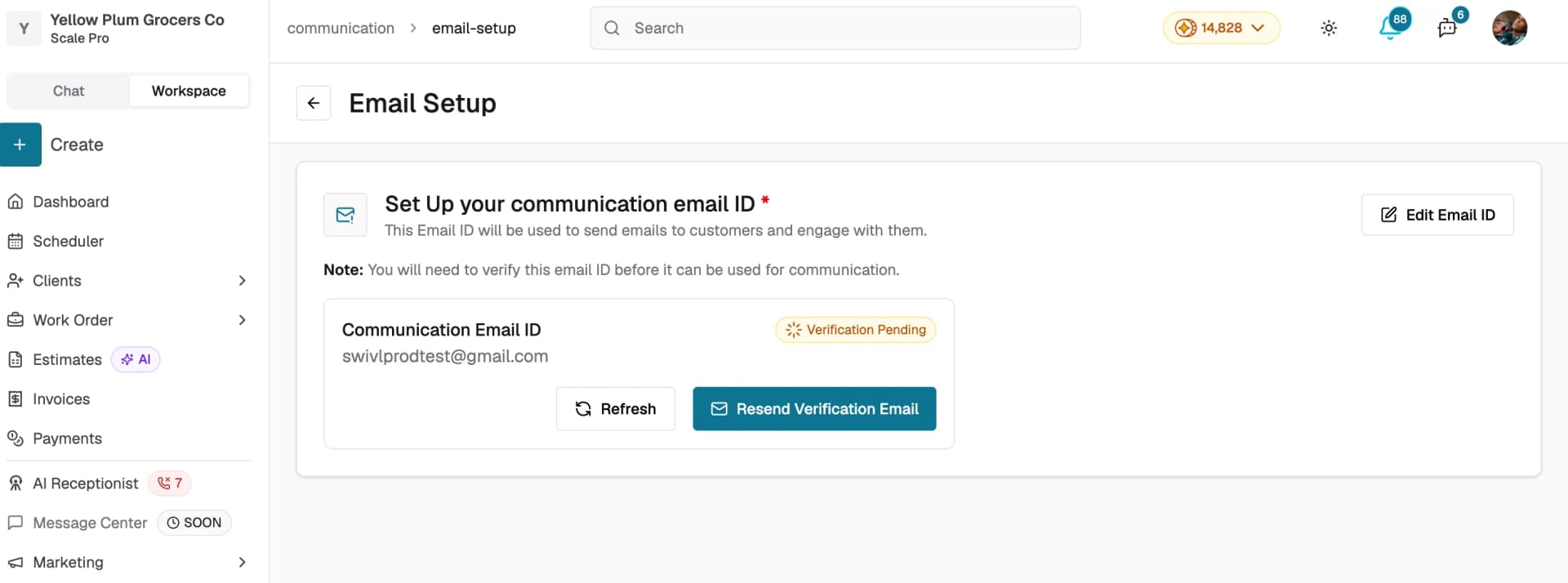
- Click Email Setup at the top-right of the Configuration page.
- Enter your Communication Email ID and click Save & Verify Email.
- Check your inbox for a verification email and click the link to confirm.
- Return to the Email Setup page and click Refresh to update the status.
If you did not receive the verification email, click Resend Verification Email. To change the email address, click Edit Email ID.
Once verified, all customer notifications will be sent from your own business email address.

Sending modes
Each notification can be sent via Email, SMS, or both depending on what you select in the Choose Mode field when editing the notification.
- Email: sends a formatted email to the recipient with a subject line and email content. Best for invoices, estimates, and detailed communications.
- SMS: sends a short text message to the recipient's phone number. Best for quick updates like appointment reminders and confirmations.
You can enable both modes for the same notification so the recipient receives it via email and SMS simultaneously.
Editing a notification
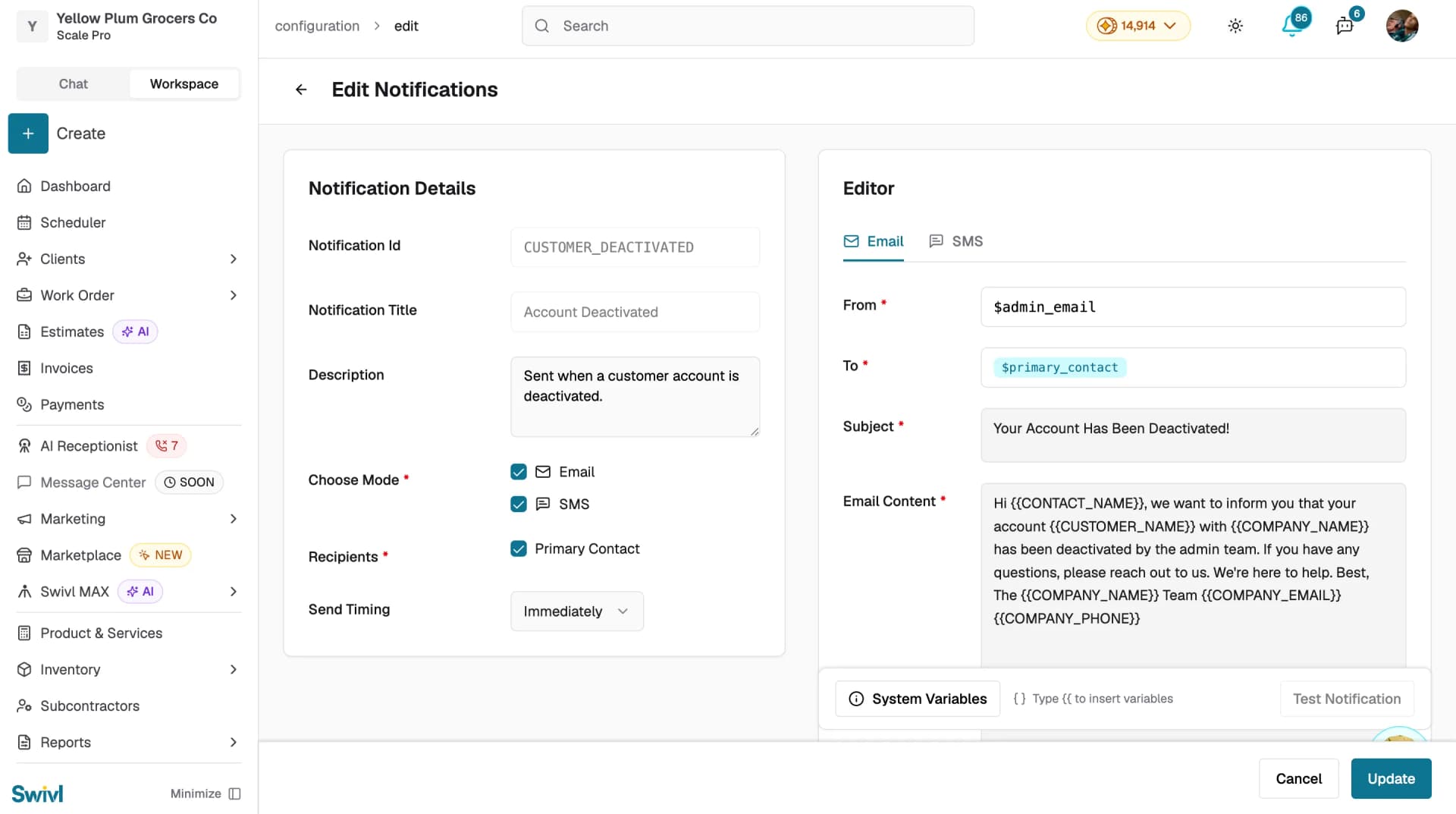
- Click the edit icon on any notification row to open the Edit Notifications page.
- The Notification Details panel shows:
- Notification Id: a system identifier (read-only)
- Notification Title: the name of the notification
- Description: what triggers this notification
- Choose Mode: select Email, SMS, or both
- Recipients: who receives the notification (e.g. Primary Contact)
- Send Timing: choose Immediately, After 30 Minutes, or After 1 Hour
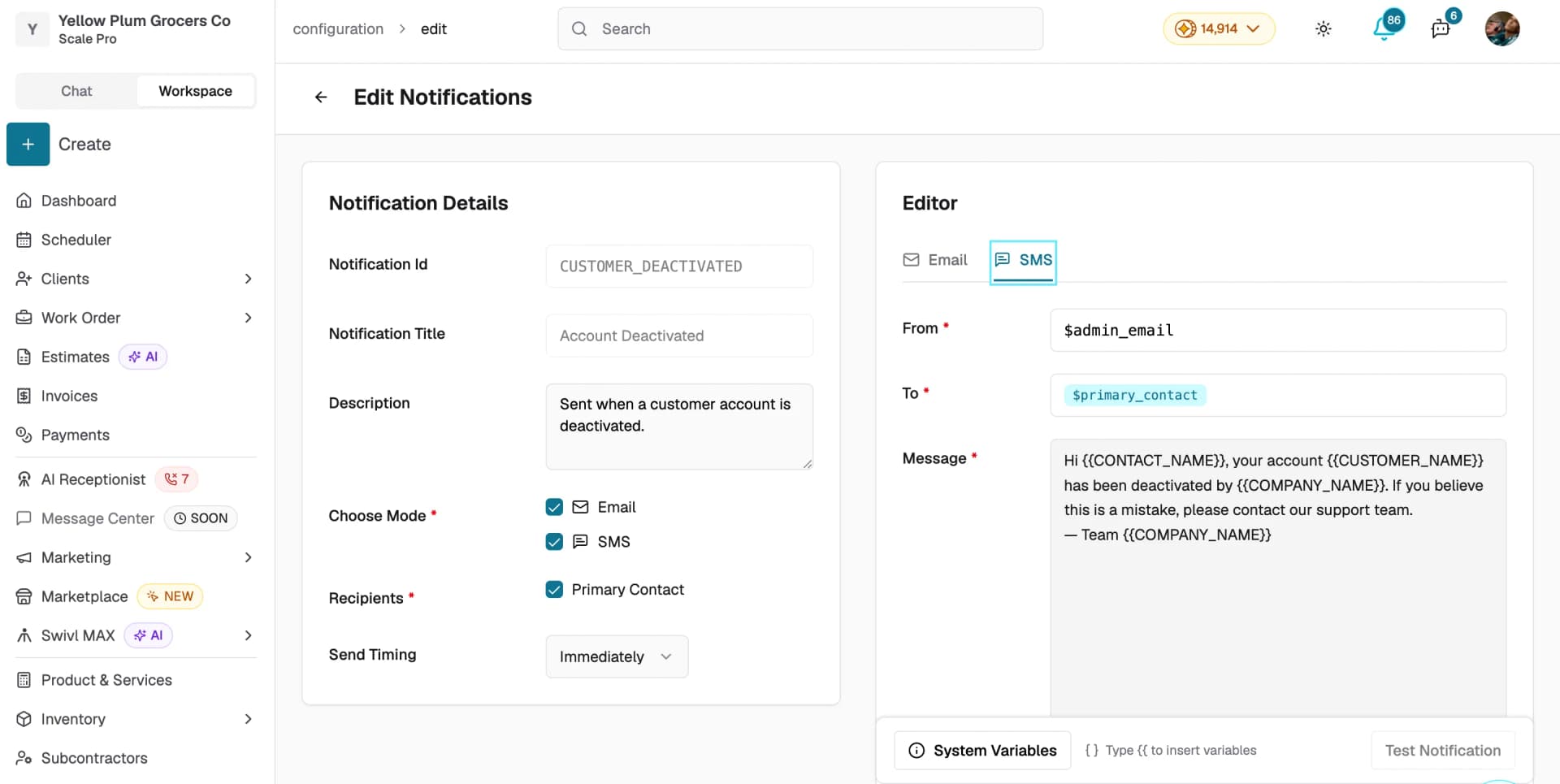
- In the Editor panel on the right, switch between the Email and SMS tabs to customise the message content:
- Email tab: set the From, To, Subject, and Email Content
- SMS tab: set the From, To, and Message
- Use the System Variables button to personalise your message with dynamic fields like the customer's name, company name, and contact details.
- Click Test Notification to preview how the message looks before saving.
- Click Update to save your changes.
Tips
- Verify your communication email first invoices and estimates are most commonly sent via email.
- Use Test Notification before saving to make sure the message content looks right.
- Each notification can be configured independently you do not need to update all of them at once.
- Use system variables to personalise messages automatically customers will see their own name and your company details in every notification.
- Set Send Timing to After 30 Minutes or After 1 Hour for notifications where an immediate message may feel too abrupt.