
Editing Customer Details
After a customer account has been created, you can update any of its details from the account name and profile photo to contacts and social media links.
Overview
After a customer account has been created, you can update any of its details from the account name and profile photo to contacts and social media links. The edit form uses the same layout as creating a new customer, with all existing information pre-filled.
Who can access this
- Super Admin: full access to edit customer details.
- Admin: full access to edit customer details.
- Lead Technicians and Technicians have view-only access and cannot edit.
How to edit a customer
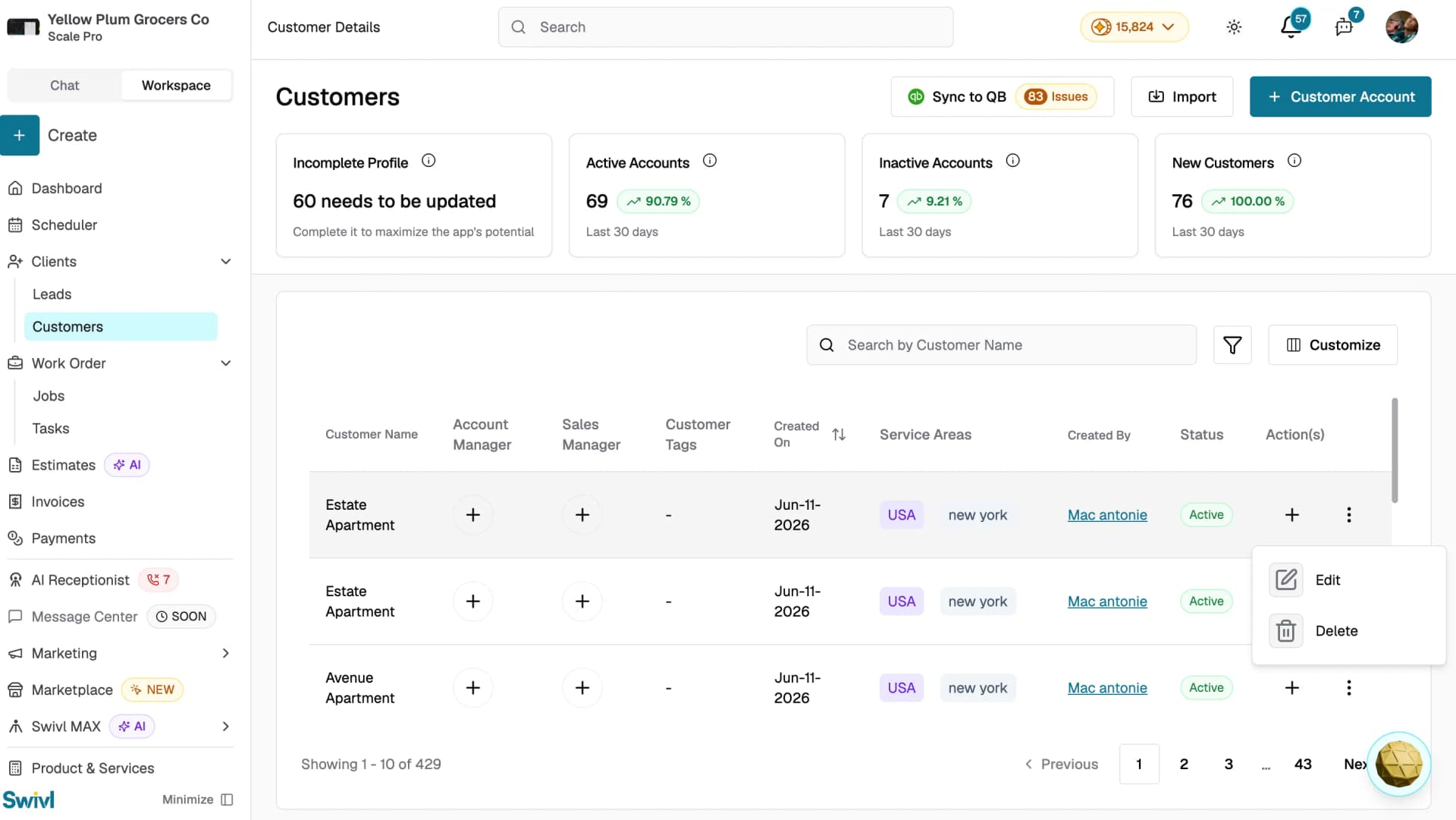
- Navigate to Customers in the sidebar and locate the customer you want to update.
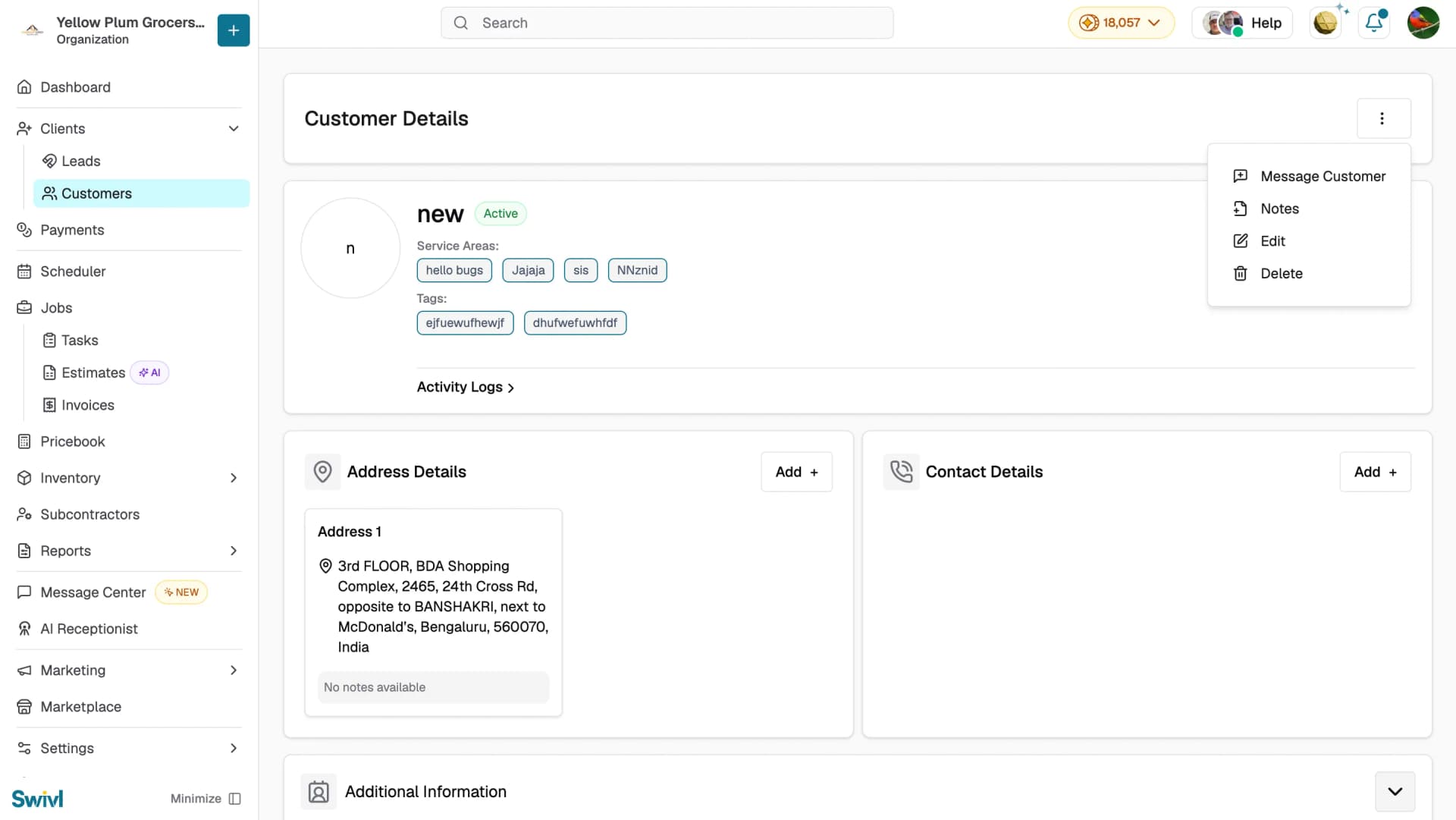
- Click the customer name to open their profile, then click the three-dot menu (top-right) and select Edit or click the three-dot menu directly on the customer row in the table and select Edit.
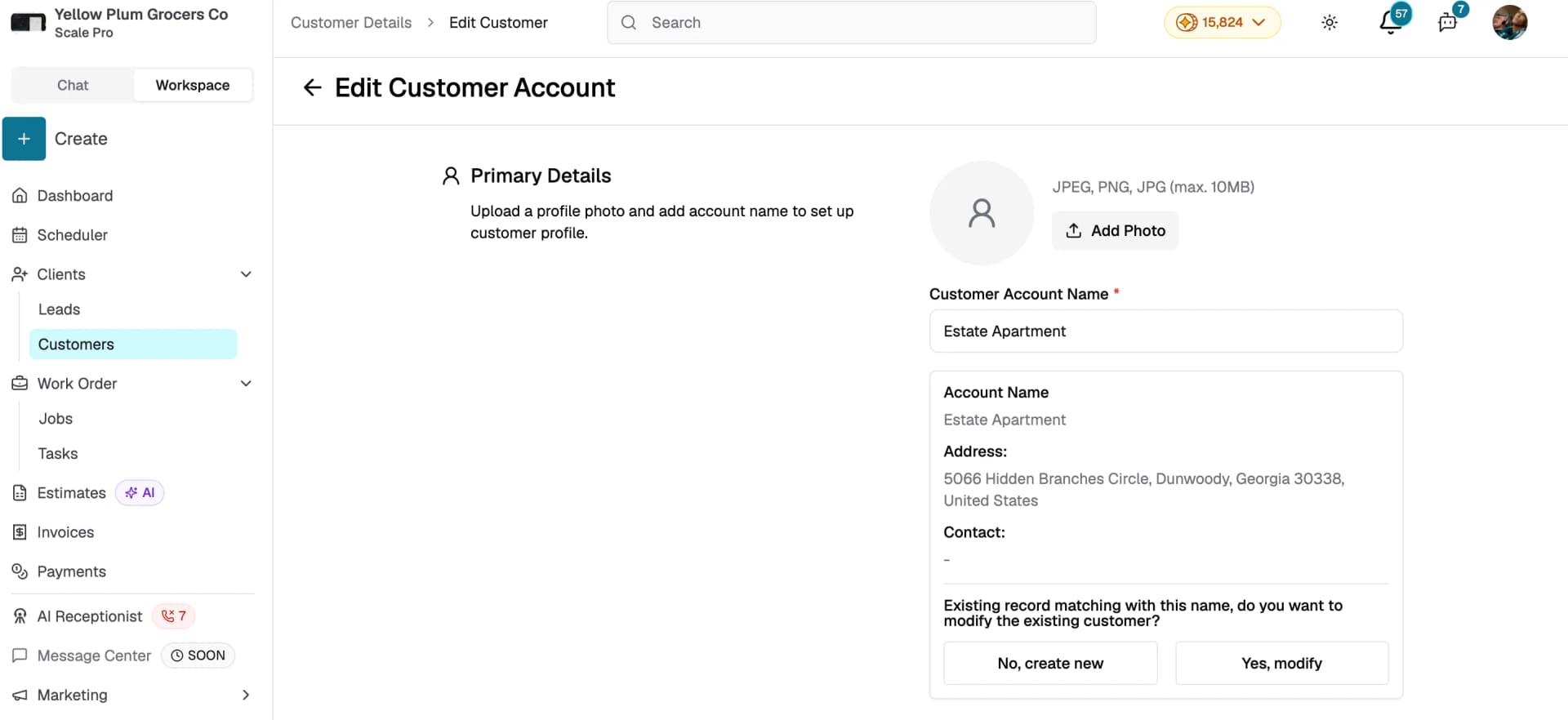
- The Edit Customer Account form will open with all current information pre-filled.
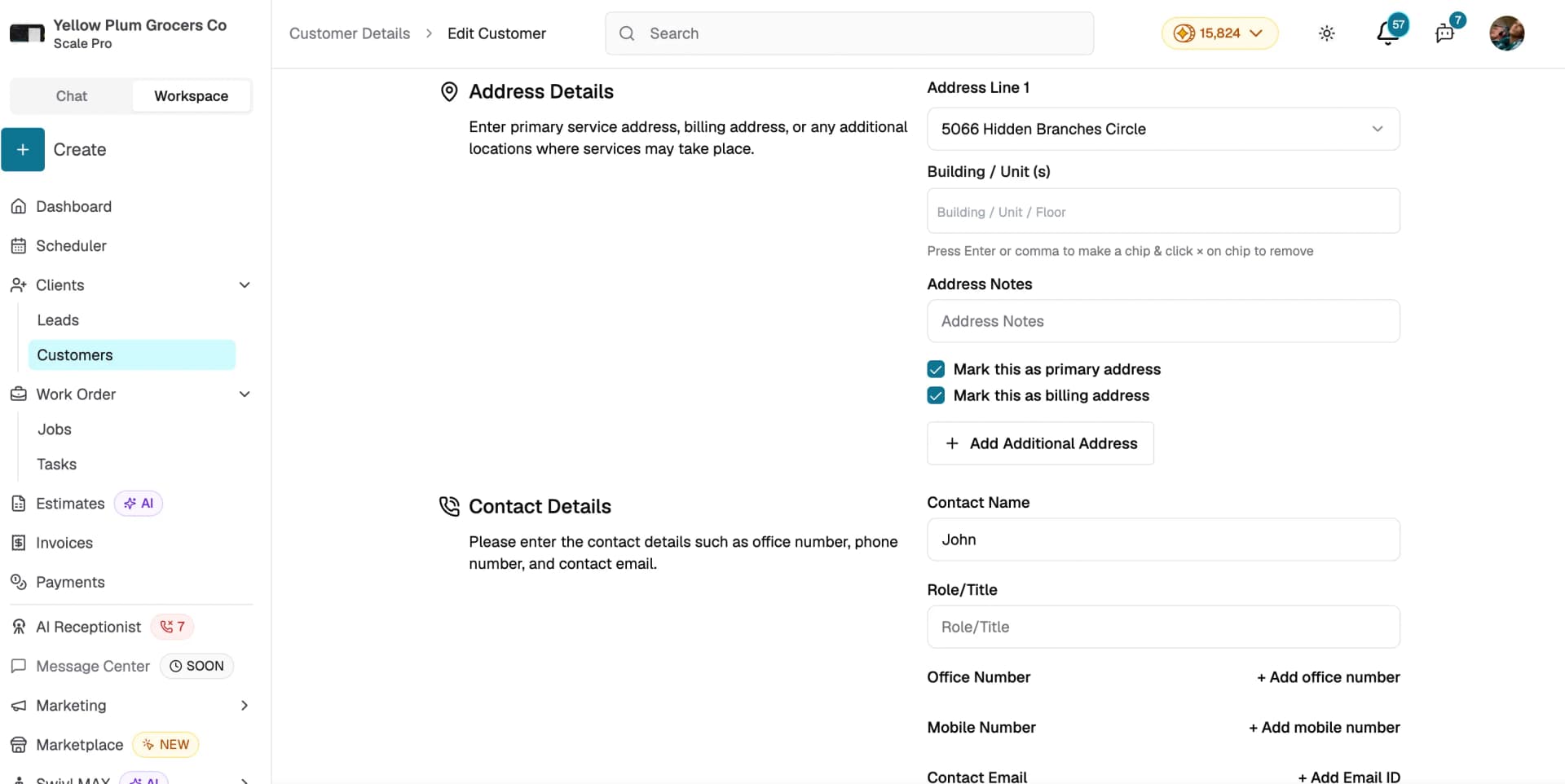
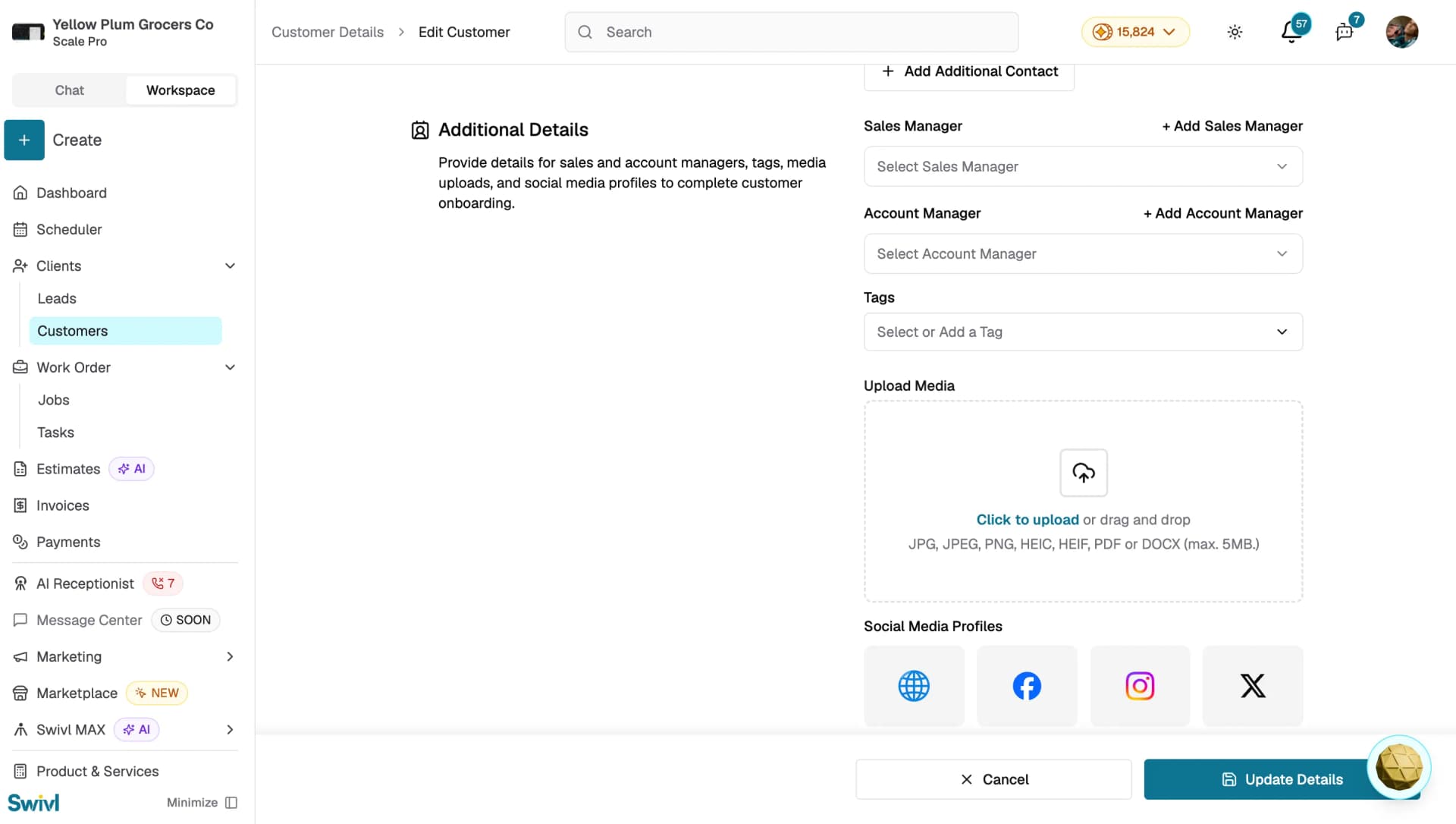
- Make your changes across any of the four sections: Primary Details, Address Details, Contact Details, or Additional Details.
- Click Update Details to save.
Editing contacts
- The Contact Details card on the customer profile shows up to two contacts.
- To add a new contact, click Add + on the Contact Details card. Enter the contact name, role/title, office number, mobile number, and email, then click Save Contact.
- To edit an existing contact, click the three-dot menu (top-right of the profile page) and select Edit. This opens the full edit form where you can update any contact field, then click Update Details to save.
- Each contact can be marked as the primary contact or billing contact using the checkboxes on the contact form.
Editing social media links
In the Additional Details section of the edit form, click any social media icon Website, Facebook, Instagram, or X to open a dialog where you can add or update the URL.
Messaging a customer
You can message a customer directly from Swivl in two ways:
- From the customer profile: click the three-dot menu (top-right) and select Message Customer.
- From the customer table: click the message icon in the Action(s) column on the customer's row.
A conversation window opens where you can type and send your message. All conversations are also available in the Message Center, where you and your team can view the full message history and reply.
Adding notes
From the customer profile, click the three-dot menu and select Notes to open the notes panel. From here you can create, edit, and delete notes associated with this customer.
Deactivating or deleting a customer
- Open the customer profile.
- Click the three-dot menu (top-right) and select Delete.
- A confirmation dialog will appear.
- If the customer has linked records (jobs, invoices, estimates, or tasks), the account will be deactivated rather than permanently deleted.
- If there are no linked records, the account is permanently deleted.
Tips
- Editing a customer does not affect any existing jobs, invoices, or estimates linked to that account.
- To add a new address or contact without opening the full edit form, use the Add + button directly on the Address Details or Contact Details card on the customer profile.
- Use the Activity Logs link on the profile to view a history of all changes made to the customer record.