
Inviting a New User
Adding team members to Swivl starts with sending an invitation. When you invite a user, they receive an email with a link to create their account and join your company's Swivl workspace.
Overview
Inviting a team member takes just a few minutes. The invite form asks for the essentials up front name, contact details, role, and compensation and lets you add everything else now or later. Once you send the invitation, the user receives an email with a link to set up their account.
Who can access this
- Super Admin: can invite users with any role
- Admin: can invite users (may be limited to certain roles)
How to invite a new user
- Go to Settings → Team & Access.
- Click + Invite New User. The Invite a new team member form opens.
- Fill in the required fields: Full Name, Work Email, Phone Number, Role, Compensation Type, Amount, and Company Address.
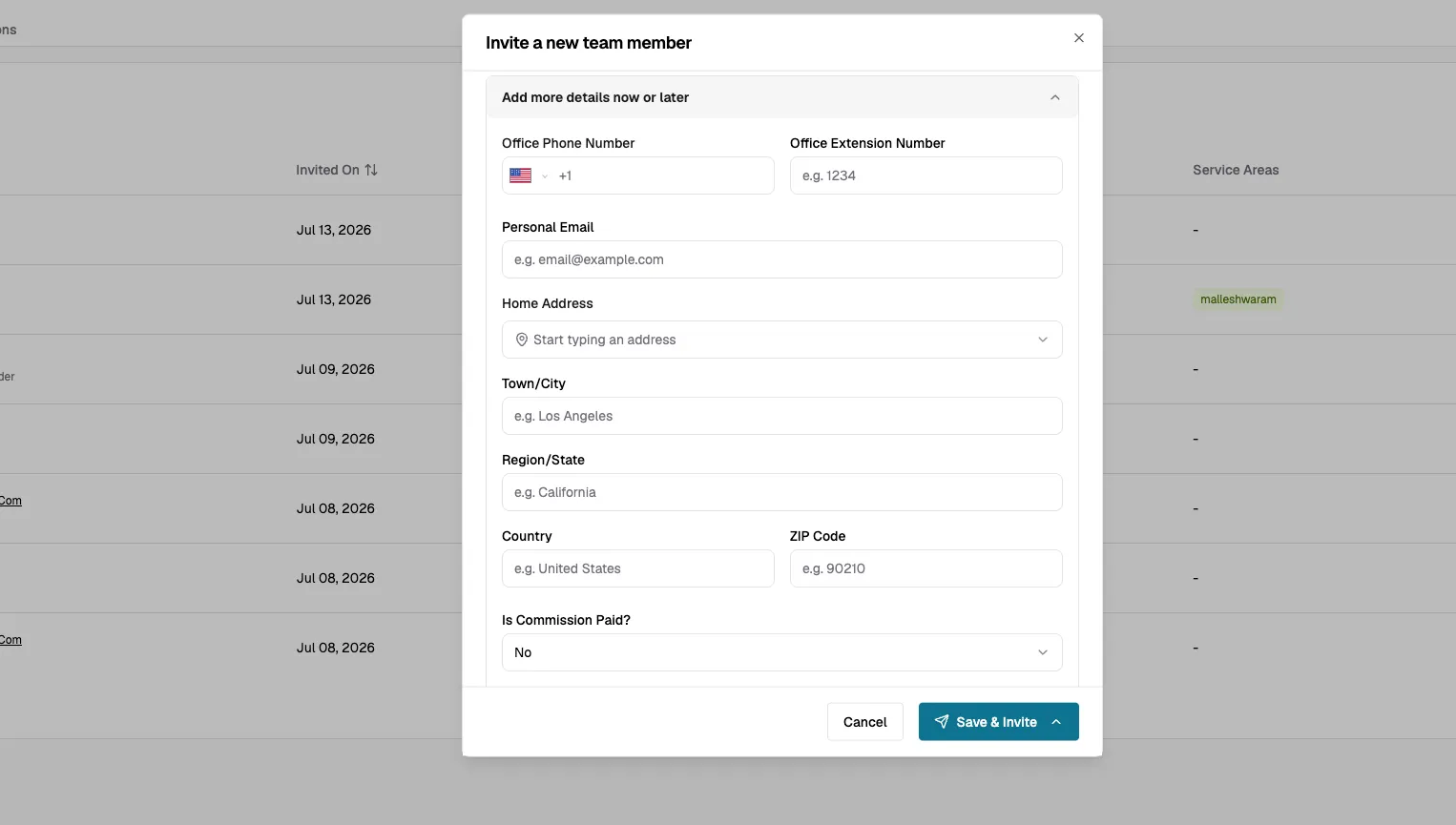
- (Optional) Expand Add more details now or later to add personal contact details, commission settings, qualification tags, service areas, and employee documents.
- Click Save & Invite to send the invitation.
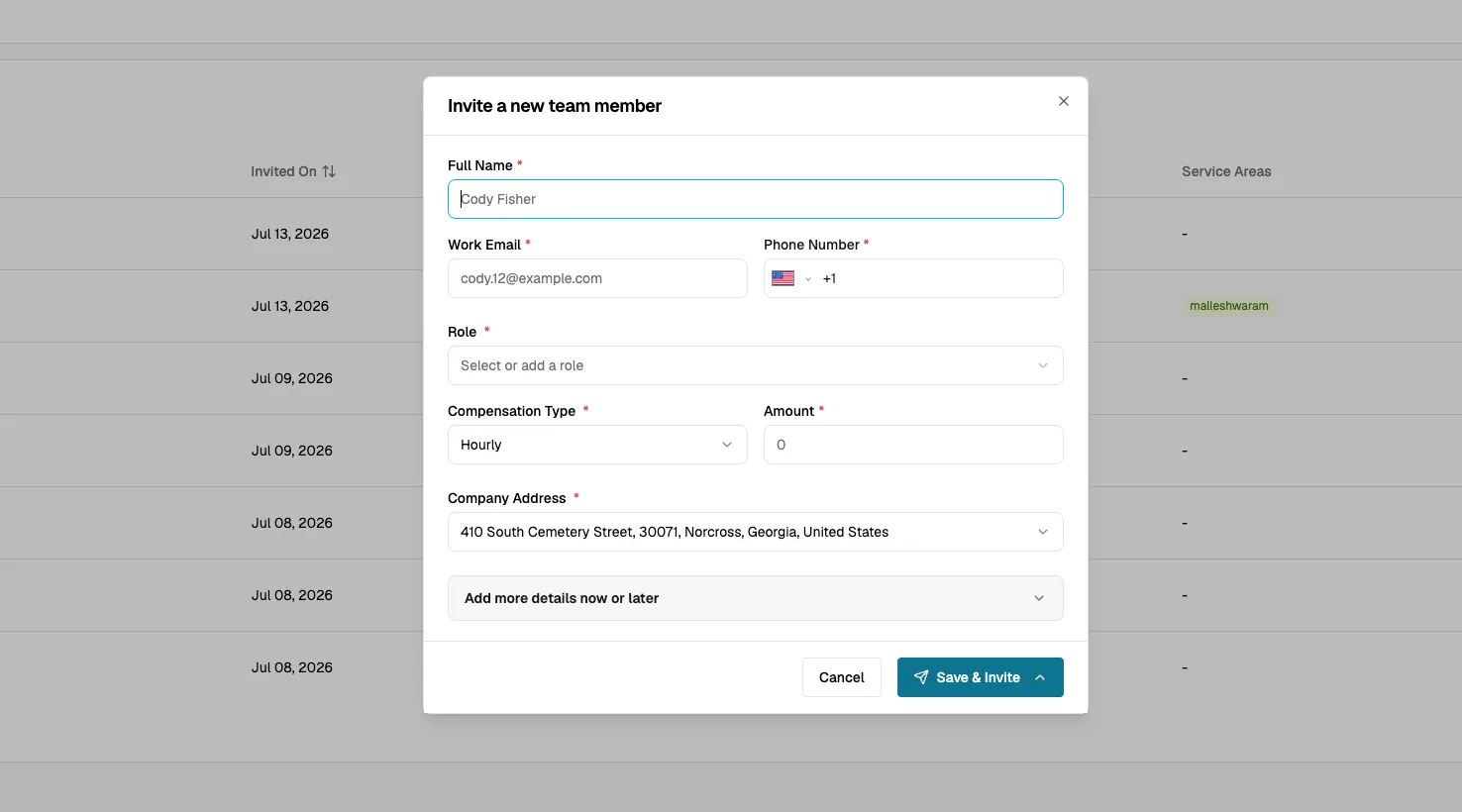
Required fields
- Full Name: the user's full name.
- Work Email: the invitation is sent to this address.
- Phone Number: the user's mobile number.
- Role: select an existing role or add a new one. This defines the user's permissions in Swivl.
- Compensation Type: choose how the user is paid, such as Hourly.
- Amount: the user's compensation amount.
- Company Address: prefilled with your company's primary address if one is already added in your Company Profile. To use a different location, select another saved address from the dropdown, or click + Add new address to add a new one.
Adding a new company address
If the right location isn't in the Company Address dropdown, you can add it without leaving the invite form:
- Open the Company Address dropdown and click + Add new address. The Add company address panel opens.
- Start typing in Search address to find the address, or fill in Town/City, Region/State, Country, and ZIP Code manually.
- Click Save address.
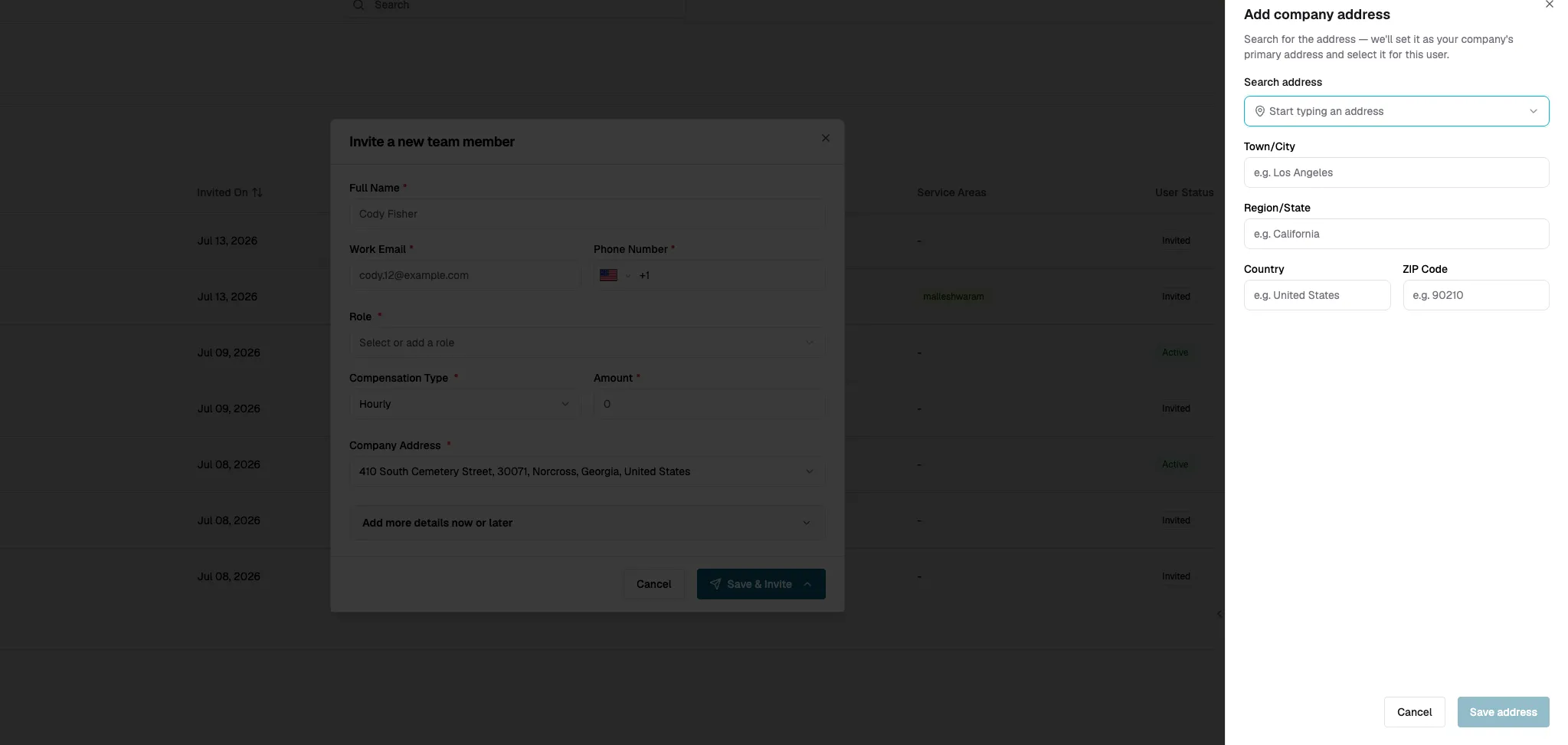
The new address is set as your company's primary address and selected for this user.
Add more details now or later
Everything in this section is optional, you can fill it in while inviting the user or edit their profile later.
- Office Phone Number and Office Extension Number: the user's office contact details.
- Personal Email: an optional secondary email address.
- Home Address, Town/City, Region/State, Country, ZIP Code: the user's home address.
- Is Commission Paid?: defaults to No. Select Yes if the user earns commission.
- Travel to/from Home Paid?: defaults to No. Select Yes if travel is reimbursed.
- Labor Burden Percentage: used for job costing calculations.
- Managed Accounts: assign customer accounts this user will manage.
- Qualification Tags: add certifications or specializations.
- Operational Service Areas: define which areas this user operates in. Click View on Map to see the areas visually.
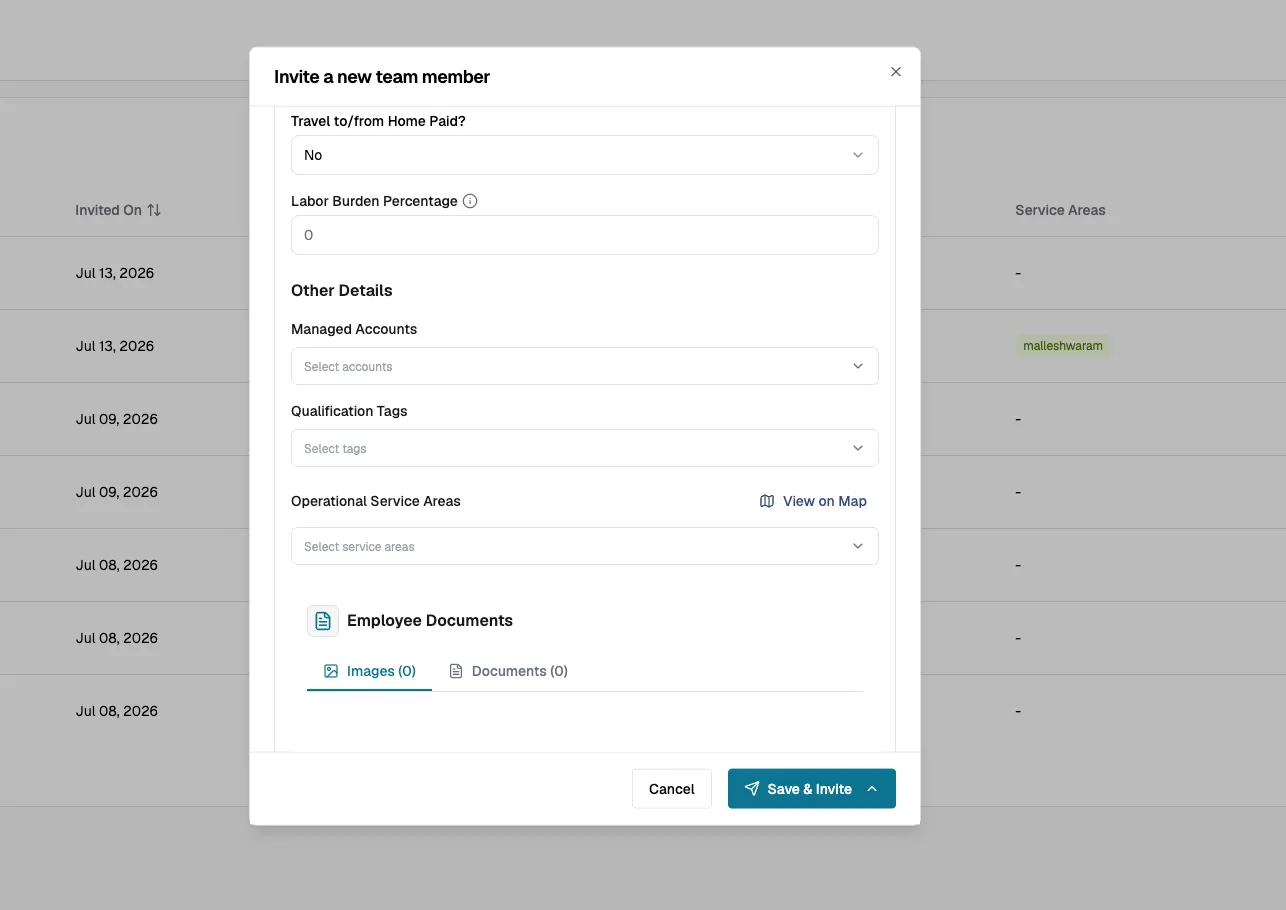
Employee Documents
At the bottom of the Add more details now or later section, you can upload supporting files for the user:
- Images: photos such as IDs or profile pictures.
- Documents: contracts, certifications, or other supporting files.
Click Click to upload or drag and drop files. Supported formats are JPG, JPEG, PNG, HEIC, HEIF, PDF, or DOCX (max. 5MB).
What happens next
Once you click Save & Invite:
- The user appears in the Users table on the Team & Access page with a User Status of Invited.
- They receive an email with a link to accept the invitation and set up their account.
- Once they accept, their status changes to Active.
- If the invitation is not accepted within the expiration period, the status changes to Expired.
- To resend an invitation, click the three-dot menu on the user's row and select Send via SMS or Resend via Email under Resend Invitation.
- To cancel an invitation, click the three-dot menu and select Delete.
Tips
- Double-check the Work Email before sending the invitation as it cannot be redirected after it has been sent.
- The invited user should create their account using the invitation link sent in the email or SMS and not by signing up on their own. An account created separately is not linked to your company, so the user will not see the workspace or the role they are assigned.
- Assign the most appropriate Role from the start to avoid granting excessive access. You can always change it later.
- If an invitation expires, use the Resend Invitation options in the three-dot menu to send it again.
- The Company Address you select for the user determines their default location for scheduling and dispatching.
- You don't need to complete every field to send the invitation, anything under Add more details now or later can be added to the user's profile after they join.