
GPS Tracking: How Your Data is Handled
Understand how Swivl collects and manages GPS location data, who can access it, and how to use GPS tracking responsibly within your field service team.
Overview
Swivl GPS tracking collects location data during work hours to help you manage field operations. This article explains what data is collected, how access is controlled, and how to use GPS tracking responsibly within your team.
Who can access this
- Super Admin: responsible for enabling GPS tracking and managing access permissions.
When GPS tracking is active
Swivl GPS tracking is active only during work hours, from the moment a technician clocks in to a task until they clock out. Location data is not collected outside of these windows.
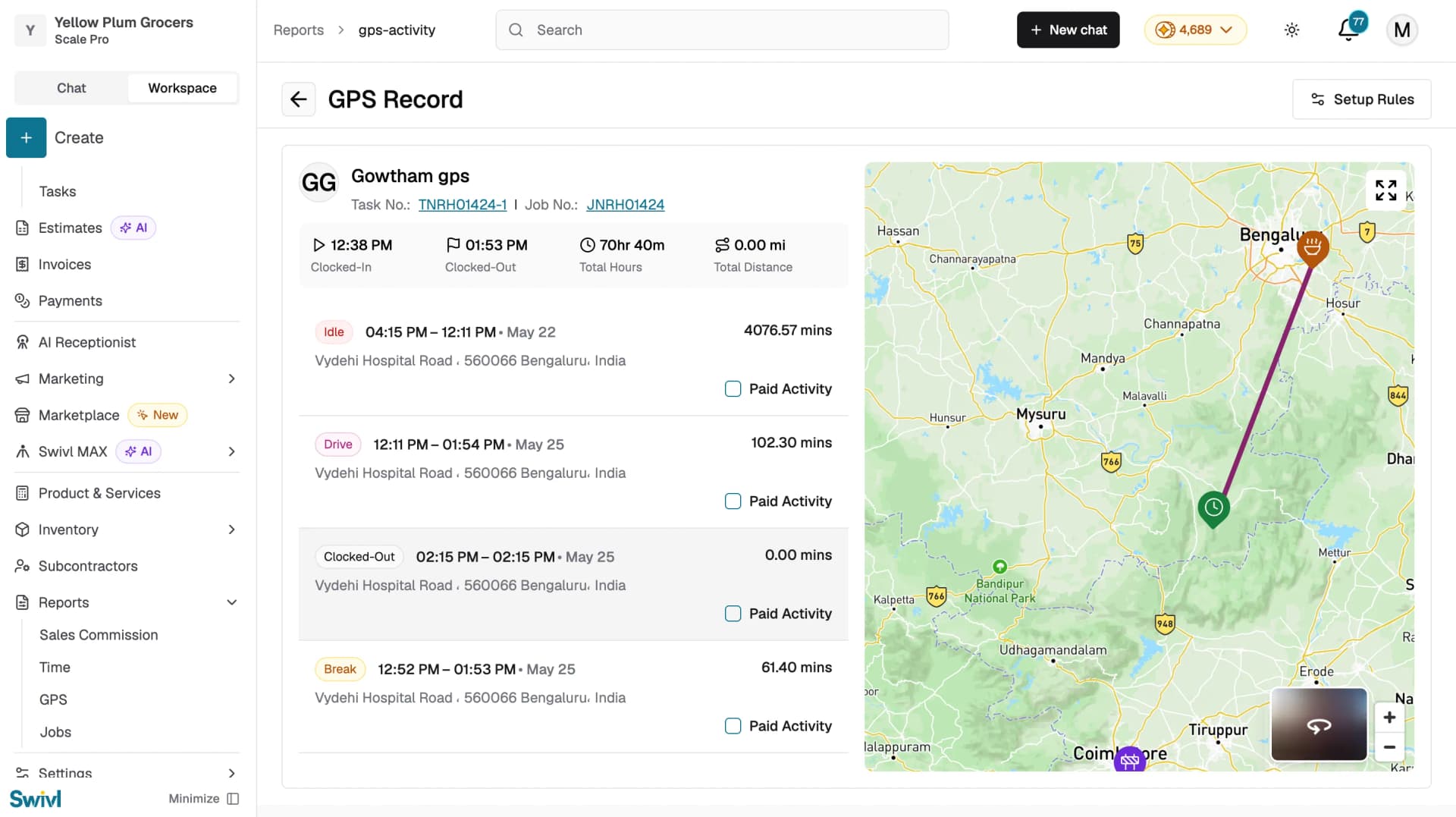
The system tracks the following during each shift:
- Position Coordinates: latitude and longitude recorded at regular intervals.
- Activity Segments: classified as Drive, On-Site, Idle, Break, or Supplier based on movement patterns and proximity to known locations.
- Timestamps: start and end times for each activity segment.
- Distance: total miles driven during the task.
Enabling and Disabling GPS Tracking
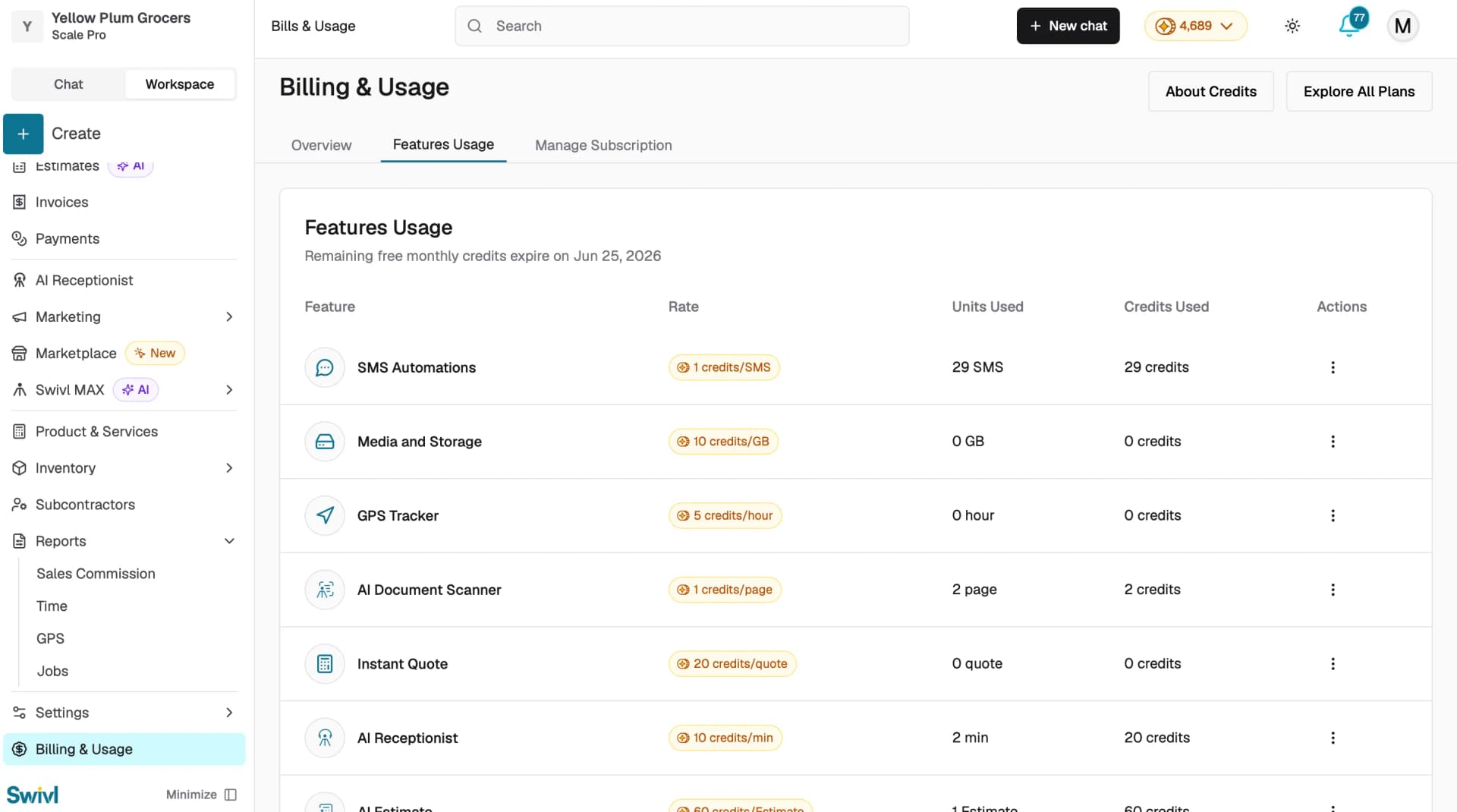
GPS tracking is an optional feature that must be activated for your account before it can be used.
- Go to Billing & Usage → Features & Usage.
- Find GPS Tracker.
- Click the three-dot menu and select Enable.
When GPS tracking is disabled, the GPS tab in Reports shows a "Feature Disabled" message and no location data is collected for any technician.
Access Controls
Access to GPS data is managed through Swivl's permission system:
- Super Admin: full access to all GPS reports, including the ability to mark activities as paid or unpaid.
- Other Roles: GPS report access is set to No Access by default. A Super Admin can grant access to any role Admin, Lead Technician, or Technician by editing role permissions under Settings → Team & Access → Roles.
Data Visibility
- Live Tracking: only available for technicians who are currently clocked in. Once they clock out, the live feed stops.
- Historical Data: GPS activity records are available in the Clocked-Out tab. Each record shows the route and activity timeline for a completed task.
- Addresses: GPS coordinates are automatically converted to street addresses in the activity timeline. Addresses are loaded on-demand when you open a record.
Best practices for responsible GPS use
- Inform your team: Let technicians know that GPS tracking is active during work hours and explain how the data is used, such as route verification, payroll accuracy, and safety.
- Limit access: Only grant GPS report access to users who need it for their role. Use Swivl's permission settings under Settings → Team & Access to restrict access.
- Use paid/unpaid controls fairly: The Paid Activity checkbox should accurately reflect compensable work. Avoid using it to penalize technicians for necessary breaks or travel time.
- Review data for its intended purpose: GPS data is designed for operational efficiency and payroll accuracy. Avoid using it for micromanagement or surveillance.
- Check local regulations: Some states and jurisdictions have specific requirements around employee location tracking, including notice requirements and data retention limits. Consult your legal advisor for guidance.
Data Retention
GPS activity records are retained as long as your account is active. If you need to manage data retention for compliance reasons, contact Swivl support for guidance on data export and deletion options.
Tips
- Review your GPS permission settings during onboarding to make sure only the right team members can access location data.
- Communicate your GPS tracking policy to new hires as part of their onboarding.
- Periodically audit who has access to GPS reports under Settings → Team & Access.
- If you disable GPS tracking, existing historical records remain available in Reports.