
Adding a Supplier (vendor)
Adding a supplier to Swivl creates a detailed profile you can reference when ordering materials, assigning tools, or tracking costs covering everything from contact details and addresses to supporting documents and social media links.
Overview
Adding a supplier to Swivl creates a detailed profile you can reference when ordering materials, assigning tools, or tracking costs. The supplier form captures everything from contact details and addresses to supporting documents and social media links.
Who can access this
- Super Admin: can create and edit supplier accounts.
- Admin: can create and edit supplier accounts.
How to add a new supplier
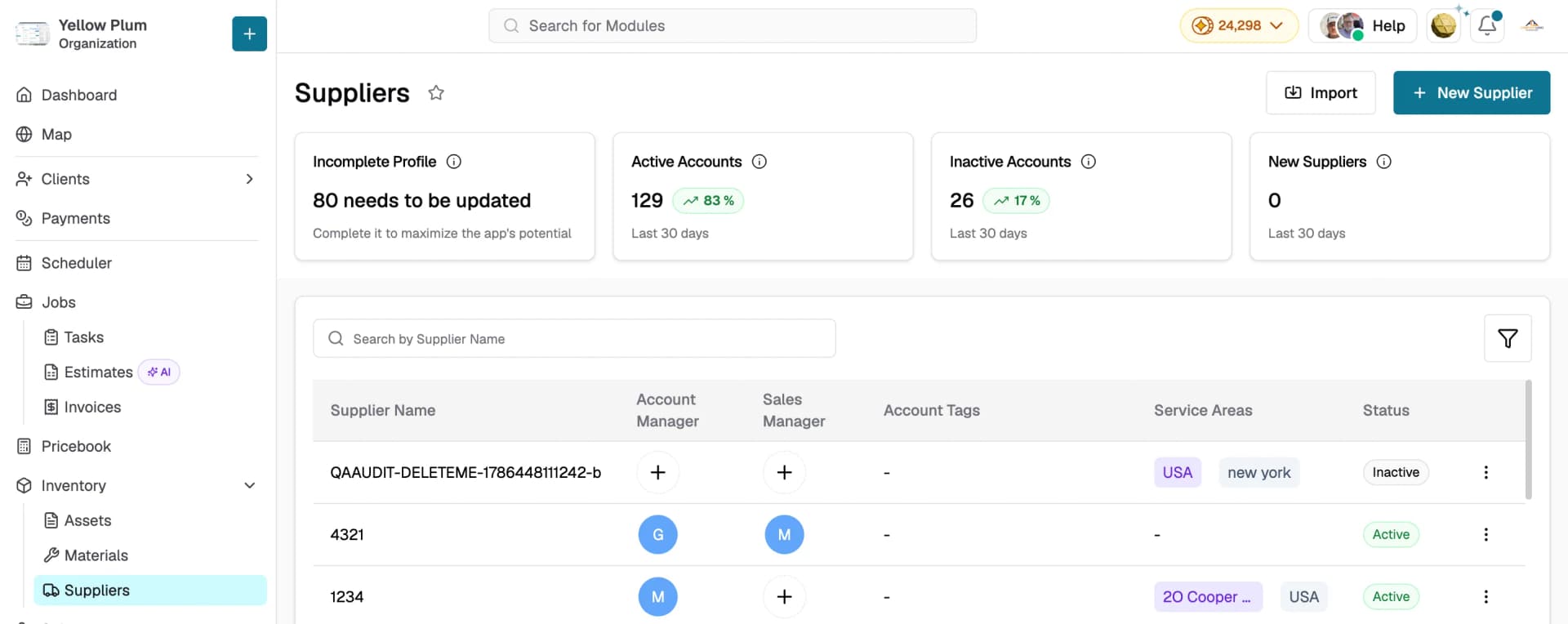
- Go to Inventory → Suppliers from the left sidebar
- Click New Supplier at the top right of the page
- Complete the fields described below
- Click Save
Primary details
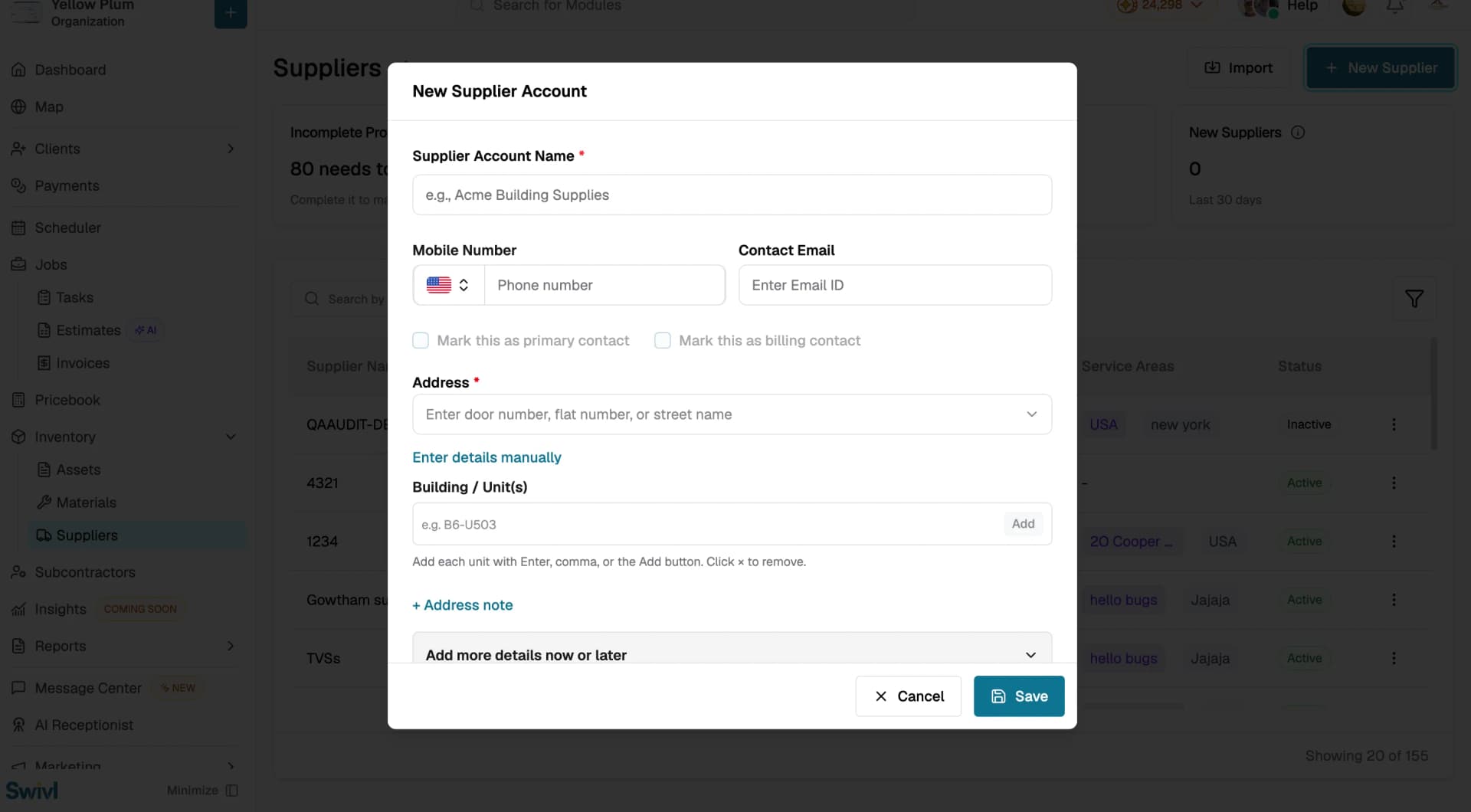
These fields appear as soon as the New Supplier Account window opens:
- Supplier Account Name (required)
- Mobile Number and Contact Email, with checkboxes to mark this as the primary or billing contact
- Address (required): search for it, or click Enter details manually
- Building / Unit(s): add one or more units, and + Address note for any special instructions
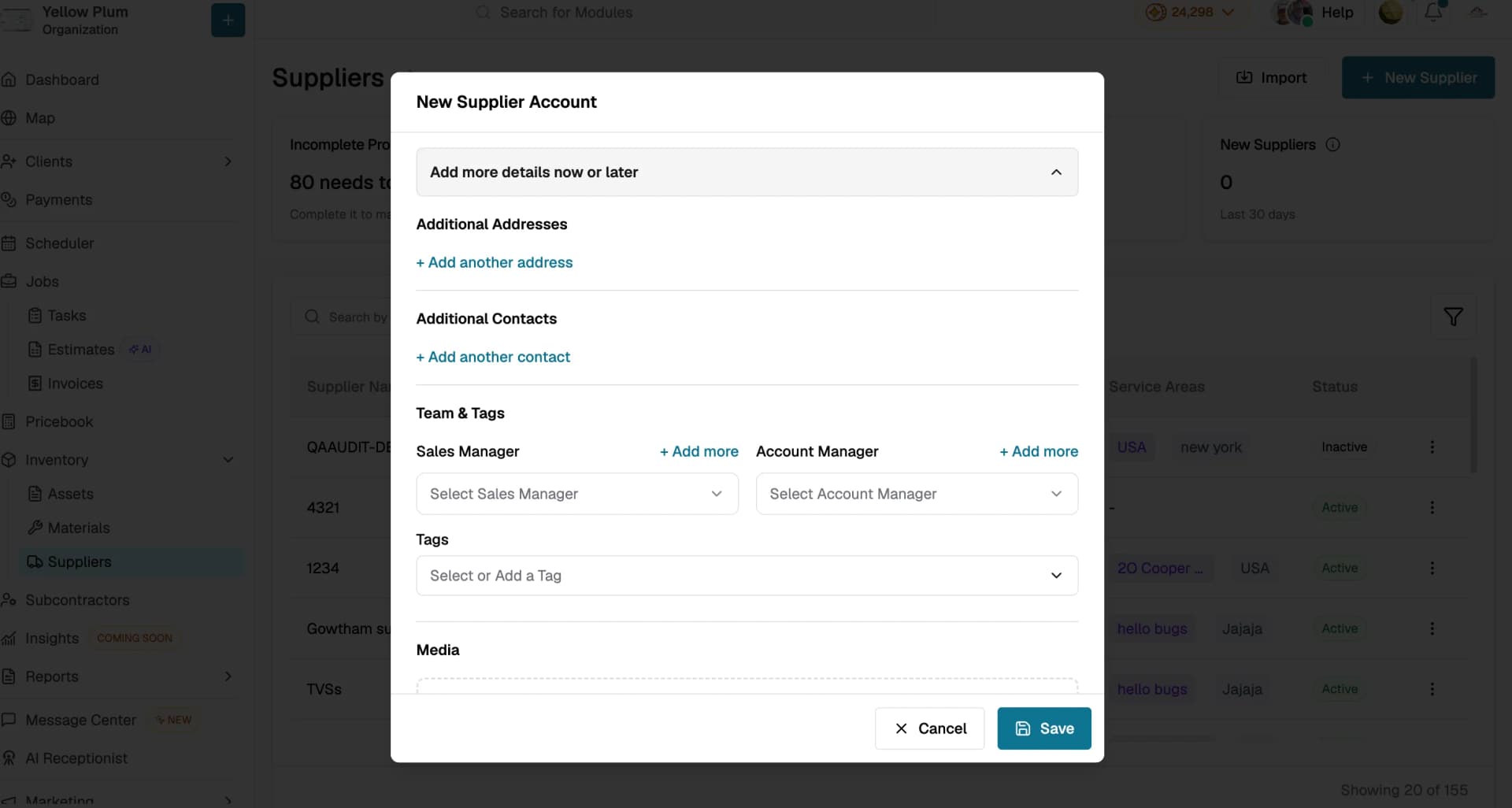
Add more details now or later
Expand this section to add Additional Addresses, Additional Contacts, a Sales Manager and Account Manager under Team & Tags, Tags, and Media. You can also leave it collapsed and fill it in later by editing the supplier.
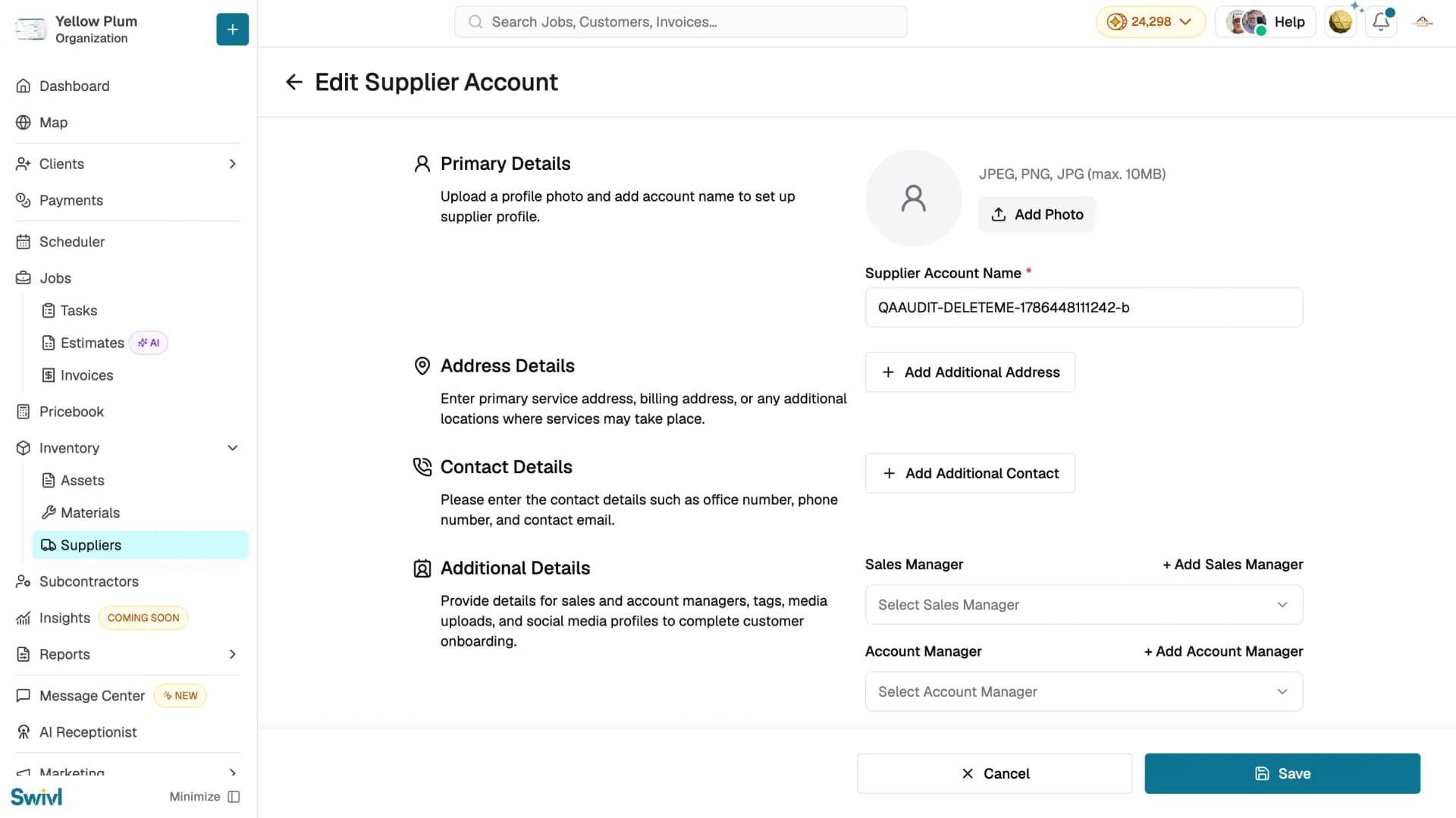
Editing a supplier
- Go to Inventory → Suppliers from the left sidebar
- Click the three-dot menu next to the supplier you want to update
- Select Edit
- The form opens pre-filled with the supplier's current information. Make your changes and click Save
Tips
- Enter the mobile number and email in the primary section and mark the primary contact right away, so your team has a reachable point of contact from day one
- You don't need to complete the whole profile in one sitting — save the essentials and expand Add more details now or later when you have time
- Upload key documents such as insurance certificates and contracts directly to the supplier profile so they are always easy to find
- You can also create a new supplier on the fly from other areas of Swivl; it will open the same form