
How to Send an Estimate to a Customer ?
Send estimates to customers through email or SMS, collect approvals or deposits, and track estimate status directly from Swivl.
Overview
Once an estimate has been created, it can be sent directly to the customer through email or SMS. Customers can review the estimate in Swivl, approve or decline it, request changes, or pay a deposit from the shared link. If the customer is present in person, you can also use Onsite Approval to collect a signature or stamp directly on your device.
Who can access this
Role | Access Level |
|---|---|
Super Admin | Can create, edit, and manage all estimates |
Admin | Can create, edit, and manage all estimates |
Lead Technician | View-only access to estimates |
Technician | No access |
How to send an estimate
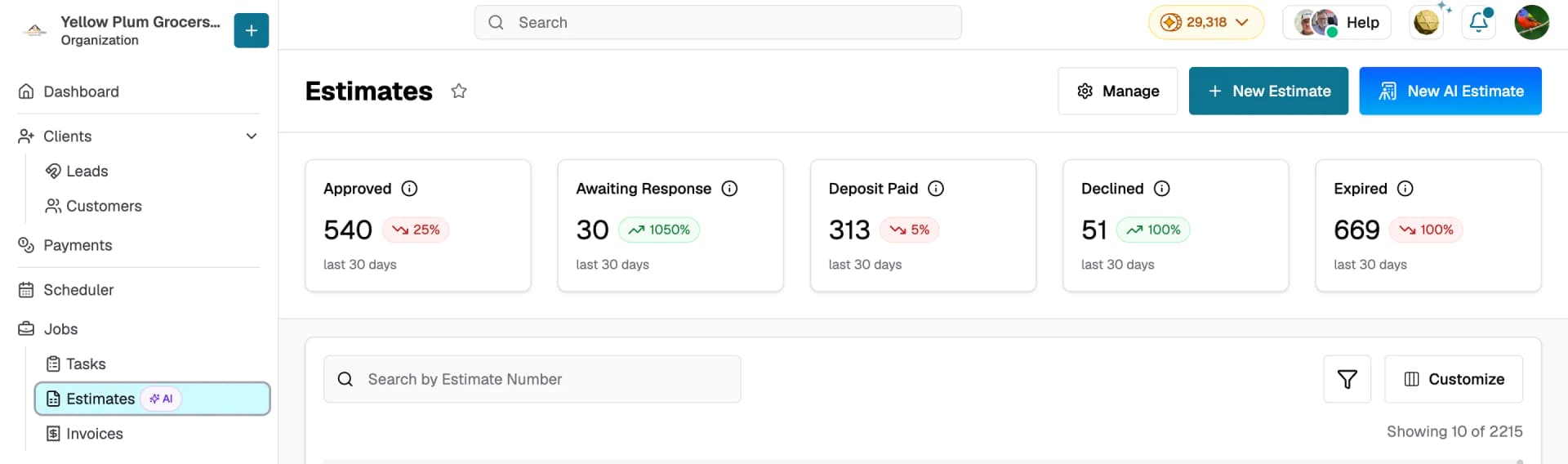
- Open the estimate you want to send. You can find it under Jobs> Estimates or navigate to it after creating one.
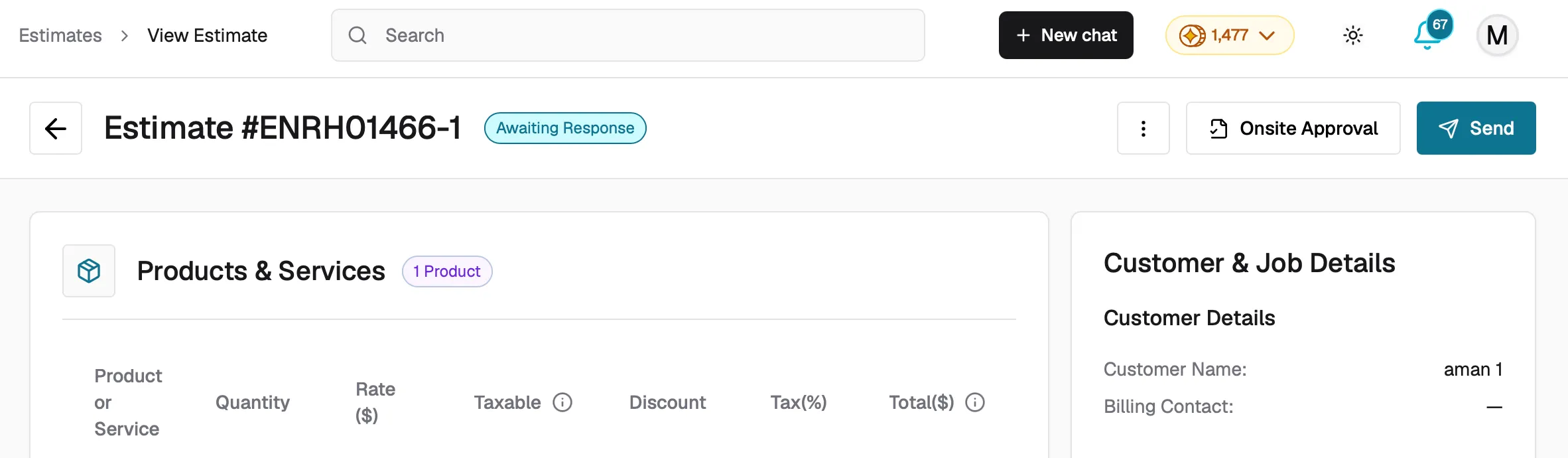
- On the estimate review page, click the Send button in the header or footer bar.
- If your company email has not been verified yet, you will be prompted to verify it first. A verification email will be sent to your company email address , follow the instructions to confirm.
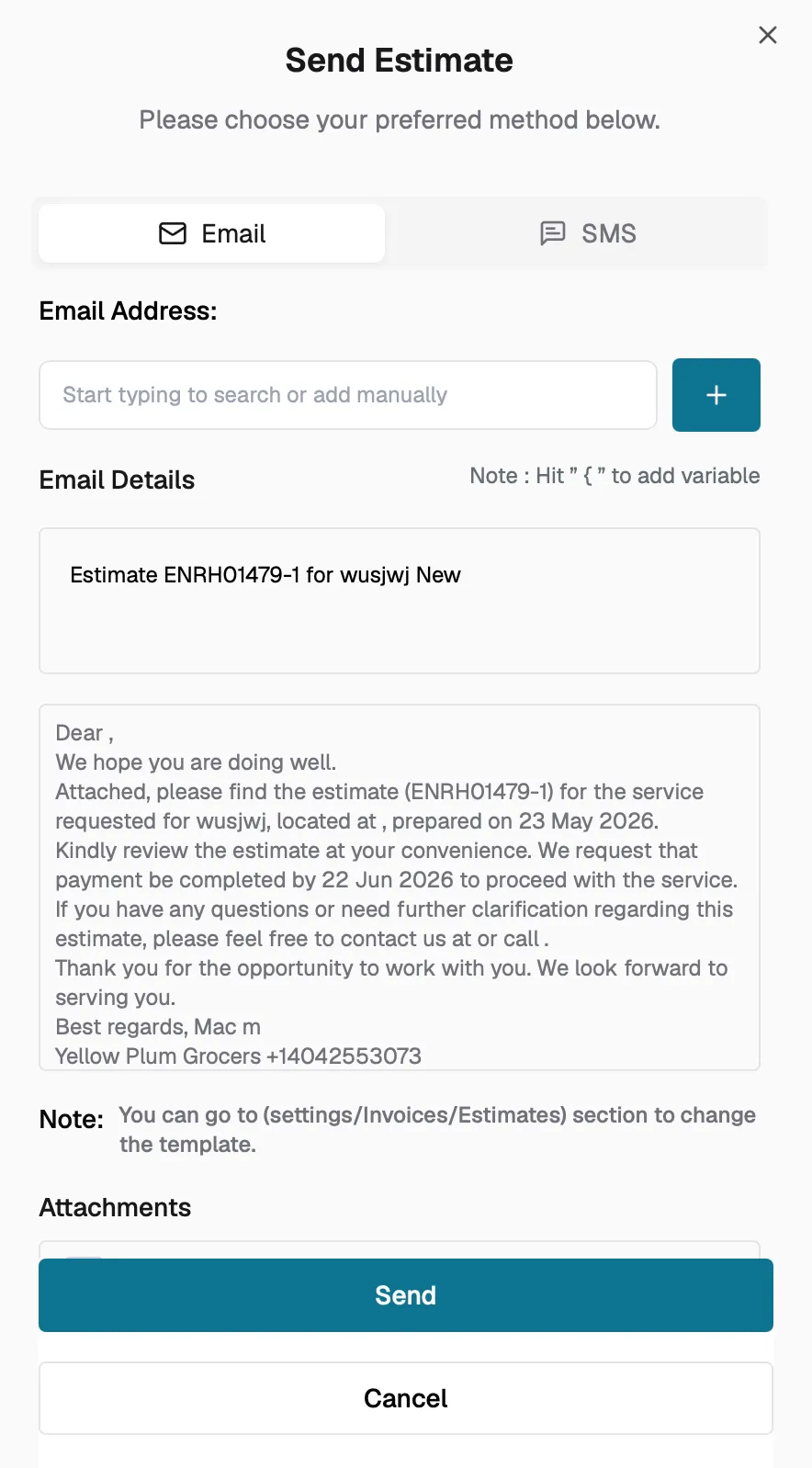
- Once verified, the Send dialog opens with two tabs: Email and SMS.
Sending via email
- The To field is pre-populated with the customer's email. You can add additional recipients.
- Review the Subject line: it is auto-filled based on your company's email template settings.
- Review and edit the Email Body. You can use placeholders like customer name, estimate number, and site address that auto-fill with the correct values.
- A PDF of the estimate is automatically attached.
- Click Send to deliver the email.
Sending via SMS
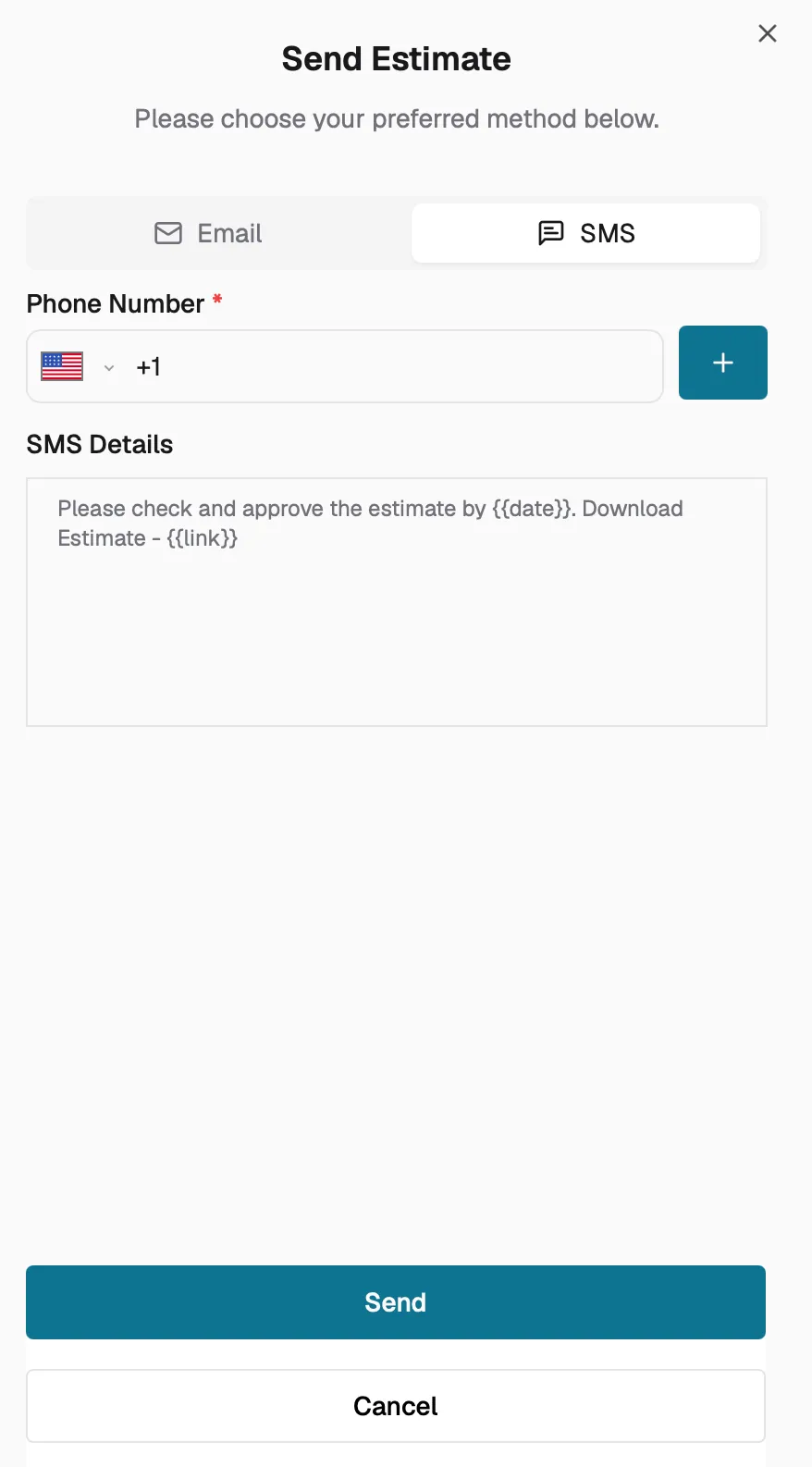
- Enter or confirm the customer's phone number.
- The message body is pre-filled with a link to view the estimate online.
- Click Send to deliver the SMS.
Onsite Approval
If the customer is present in person, you can skip sending and use Onsite Approval instead:
- From the estimate review page, click Onsite Approval.
- The customer can review the estimate on your device.
- They can approve and sign directly on screen.
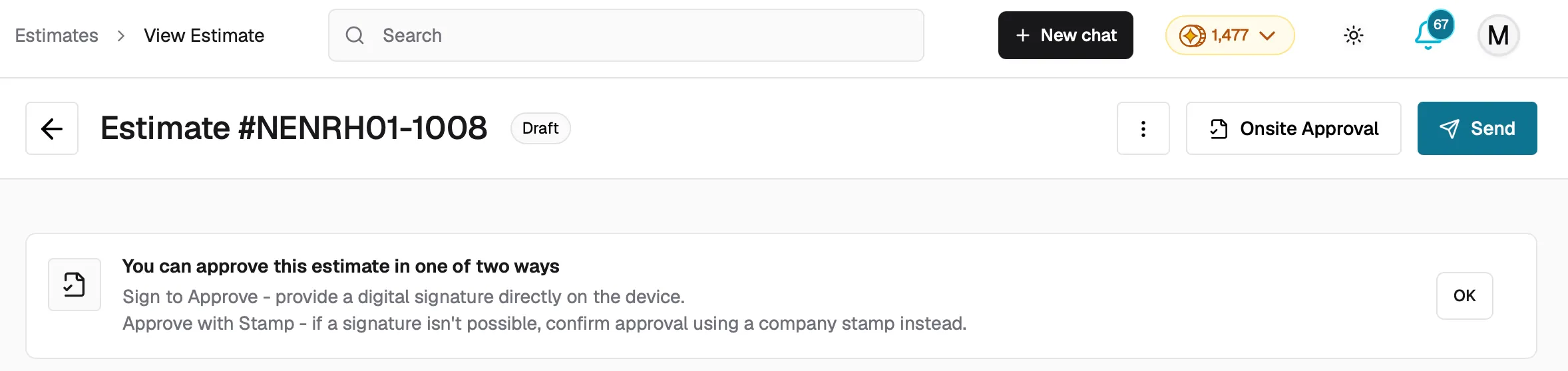
This option is available for estimates in Draft status (when the estimate has a total amount greater than zero) or Open status.
Resending an estimate
- You can resend an estimate at any time as long as it is not voided. Simply open the estimate and click Send again. This is useful if the customer did not receive the first message or if you have made updates.
Once the estimate is sent, your customer will receive it via email or SMS and can review, approve, decline, or request changes directly from the shared link. You can track the estimate status at any time under Work Order > Estimates.
Tips
- Verify your company email before your first send to avoid delays.
- Customize your default email subject and body in your company settings so every estimate goes out with consistent branding.
- Use the Preview tab to double-check the estimate document before sending.

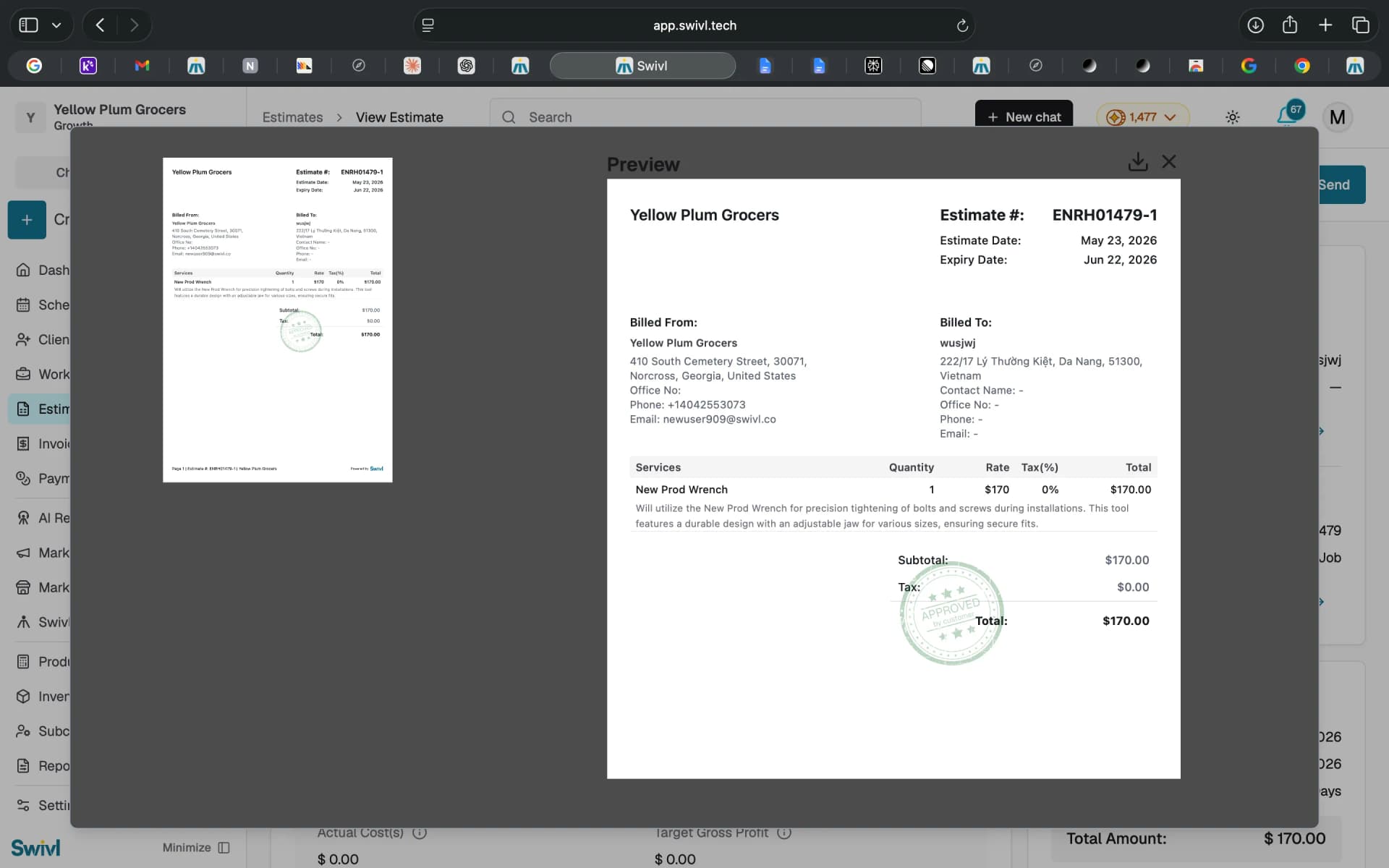
- After sending, the estimate status changes from Draft to Open.