
Subcontractors
Assigning a subcontractor to a Task
When a job requires outside help, you can assign a subcontractor directly to a task or request bids from multiple subcontractors, keeping all assignment details tied to the job.
Overview
Assigning subcontractors to tasks keeps all outside work organised within the job. You can assign a subcontractor directly or request bids from multiple contractors before making a final decision giving your team full visibility at every step.
Who can access this
- Super Admin: can assign subcontractors to tasks.
- Admin: can assign subcontractors to tasks.
- Lead Technician: view-only access to assignments.
- Technician: view-only access to assignments.
How to assign a subcontractor to a task
Option A: Assign directly
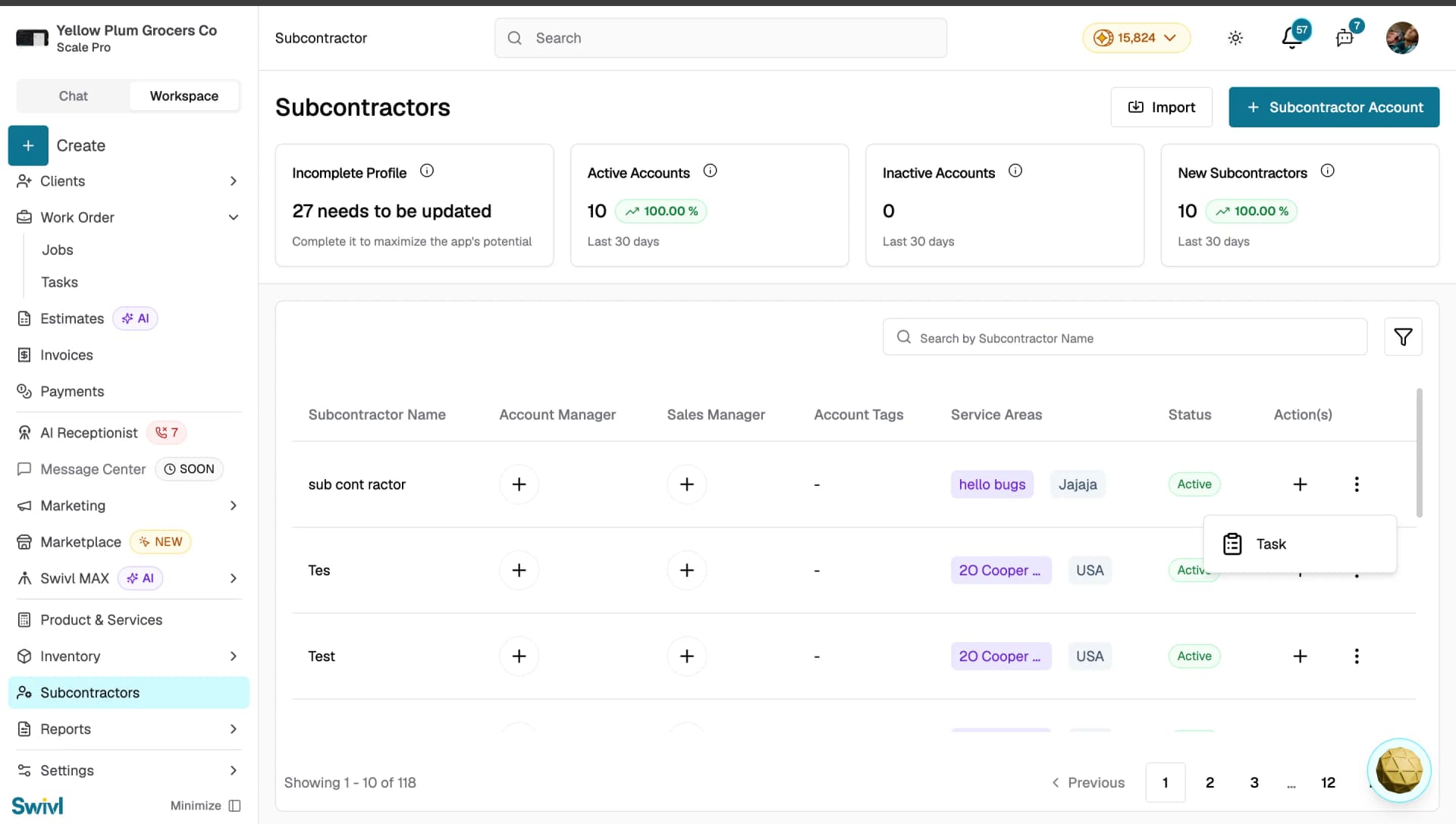
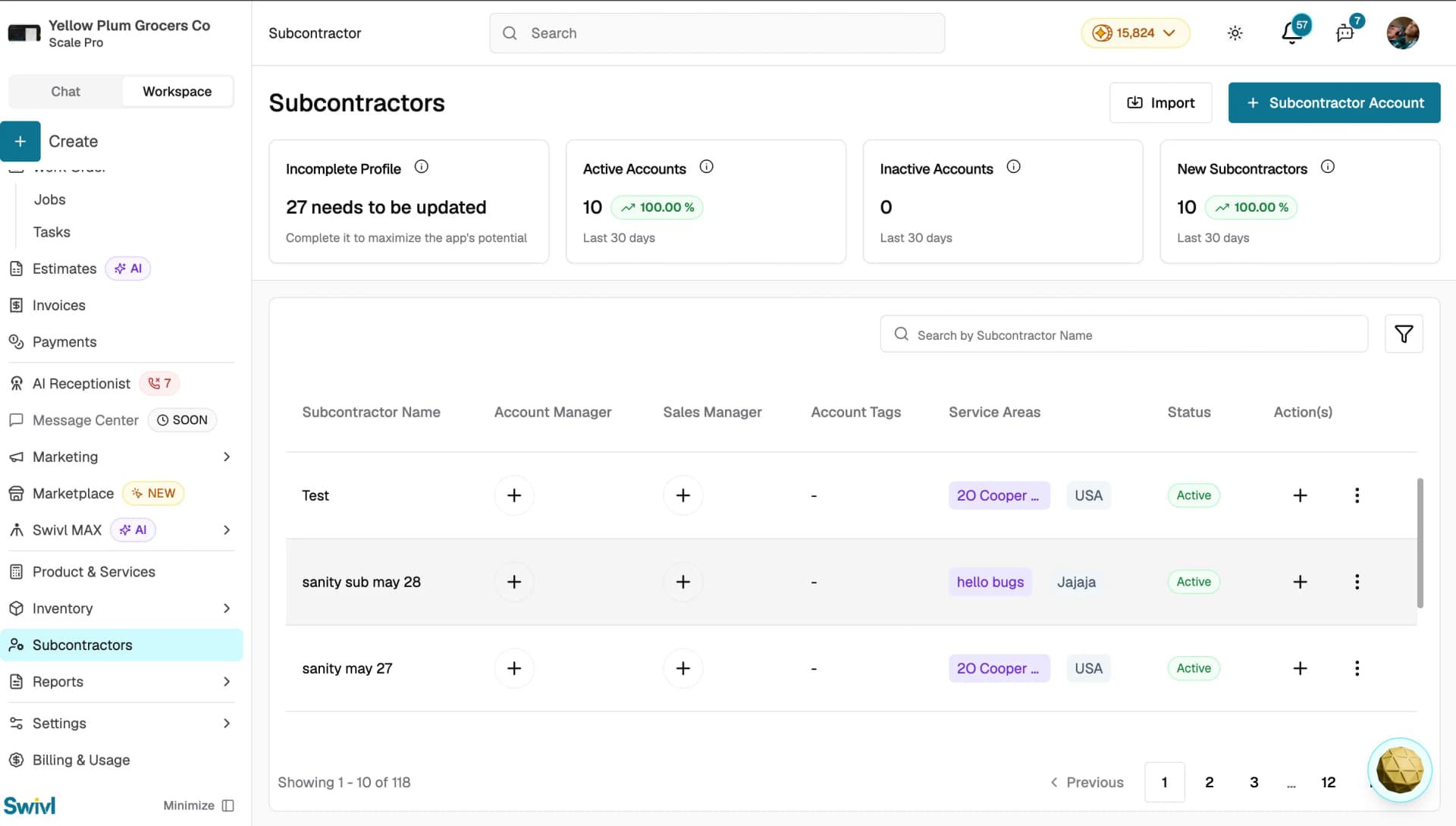
- Open the task creation form from Work Order → Tasks, from a job, the Scheduler, or by clicking the + button on a subcontractor row and selecting Task
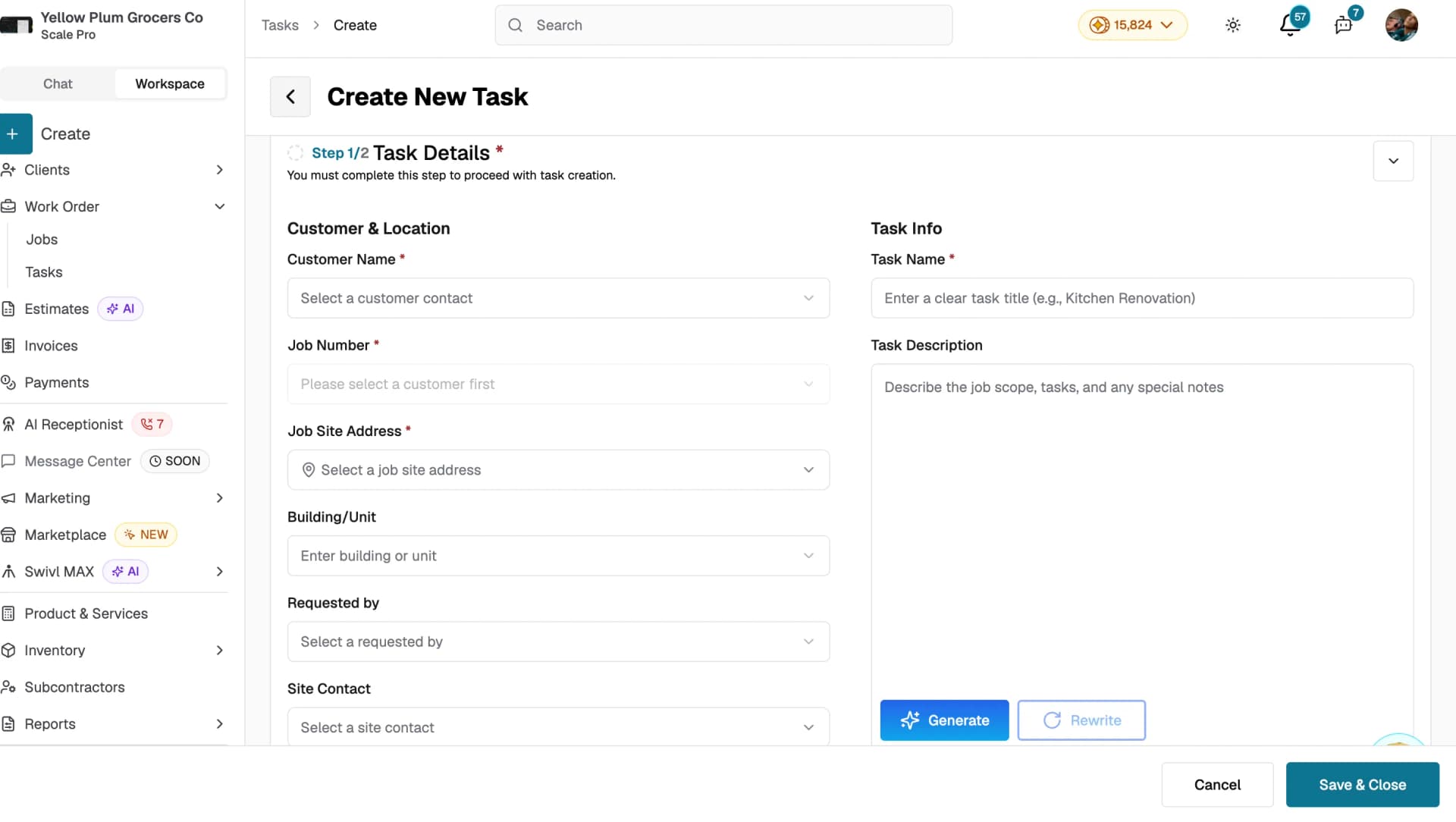
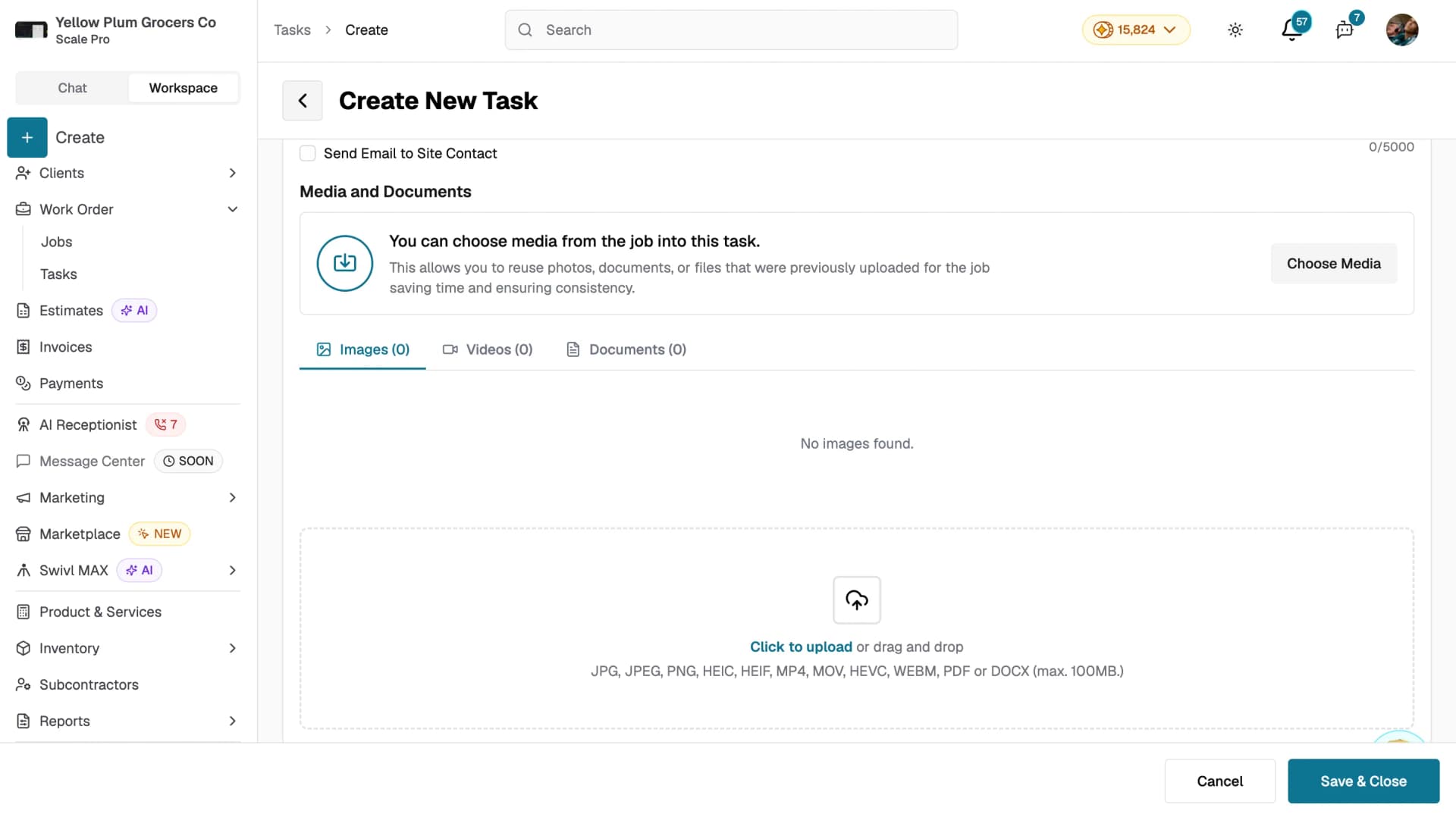
- Fill in the task details including customer, job, address, task name, and description
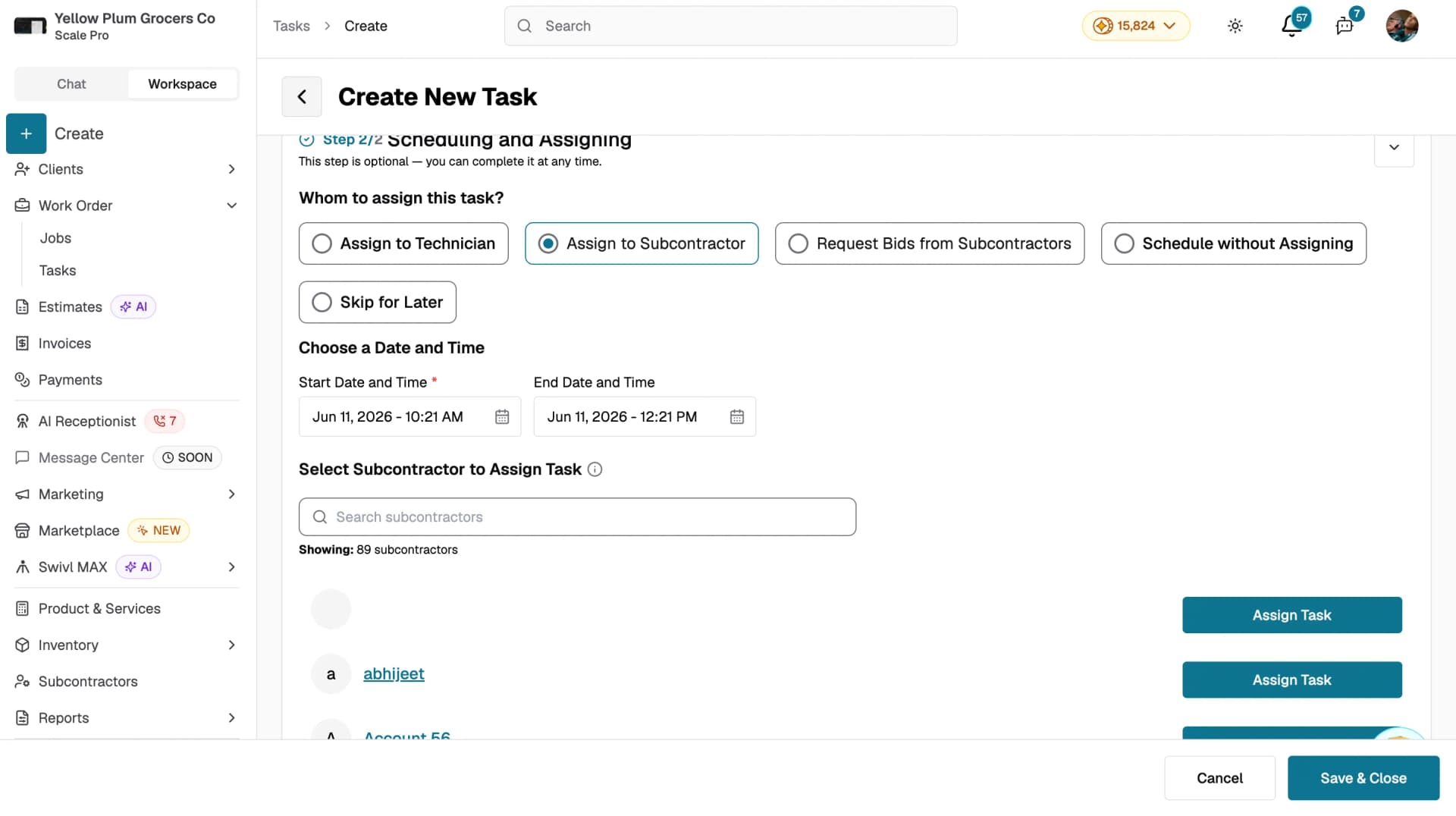
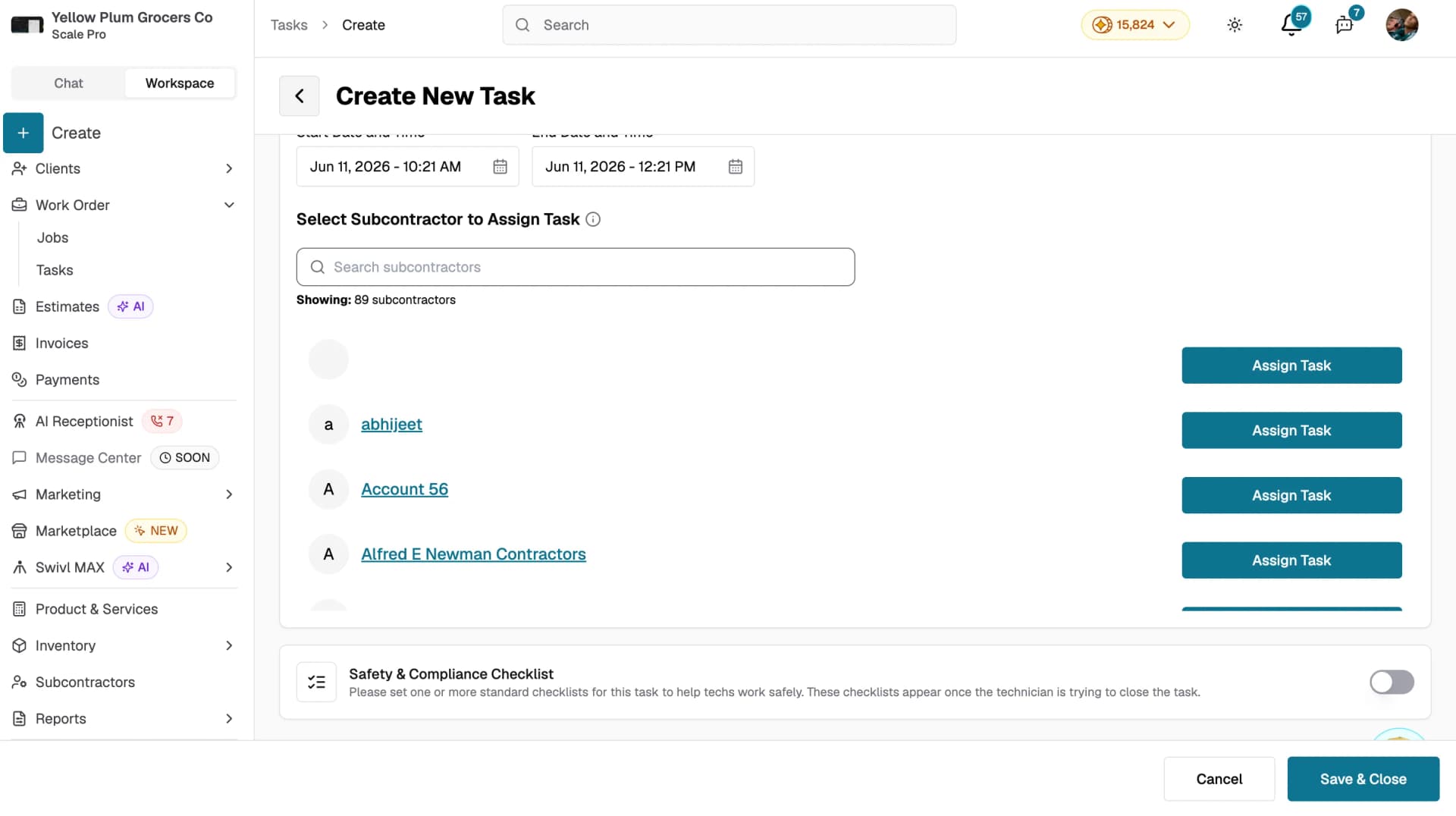
- In the Scheduling and Assigning section, select Assign to Subcontractor
- Set the Start Date and Time and End Date and Time
- Search for and select a subcontractor from the list and click Assign Task
- Click Save & Close
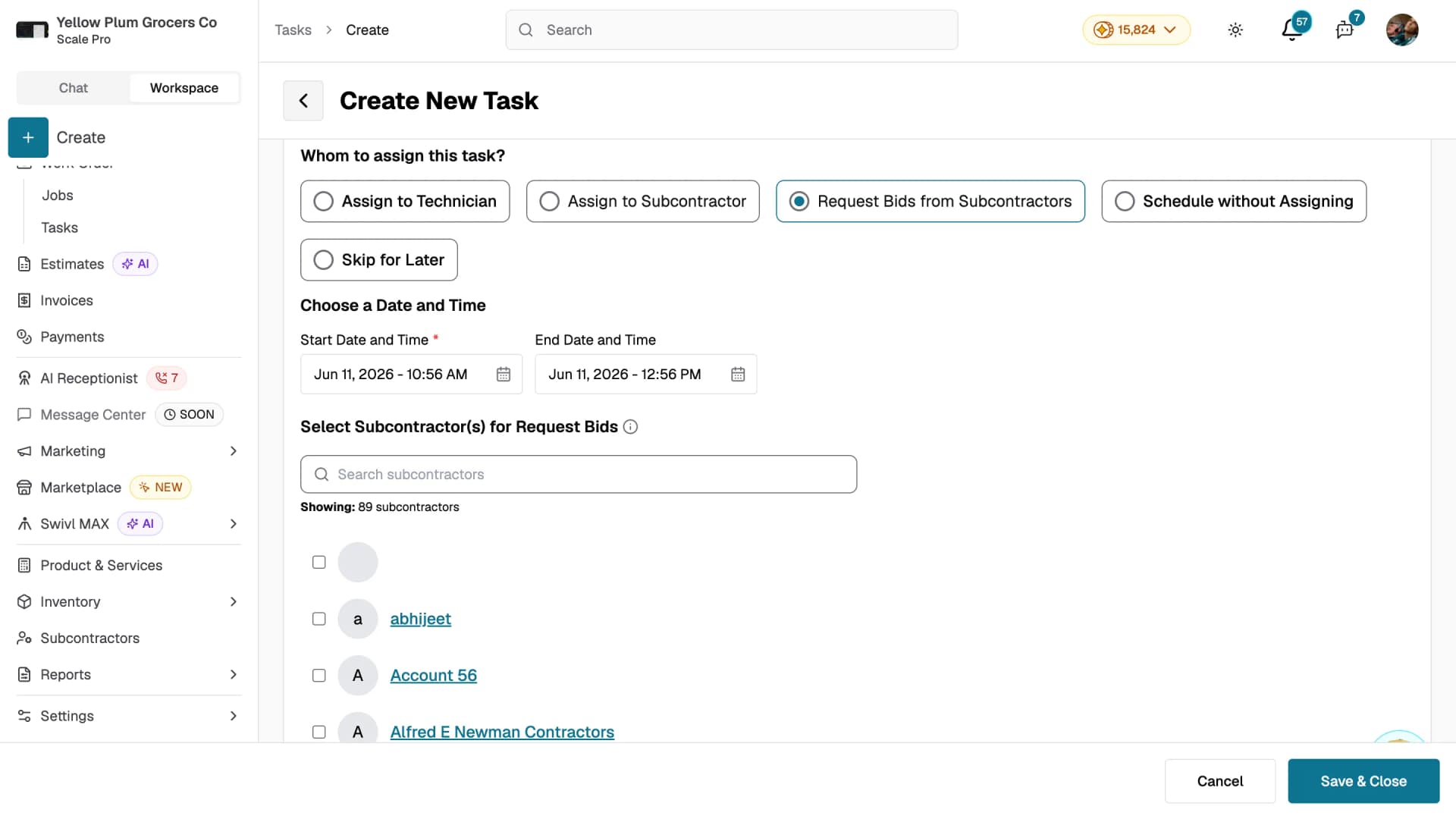
Option B: Request bids from subcontractors
- Follow the same steps as Option A, but in the Scheduling and Assigning section select Request Bids from Subcontractors instead
- Search for and select one or more subcontractors you want to request a bid from
- Click Save & Close selected subcontractors will be notified about the bid requestAssigning from the subcontractor list
Viewing assigned jobs and tasks
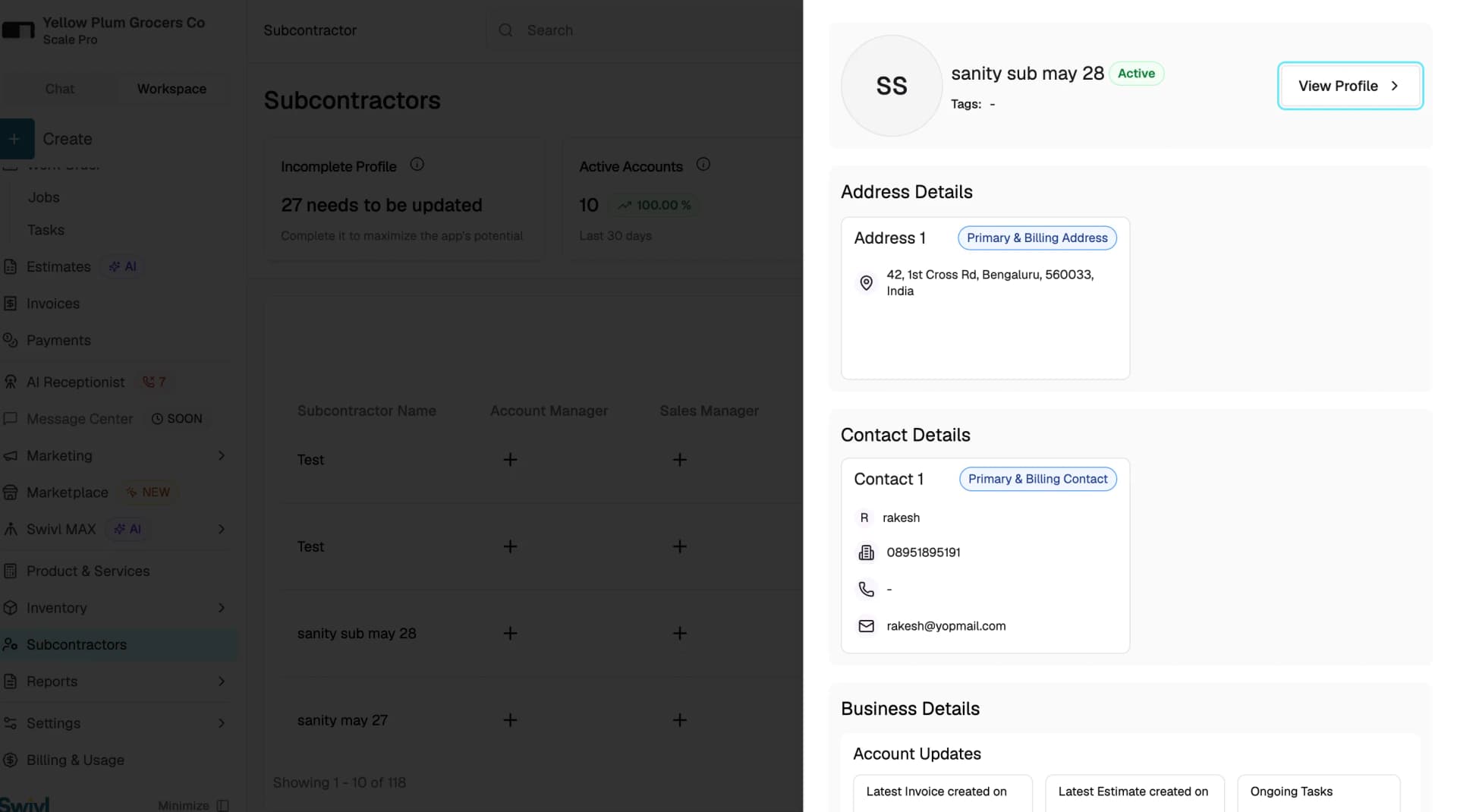
- Go to Subcontractors and click on a subcontractor row to open the quick-view panel
- Click View Profile to open the full subcontractor profile
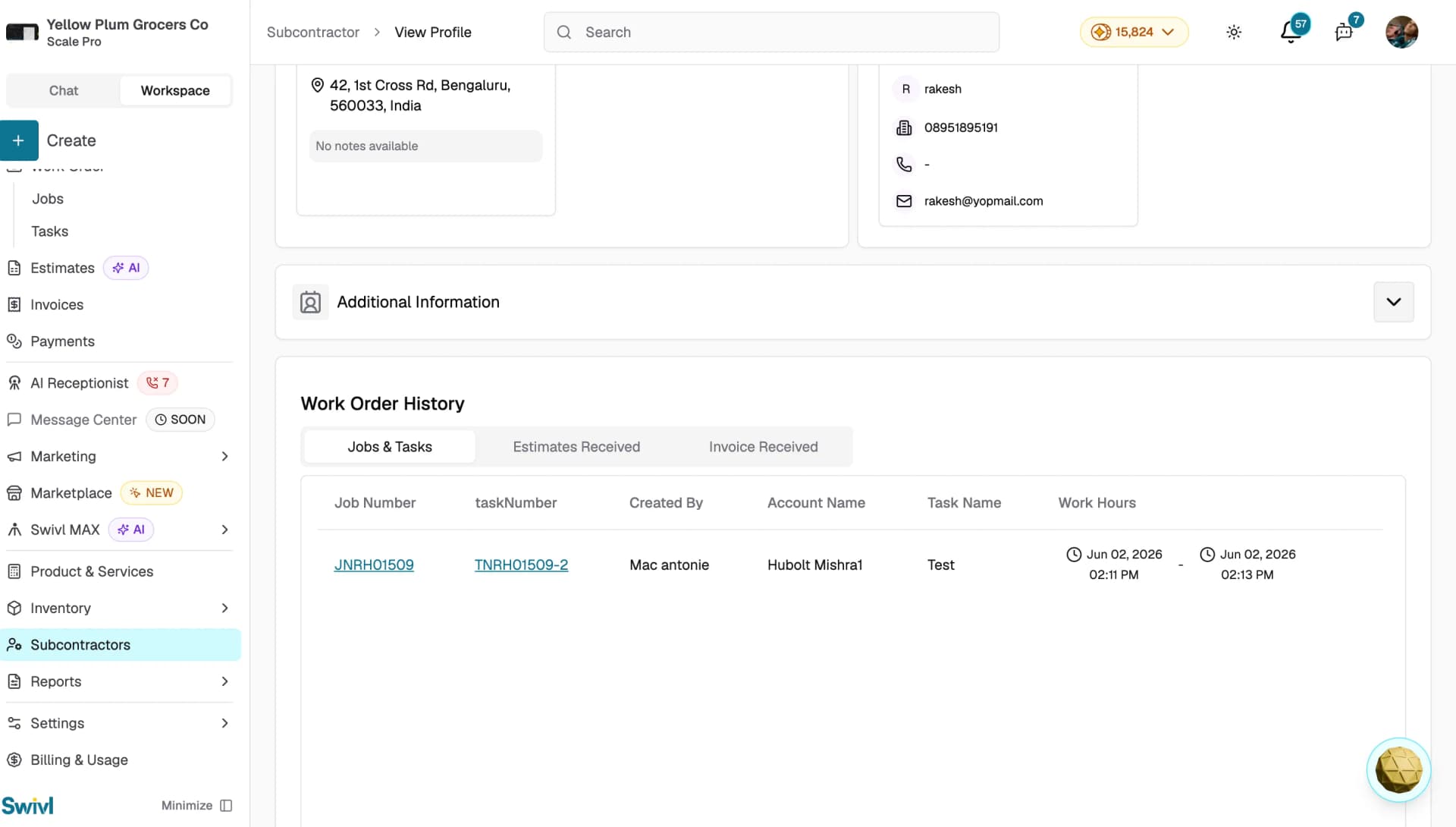
- Scroll down to the Work Order History section
- Select the Jobs & Tasks tab to see all tasks assigned to that subcontractor
The table shows Job Number, Task Number, Created By, Account Name, Task Name, and Work Hours for every task assigned to that subcontractor.
Tips
- Use Request Bids from Subcontractors when you want to compare pricing from multiple subcontractors before making a final assignment
- You can create a new subcontractor account on the fly during task creation if the contractor is not yet in the system
- Check a subcontractor's Work Order History before assigning new work to see their current workload
- Only active subcontractor accounts appear in the assignment list if a subcontractor is missing, check that their account status is set to Active