
Getting Started with AI Receptionist
AI Receptionist is a Swivl MAX add-on that handles your inbound calls around the clock. It greets callers, collects their information, and logs leads in Swivl automatically.
Overview
AI Receptionist is a Swivl MAX add-on that answers your business phone calls around the clock using an AI-powered voice agent. It greets callers, captures their contact information and service needs, and creates leads automatically in Swivl , so you never miss an opportunity, even after hours or on holidays.
Who can access this
Role | Access level |
|---|---|
Super Admin | Full access to set up, configure, and view call logs |
Admin | Can view call logs and call details but cannot change receptionist settings |
Lead Technician / Technician | No access to AI Receptionist features |
Plans
AI Receptionist is available on the Scale Pro and Organization plans. It is not included in the Starter or Growth plans.
Usage is charged at 10 credits per minute from your account's credit balance.
Receptionist Setup
Before getting started, make sure AI Receptionist is enabled on your account. You can find and enable it under Bills & Usage → Feature Usage.
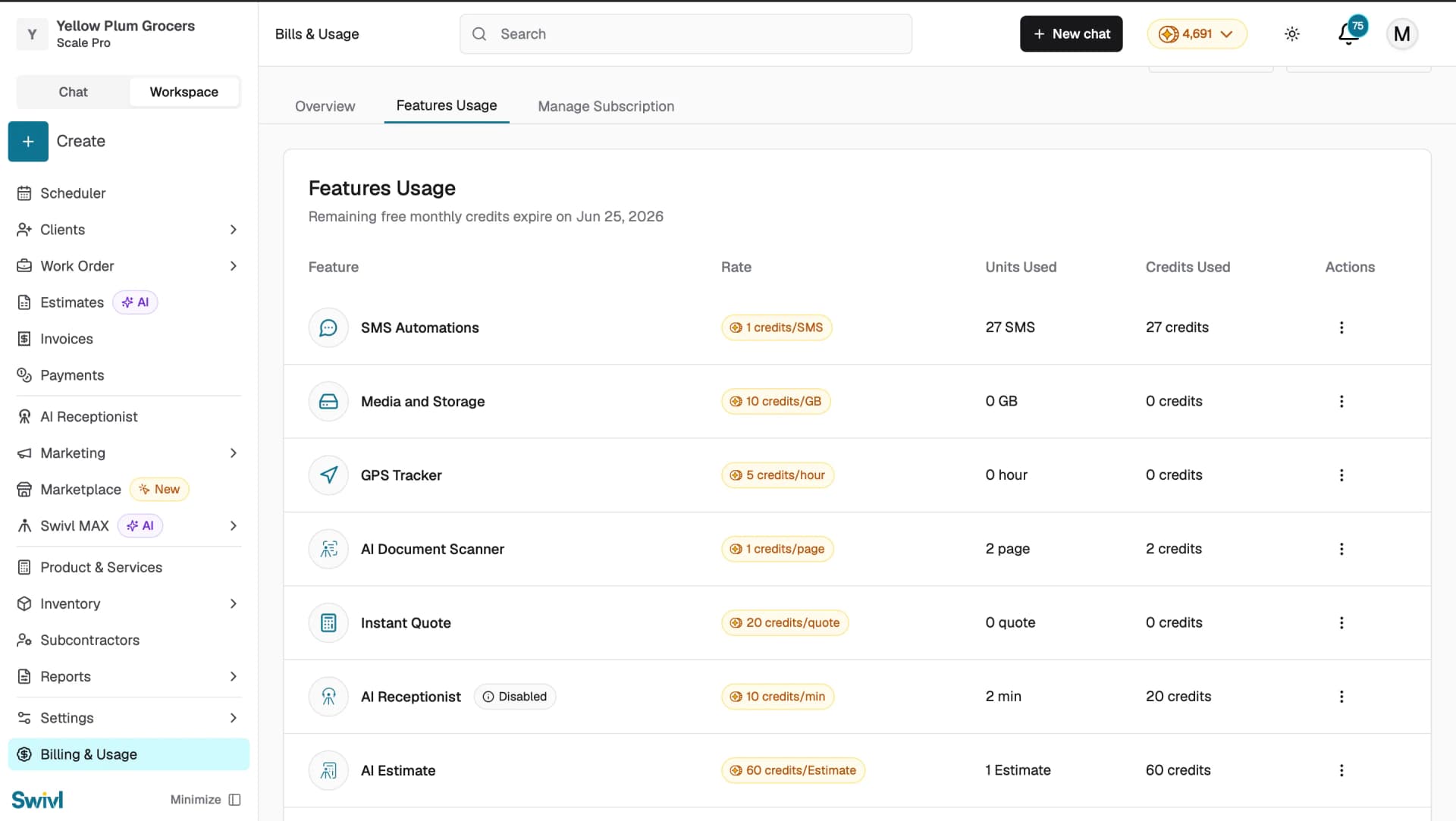

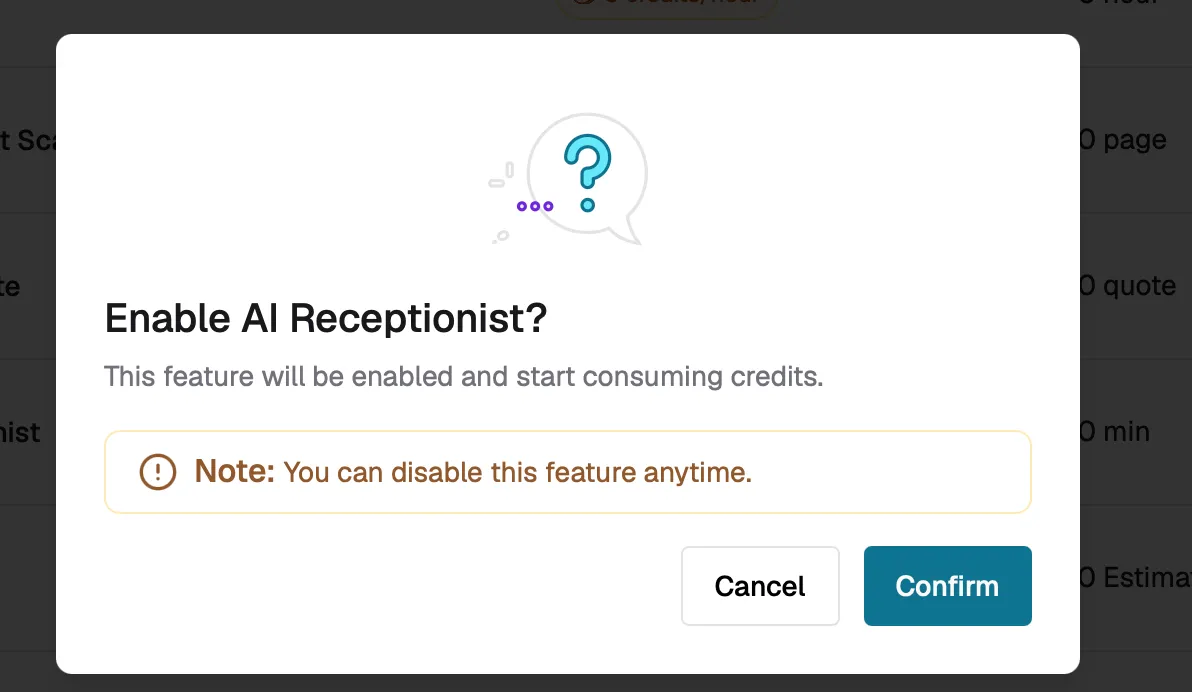
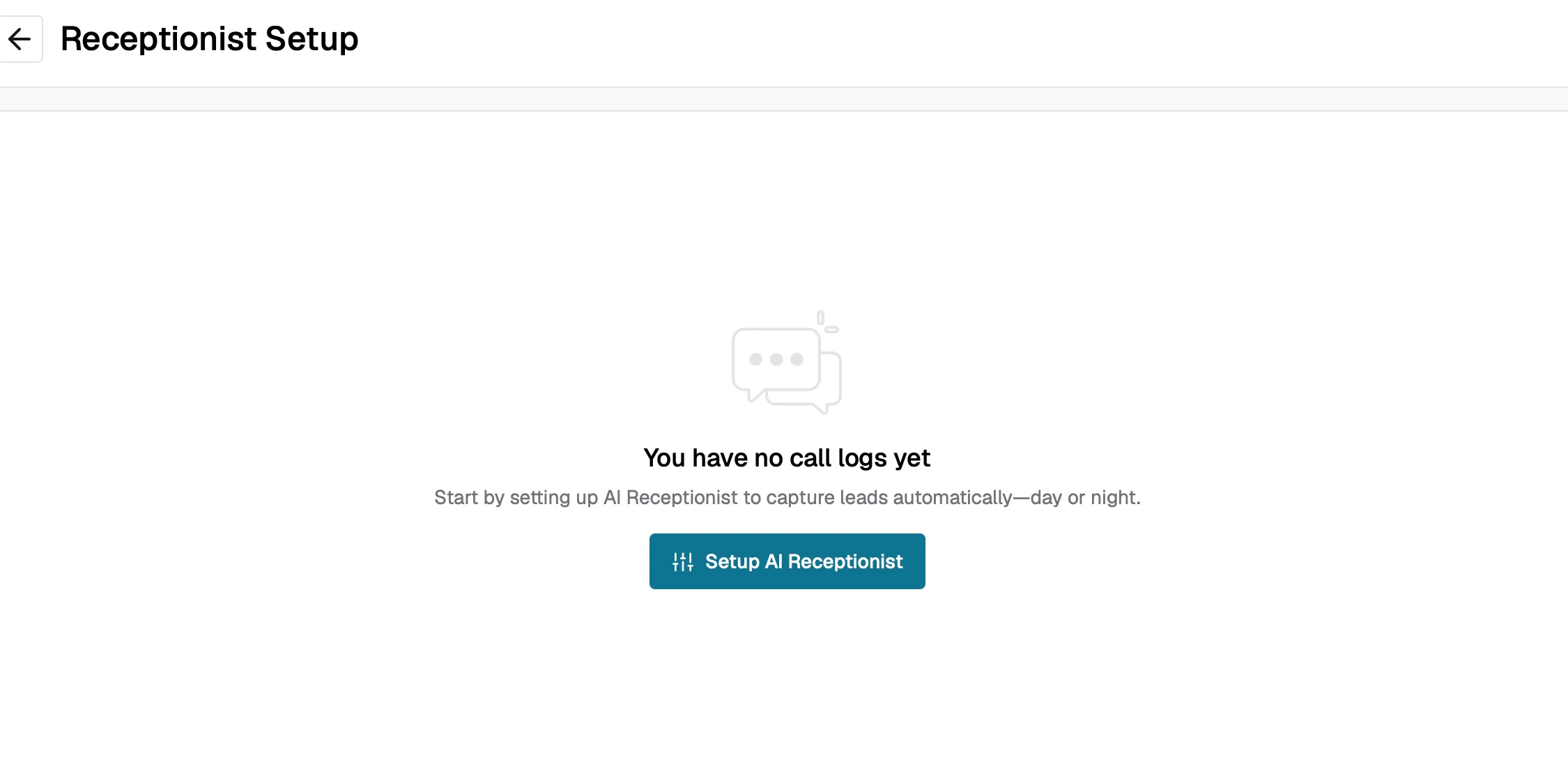
To get started, click on Setup AI Receptionist.
The setup has four steps:
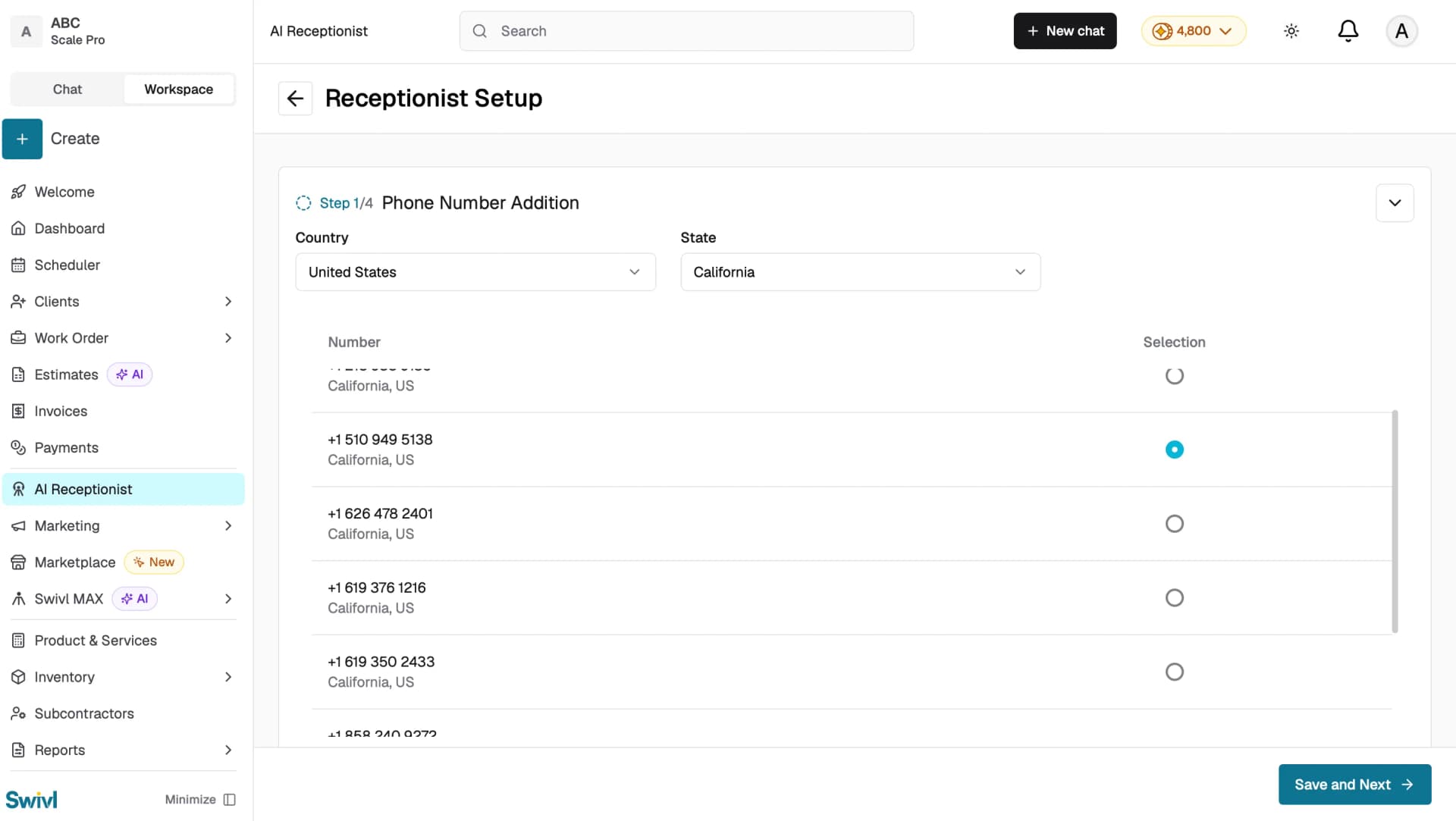
Step 1: Phone Number Addition
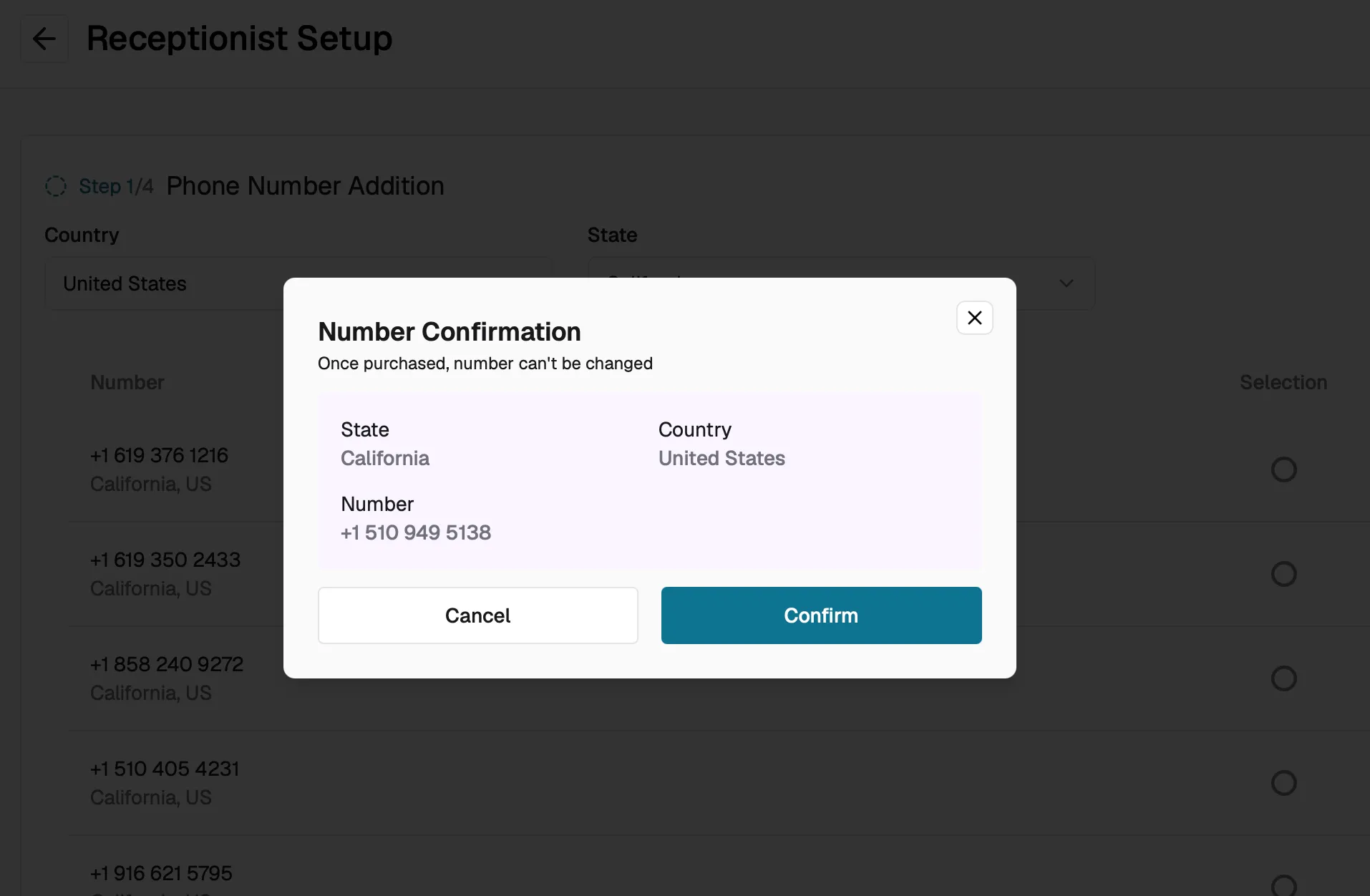
During setup you purchase a dedicated phone number for your AI Receptionist. The number comes with a recurring monthly fee that is shown before you confirm the purchase.
Key details:
- The monthly fee varies based on the country and state of the number you select.
- The fee is displayed on the number selection screen and confirmed in the Number Confirmation dialog before purchase.
- Once purchased, the phone number cannot be changed, so review the details carefully before clicking Confirm.
Step 2 : Receptionist Customization
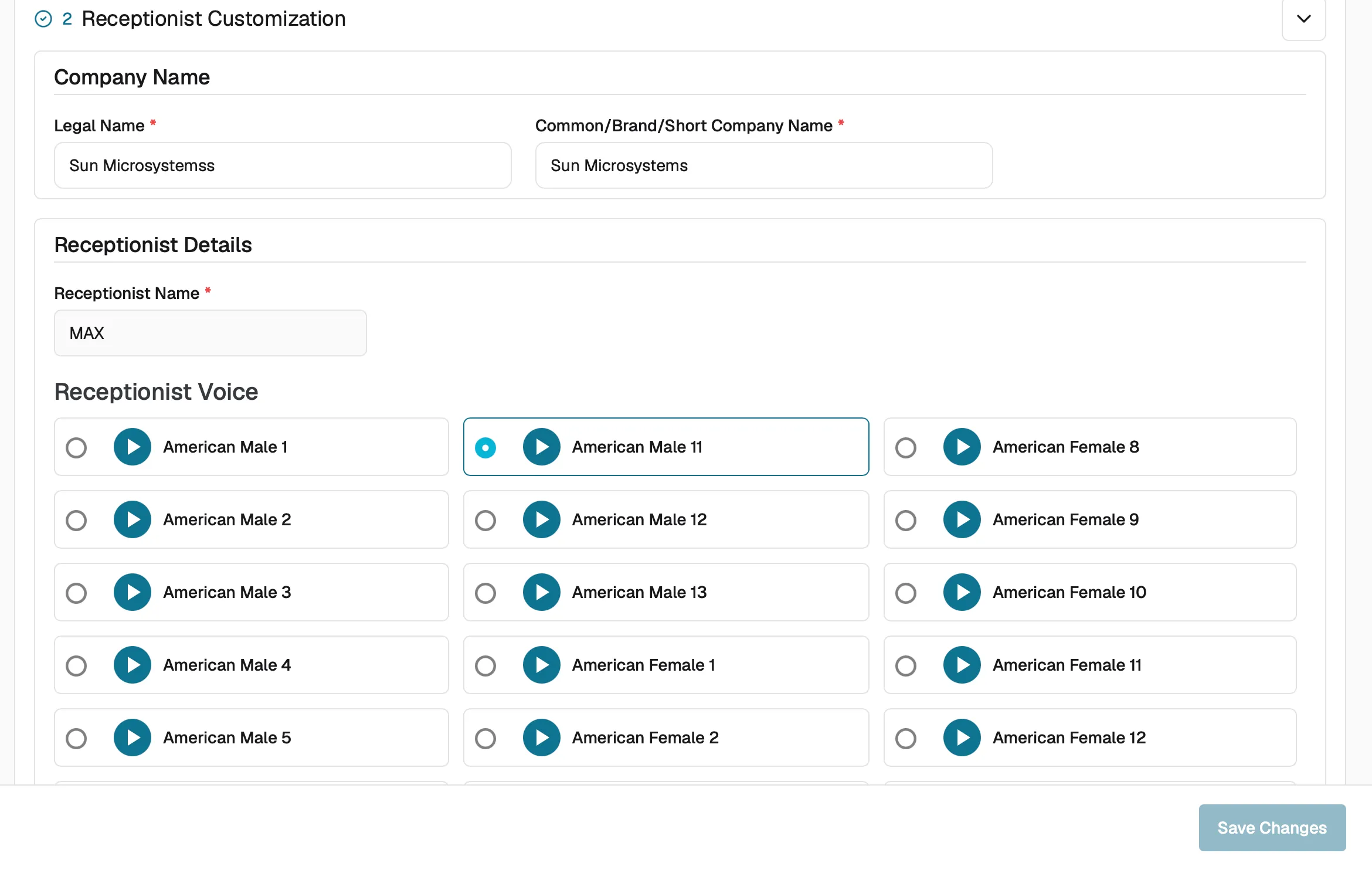
Configure how your AI Receptionist presents itself:
- Company Name : Enter your legal name and brand/short name.
- Receptionist Name : Give your AI agent a name (e.g. MAX).
- Receptionist Voice : Choose from a range of male and female voices. Click the play button to preview each one.
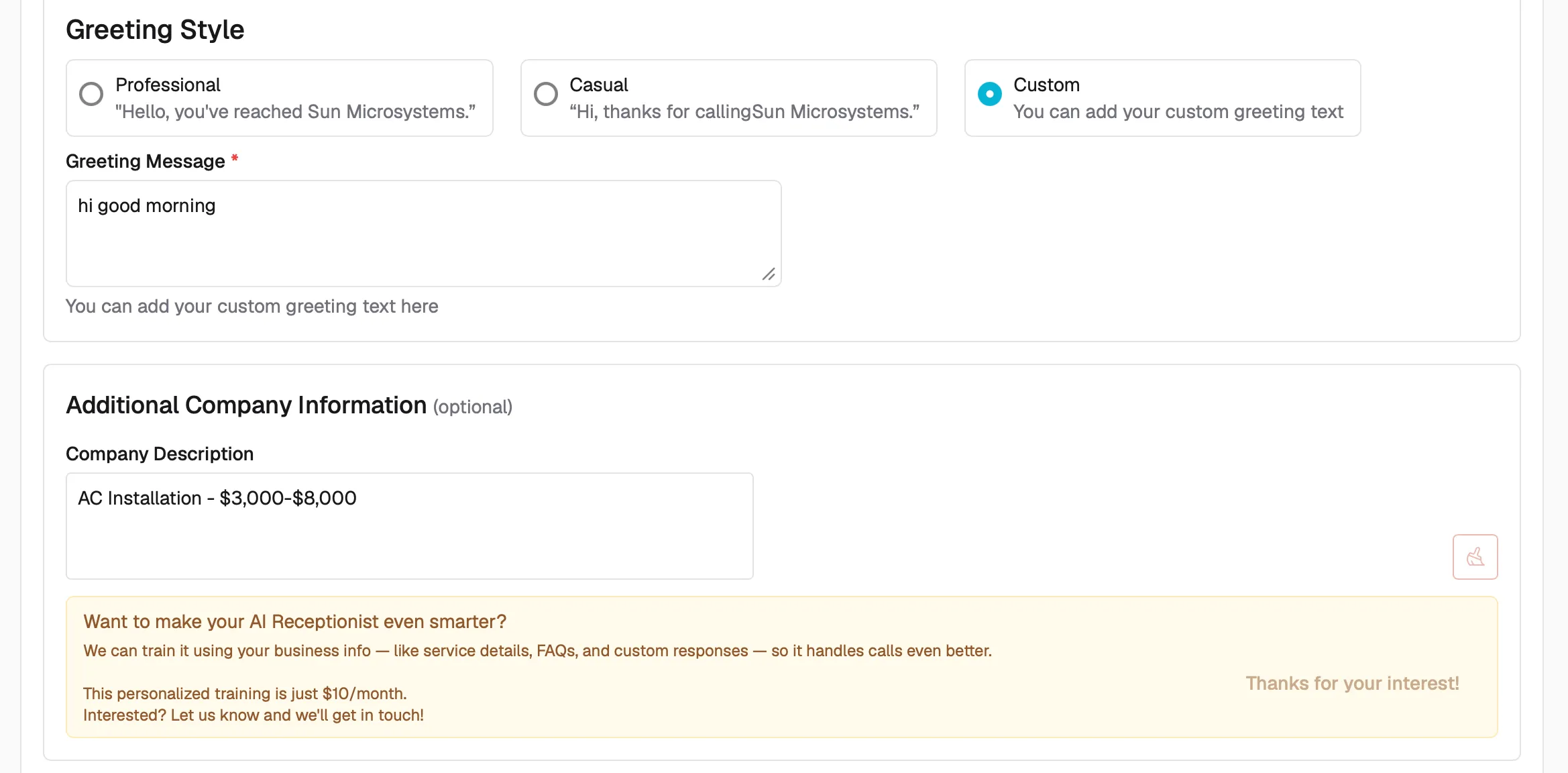
- Greeting Style : Choose from Professional, Casual, or Custom. With Custom you can write your own greeting message.
- Additional Company Information (optional) : Add a company description to help the AI give more informed responses on calls.
Step 3 : Operating Schedule
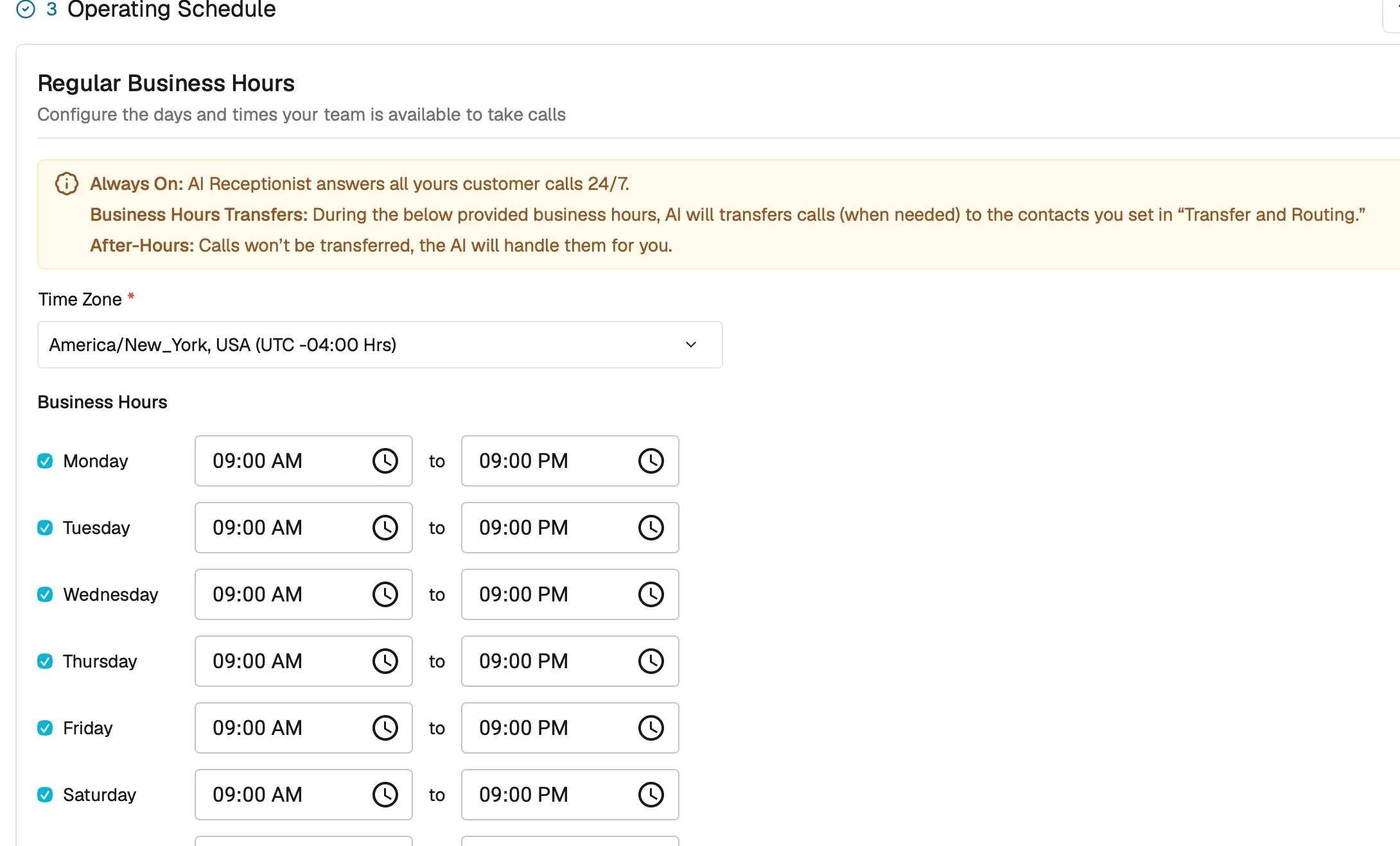
Set your regular business hours by day and time zone.
- Always On: AI Receptionist answers all calls 24/7.
- Business Hours Transfers: During business hours, calls are transferred to your team when needed.
- After Hours : Calls are handled entirely by the AI, no transfers.
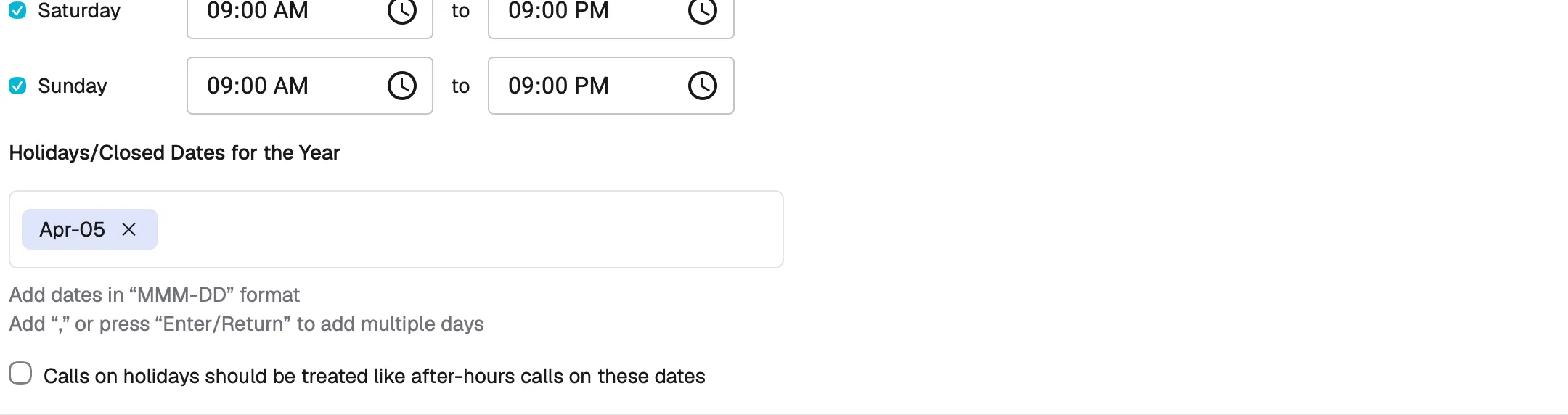
- You can also add Holidays/Closed Dates so calls on those days are treated as after-hours.
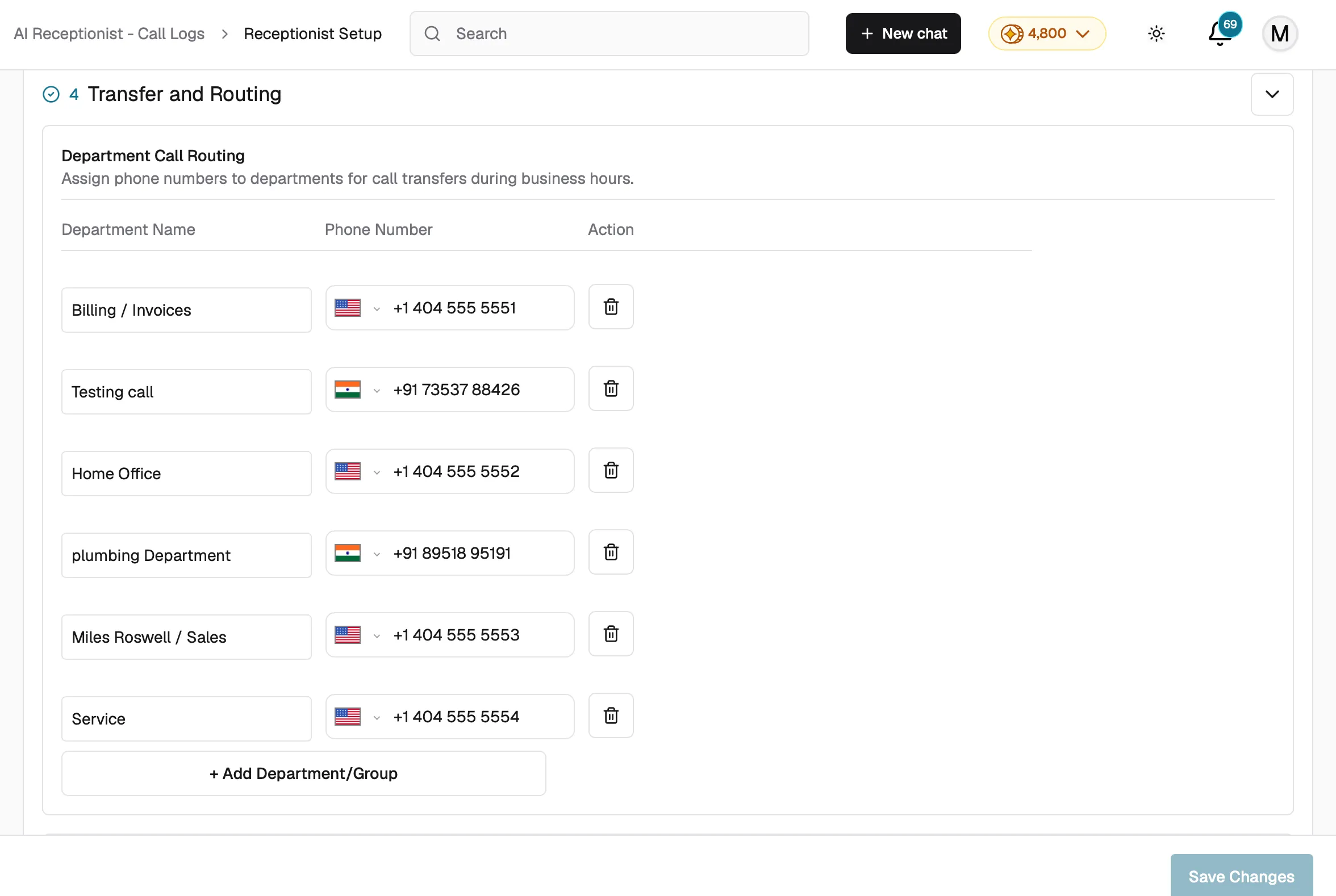
Step 4 : Transfer and Routing
- Department Call Routing : Assign phone numbers to departments for call transfers during business hours. Click + Add Department/Group to add more.
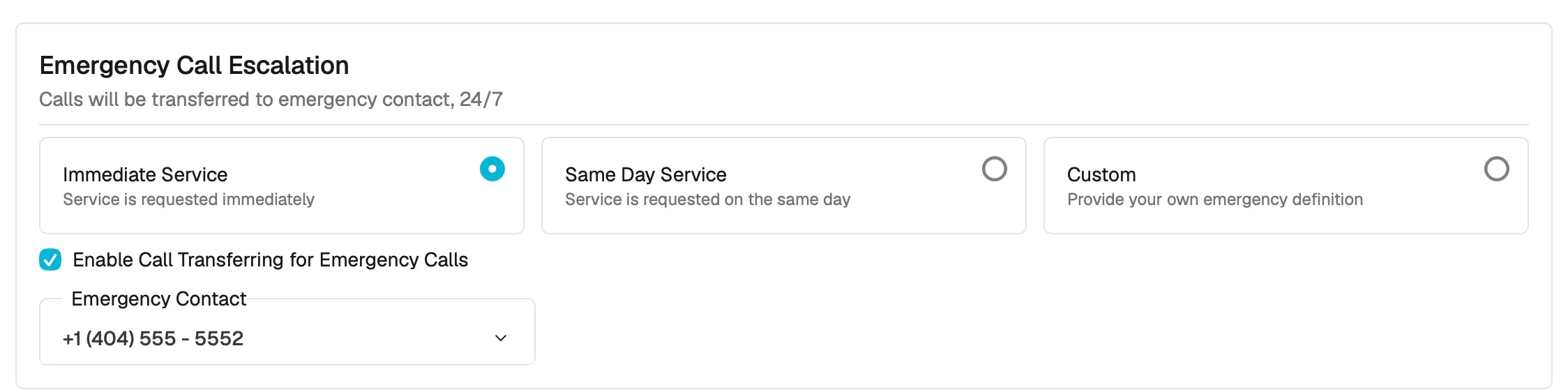
- Emergency Call Escalation : Define what counts as an emergency (Immediate Service, Same Day Service, or Custom) and set an emergency contact number for 24/7 transfers.
What AI Receptionist does
AI Receptionist handles inbound calls on a dedicated phone number assigned to your account. Here is what happens when a customer calls:
- Greets the caller using the voice, name, and greeting style you configure.
- Asks qualifying questions : the caller's name, contact number, address, and the reason for calling (estimate request, service request, or other inquiry).
- Captures a new lead in Swivl with all the details collected during the call.
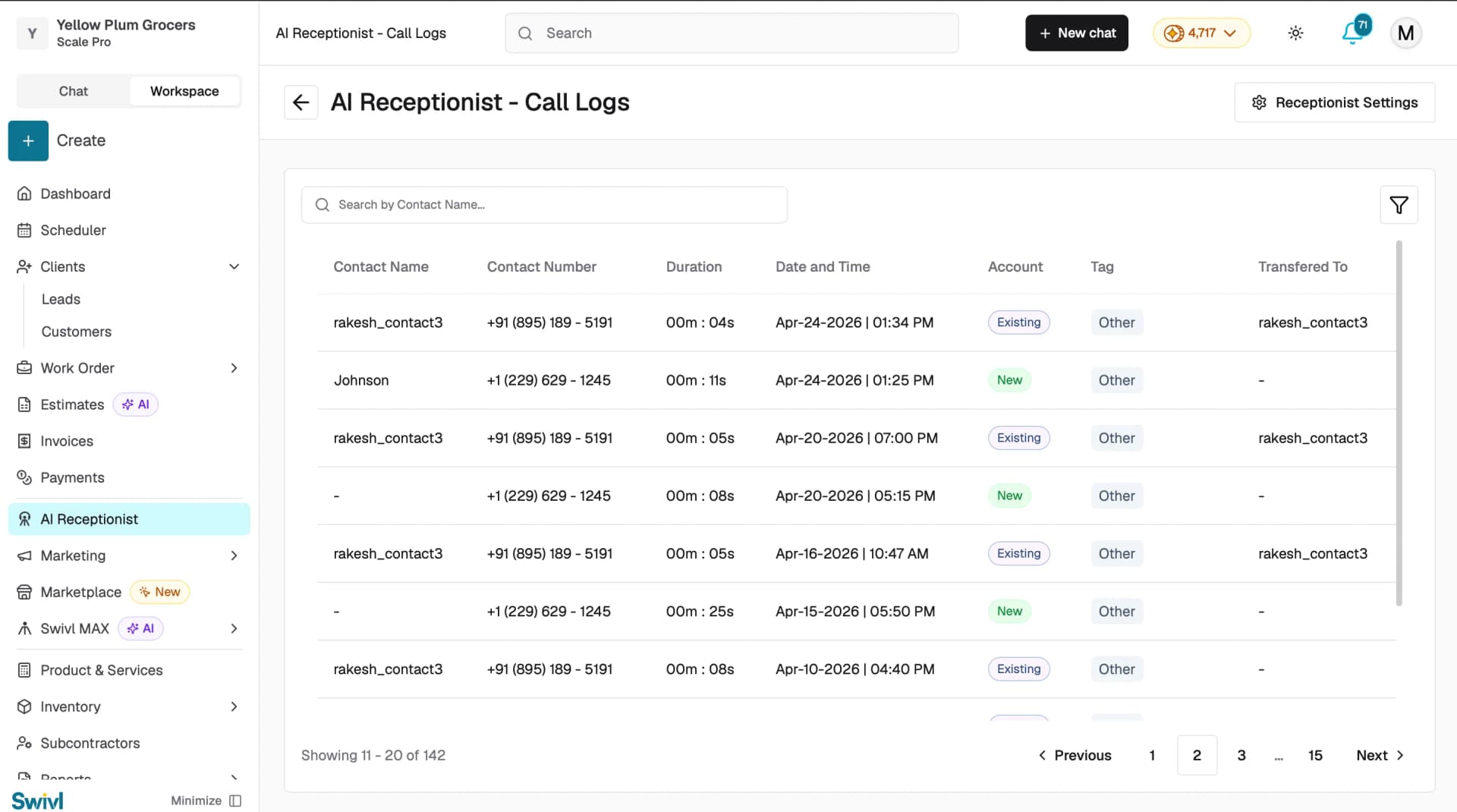
- Tags each call as an Estimate, Service Request, or Other so your team can prioritize follow-ups.
- Identifies returning customers : the call log shows whether the caller is a new or existing account.
- Transfers calls when needed : during business hours the AI can forward calls to the right department or escalate emergencies to a designated contact 24/7.
- Records and transcribes every conversation so you can review exactly what was said.
Tips
- AI Receptionist answers calls 24/7 but only transfers calls to your team during the business hours you define. Outside those hours, the AI handles calls entirely on its own.
- Every call automatically generates a lead. You can open it directly from the call details panel by clicking View Lead.
- You can use custom rules to fine-tune how the AI responds on calls , for example, adding pricing policies or service area limits. Go to AI Receptionist → Receptionist Settings to set these up.