
Create an Invoice from a Job
Create invoices directly from any job in Swivl customer and job details are pulled in automatically, so you can bill for completed work and track payments without the extra admin work
Overview
Creating an invoice from a job in Swivl is quick and straightforward. Customer and job details are pulled in automatically, so there's no duplicate data entry. Use invoices to bill for completed work, set payment terms, and track what's been paid all linked directly to the job.
Who can access this
- Super Admin: can create invoices from any job.
- Admin: can create invoices from any job.
- Lead Technicians and Technicians cannot create invoices.
How to create an invoice from a job
From the Jobs List
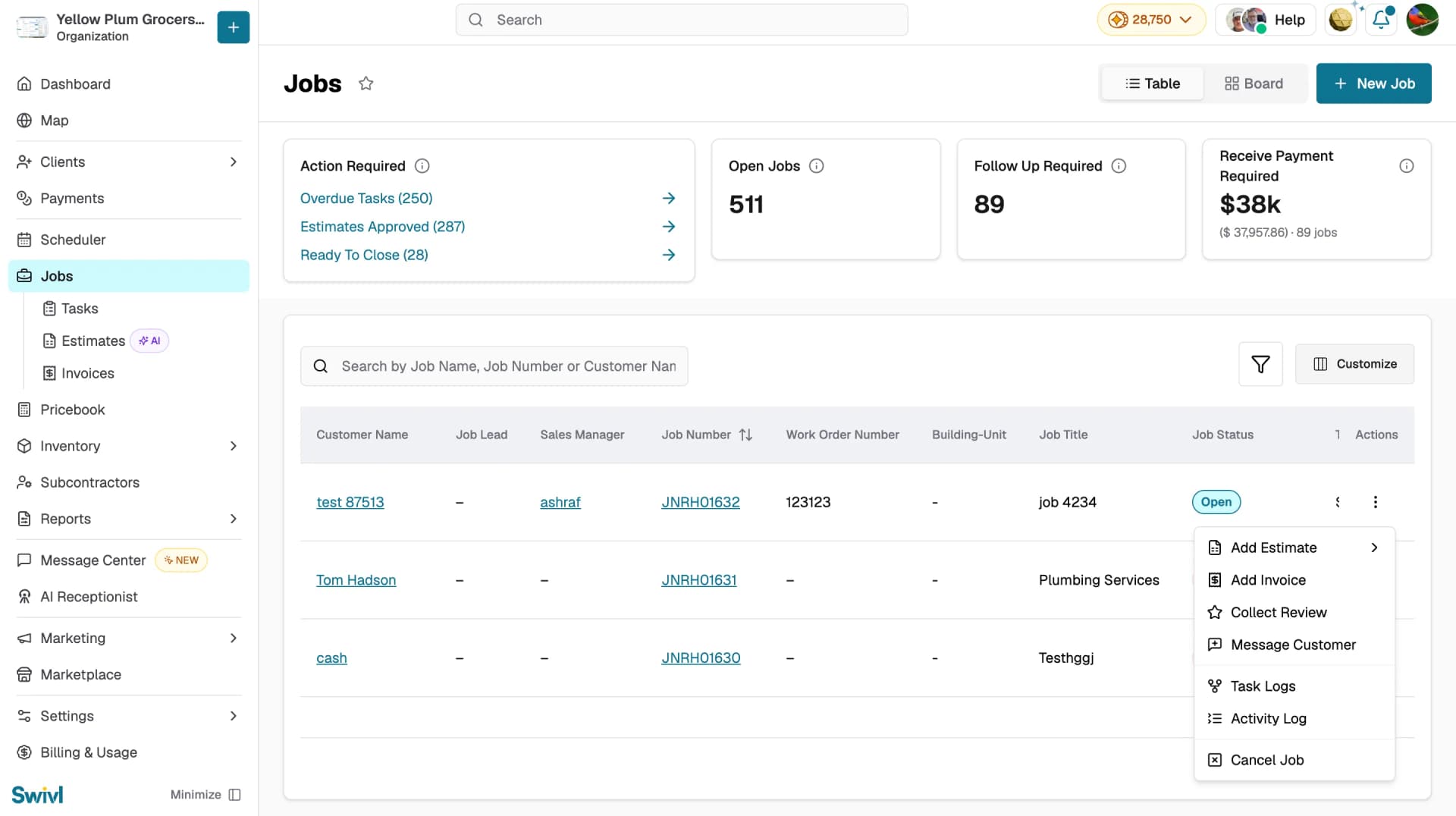
- Go to Jobs in the sidebar.
- Find the job in the table.
- Click the actions menu (⋮) on the job row.
- Select Add Invoice from the dropdown.
- A Choose Invoice Details dialog opens showing the Customer Name, Job Number, and Job Description all pre-filled from the job record.
- Review the details and click Save and Go On to proceed to the invoice form, or Cancel to exit.
Open the job detail page.
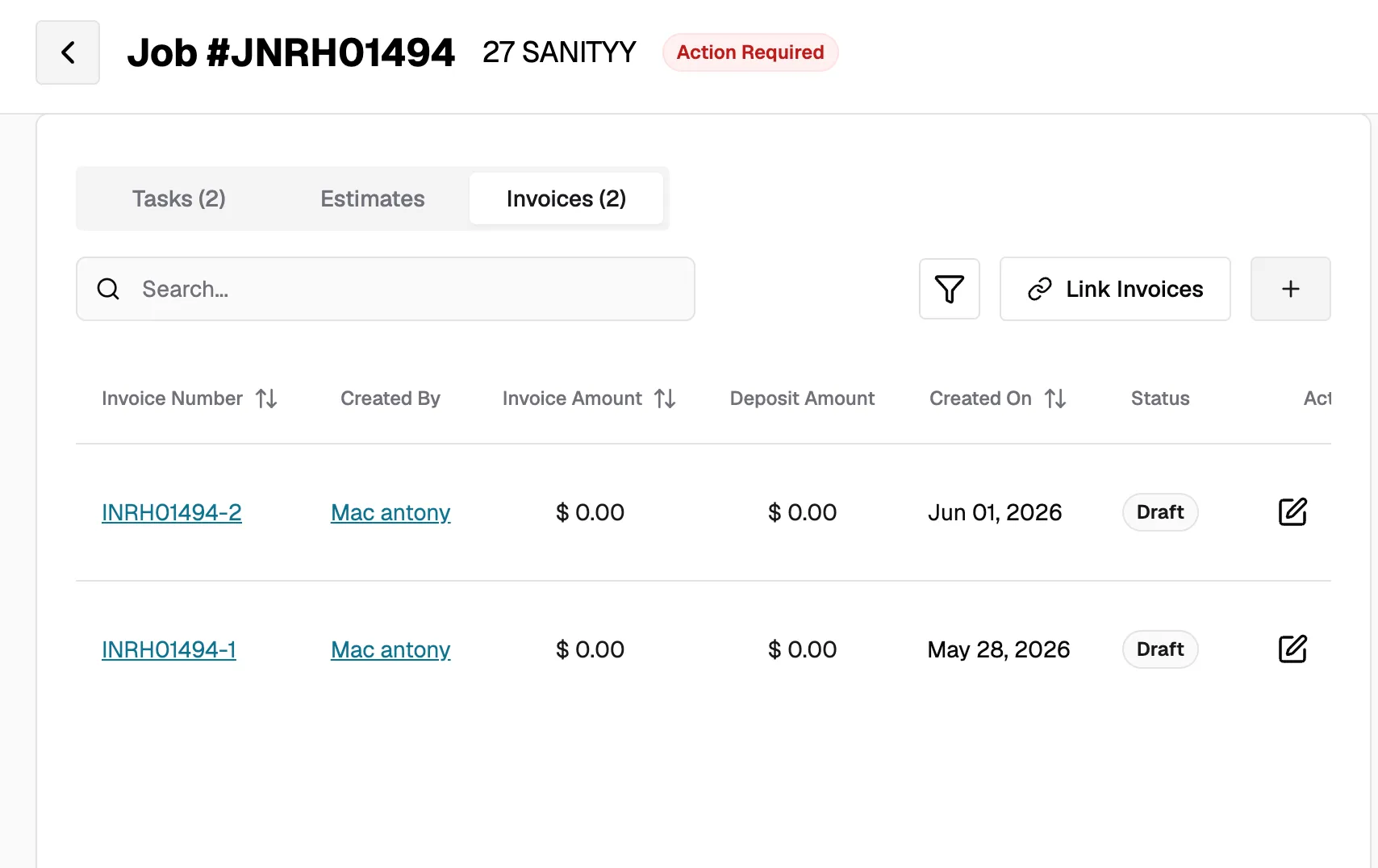
- Click the Invoices tab. The tab label shows how many invoices are already linked to the job.
- Click the + button to create a new invoice.
- A Choose Invoice Details dialog opens with the customer name, job number, and job description pre-filled.
- Review the details and click Save and Go On to proceed to the invoice form.
From the Job Detail Header
- Open the job detail page.
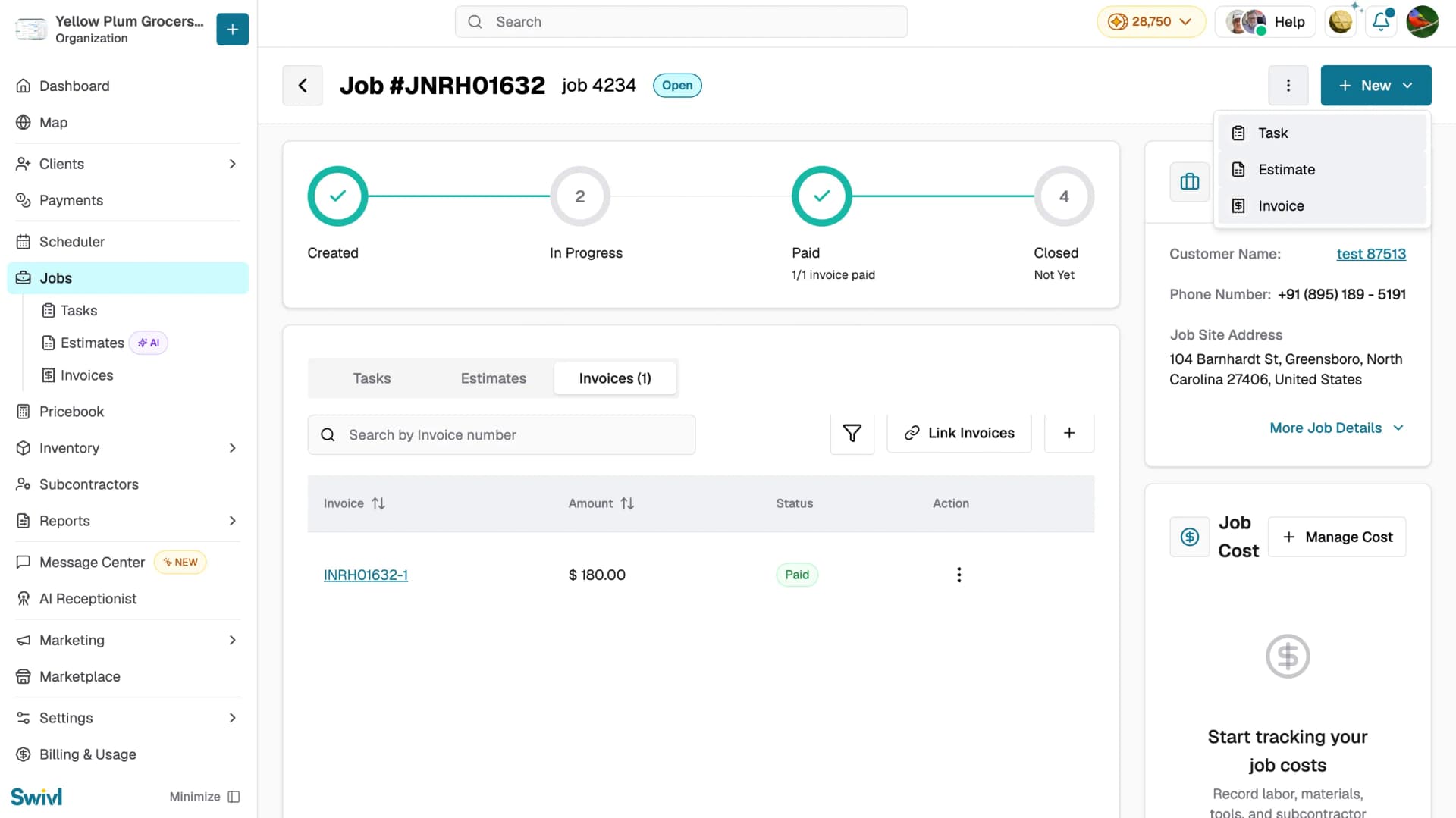
- Click the + New button in the page header.
- Select Invoice from the dropdown.
- A Choose Invoice Details dialog opens with the customer and job details pre-filled.
- Review the details and click Save and Go On to proceed to the invoice form.
Completing the invoice
After clicking Save and Go On, the Create Invoice form opens with the customer and job details already filled in. If the job has products and services attached, a Select products and services to import dialog appears first tick the items you want and click Import products and services.
From there, complete the invoice as normal. See Creating an Invoice for the full walkthrough.
Linking an existing invoice to a job
If an invoice was created without a job, you can attach it later:
- Open the job detail page and click the Invoices tab.
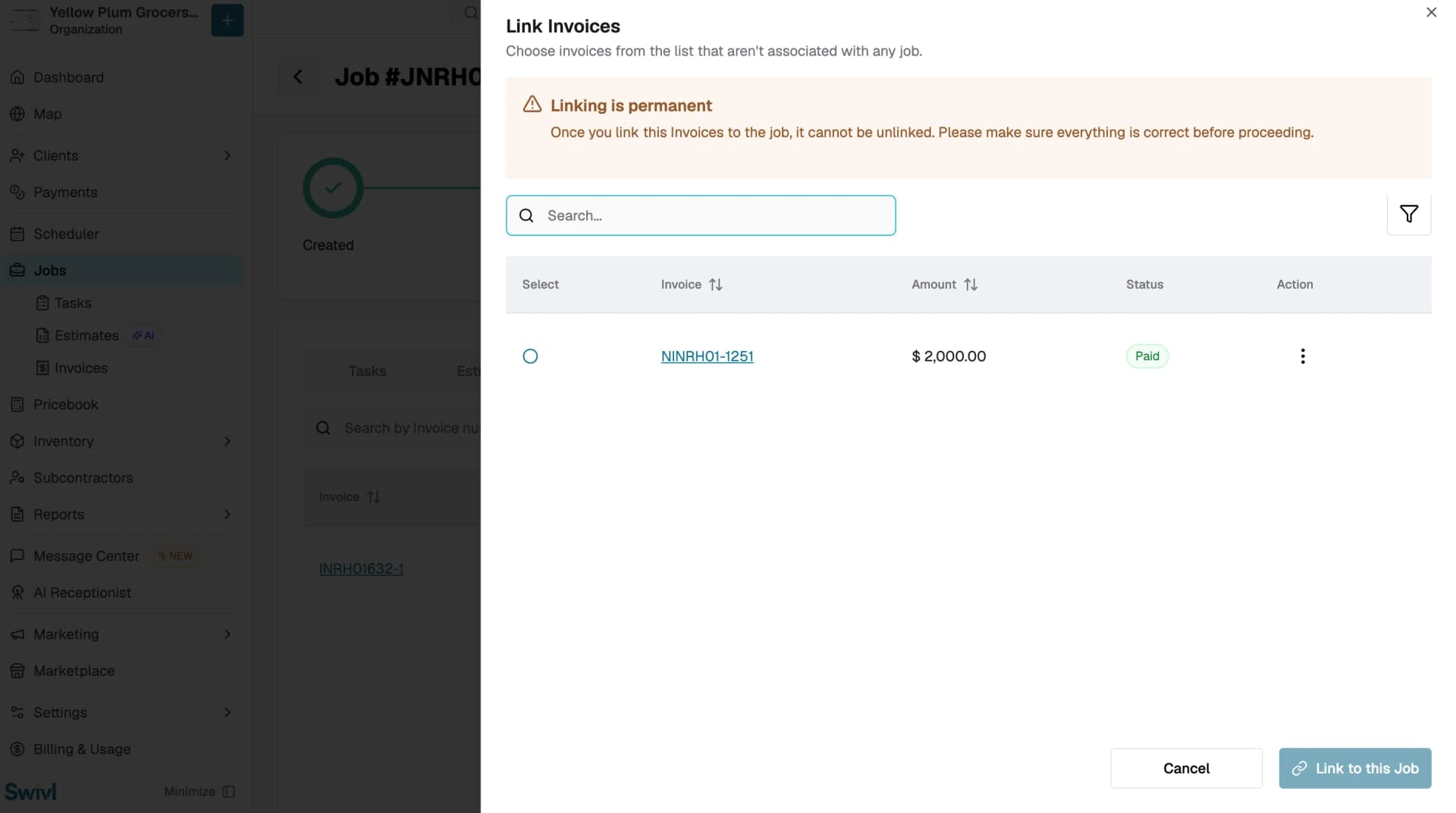
- Click Link Invoices. A panel opens listing invoices that aren't associated with any job.
- Use the Search bar or the filter icon to find the invoice you want.
- Select the invoice, then click Link to this Job.
Note: Linking is permanent. Once you link an invoice to a job, it cannot be unlinked. Make sure everything is correct before proceeding.
Invoice statuses
Status | Meaning |
|---|---|
Draft | Invoice has been created but not yet sent to the customer. |
Open | Invoice has been sent to the customer and is awaiting payment. |
Paid | Payment has been received in full. |
Void | Invoice has been cancelled and is no longer active. |
Tips
- You can create multiple invoices for a single job for example, a deposit invoice followed by a final invoice.
- Invoices created from a job automatically link back to it, keeping all financials tracked in one place.
- Use Link Invoices to connect an existing invoice to a job after the fact, note that linking cannot be undone.
- Use the Download option in the invoice's three-dot menu to save a PDF copy at any time.