
Work Order
Adding Notes to a Job
Use job notes to share updates, instructions, or observations on a job record. Notes are visible to everyone with access to the job, keeping communication in one place.
Overview
Use job notes to log updates, instructions, or observations on a job. Notes are visible to everyone who can access the job keeping communication centralised and easy to follow.
Who can access this
- Super Admin: can add, edit, and delete notes on any job.
- Admin: can add, edit, and delete notes on any job.
- Lead Technician: can add, edit, and delete notes on jobs they are assigned to.
- Technician: can view notes on accessible jobs and add notes on assigned jobs.
How to add a note
On Desktop
- Go to Work Order → Jobs and open the job.
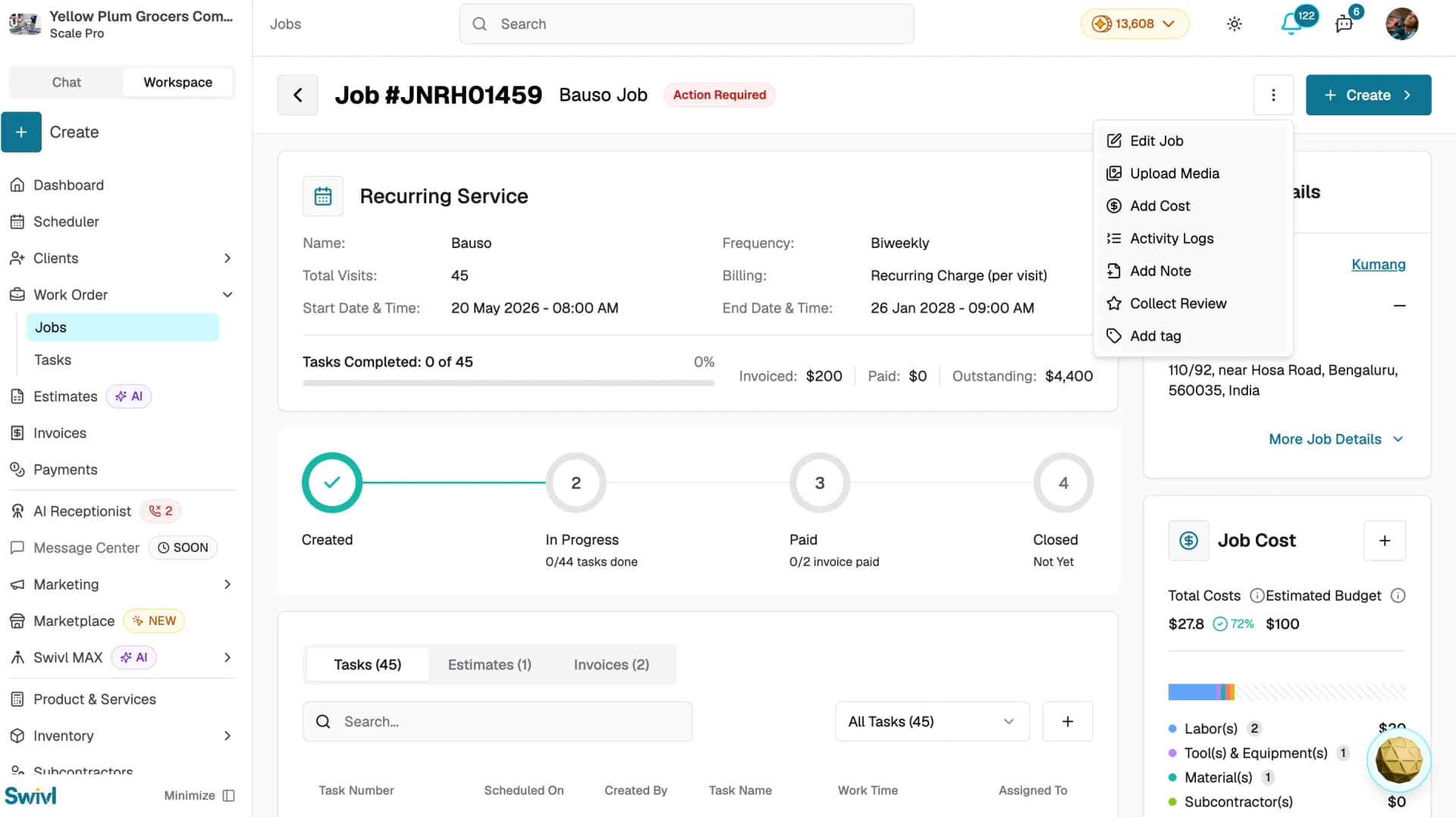
- Click the three-dot menu and select Add Note.
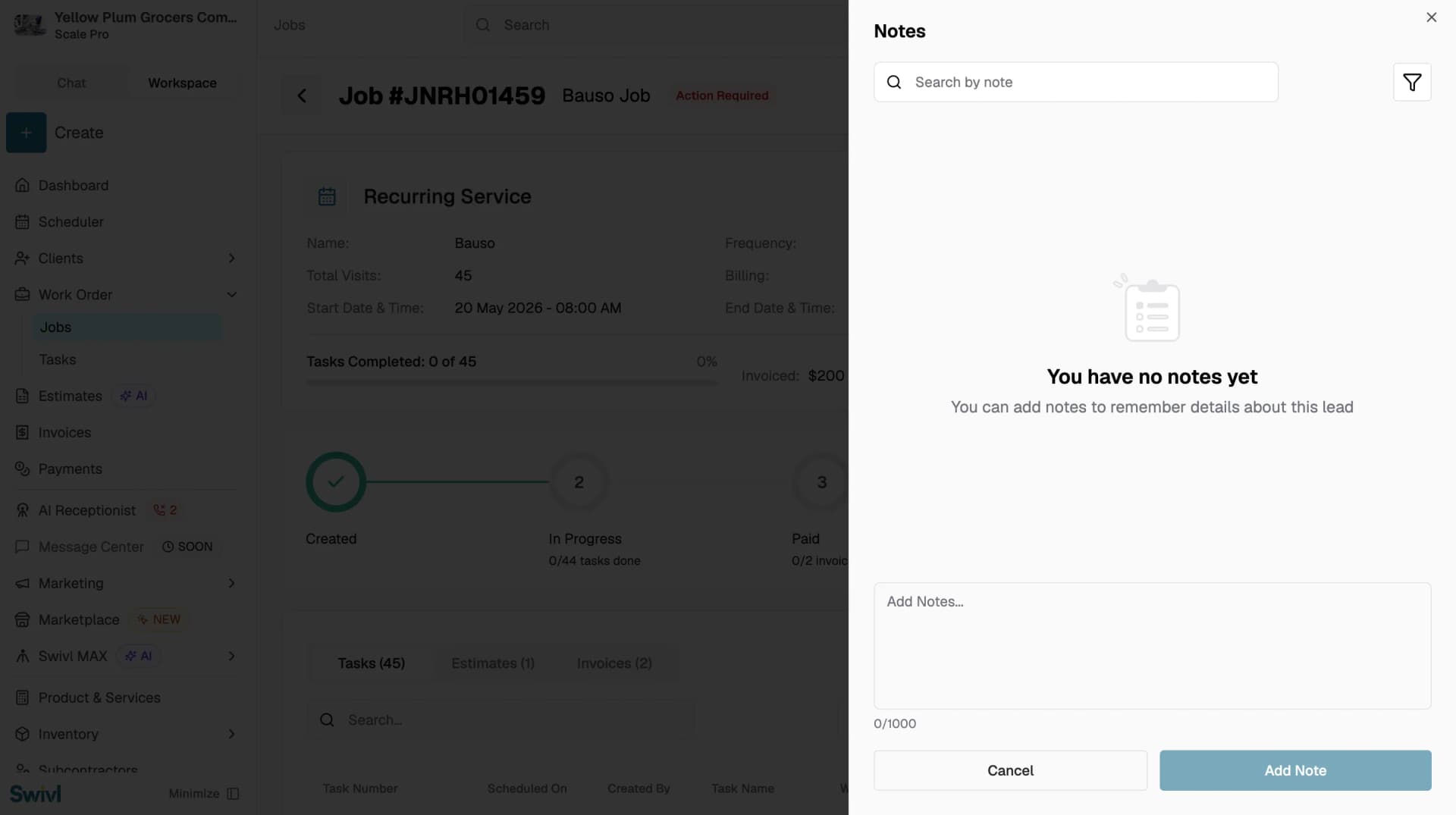
- The Notes panel opens on the right.
- Type your note in the Add Notes field up to 1000 characters.
- Click Add Note to save.
On Mobile
- Open the job detail page and tap Notes.
- Type your note in the input field at the bottom of the screen.
- Tap Add Note to save.
Note: Notes cannot be added to Closed or Canceled jobs.
Editing a note
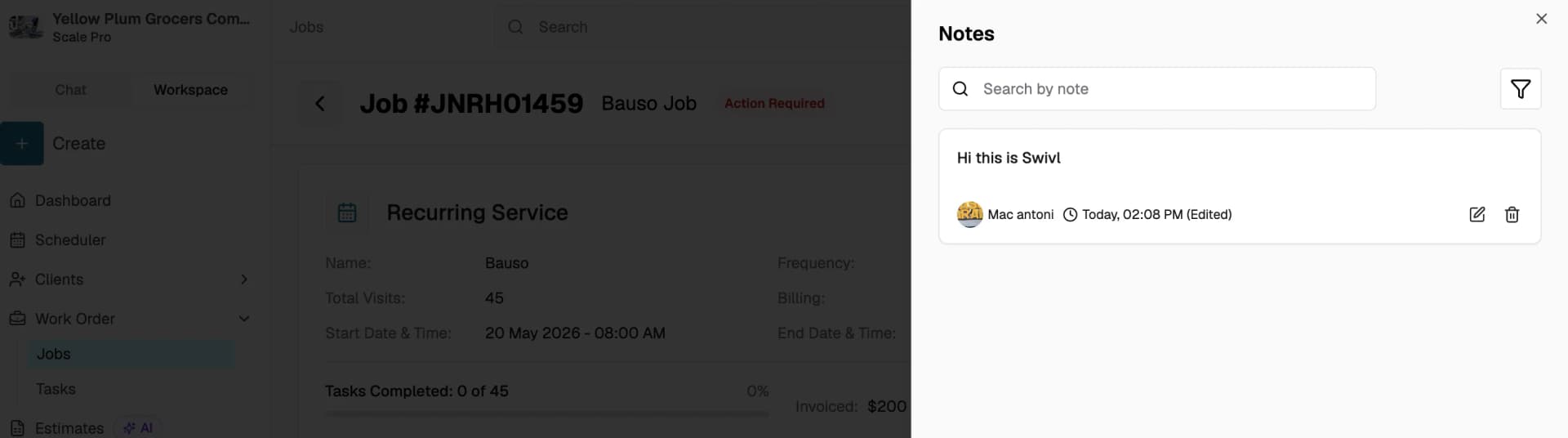
- Find the note in the Notes panel.
- Click the edit icon on the note.
- Make your changes and save.
Deleting a note
- Find the note in the Notes panel.
- Click the delete icon on the note.
- Confirm the deletion.
Searching and filtering notes
- Use the Search by note bar to find notes by keyword.
- Click the filter icon to narrow notes by date range or other criteria.
Tips
- Notes are timestamped and display the name and profile photo of the person who added them, so your team always knows who said what and when.
- Use notes for internal communication only they are never visible to customers.
- Keep notes concise and actionable. For example: "Customer requested the west wall to be painted blue confirmed on 10/04."