
Linking suppliers to materials
Linking a supplier to a material lets your team know exactly where each item comes from. This connection is managed from the supplier side when you view a supplier profile, you can see which materials are associated with that vendor.
Overview
Linking a supplier to a material lets your team know exactly where each item comes from. This connection is managed from the supplier side when you view a supplier profile, you can see which materials are associated with that vendor. To set or change a supplier from within a material record, see Linking materials to suppliers
Who can access this
- Super Admin: can link suppliers to materials.
- Admin: can link suppliers to materials.
How supplier-material links work
The connection between a supplier and a material is established through the Supplier Name field on each material record. When a material's Supplier Name matches an existing supplier account name, Swivl automatically associates the two. To see which materials are linked to a supplier, check the Supplied By column in the Materials table at Inventory → Materials.
Linking a supplier from the supplier profile
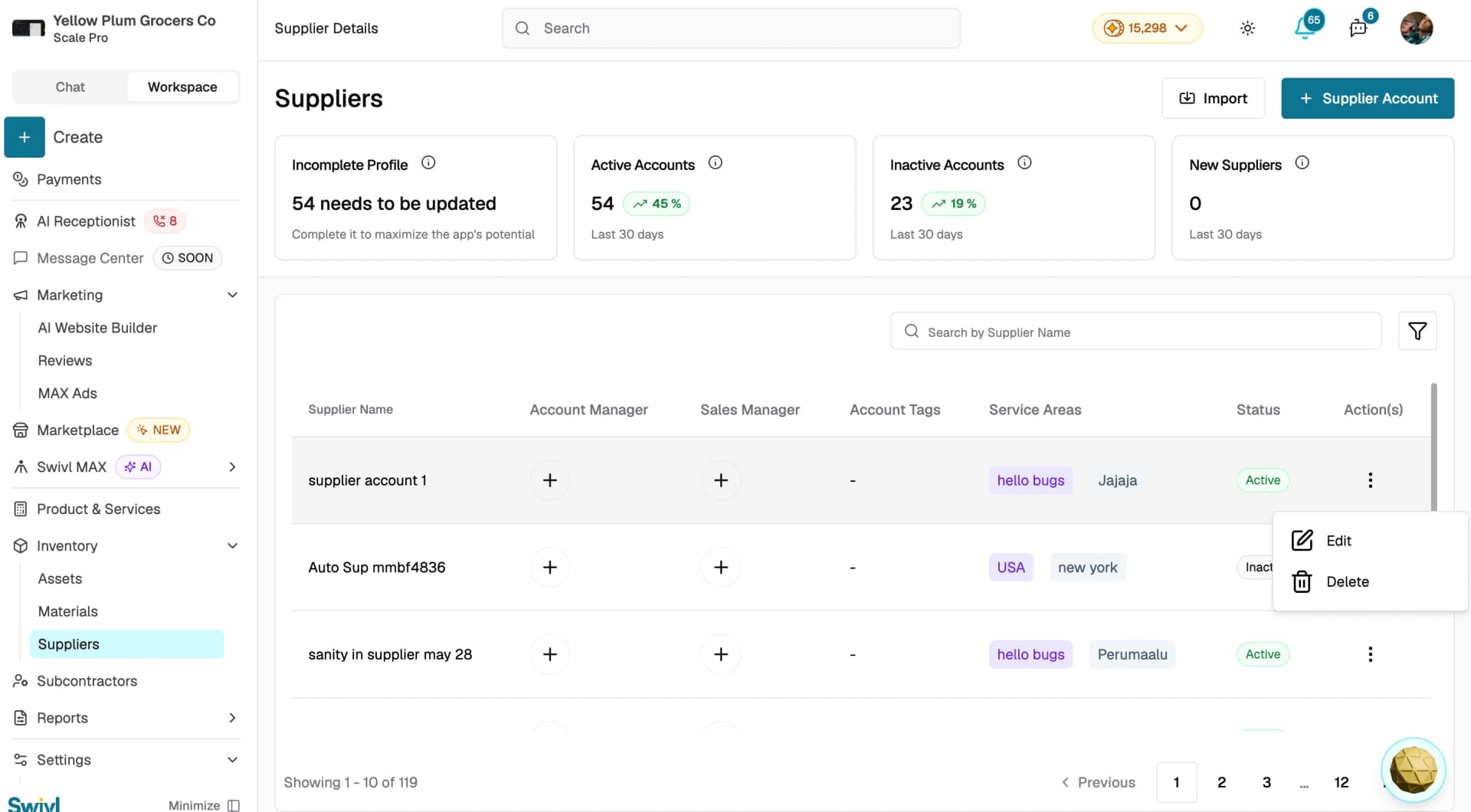
- Go to Inventory → Suppliers.
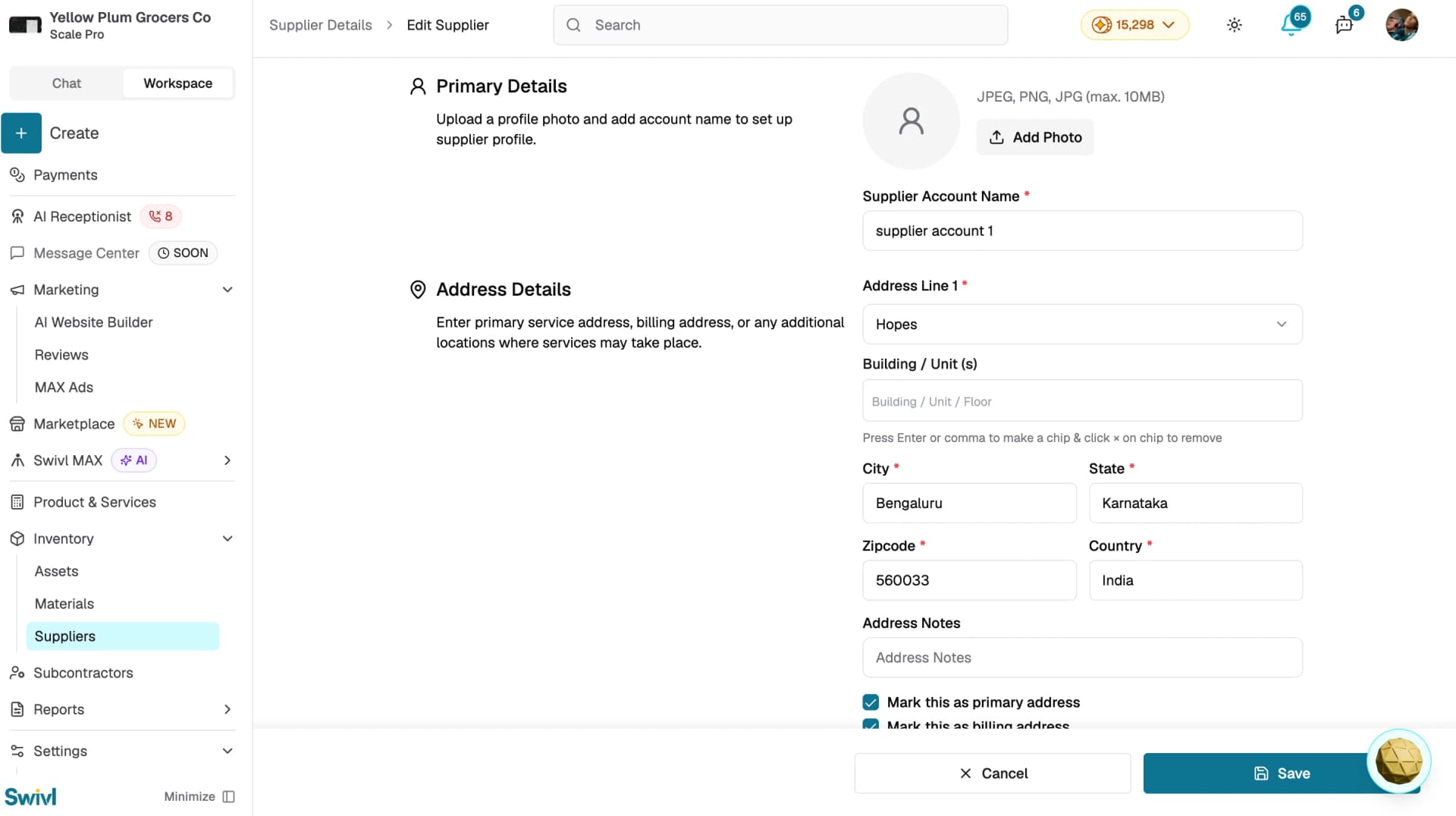
- Click on a supplier row to open their profile, or click the three-dot menu and select Edit.
- Review the Supplier Account Name, this must match the Supplier Name field on any material records you want linked to this supplier.
- To add a new material link, go to Inventory → Materials, edit the material, and make sure its Supplier Name field matches this supplier's Supplier Account Name exactly.
How the link is created
The connection between a supplier and a material is established through the Supplier Name field on each material record. When you create or edit a material and enter a supplier name, Swivl automatically associates that material with the matching supplier account. There is no separate link button the association happens based on the name match.
Reviewing linked materials
To see all materials linked to a specific supplier, go to Inventory → Materials and check the Supplied By column. Filter or search by the supplier name to get a consolidated view of everything you purchase from that vendor. This is useful for:
- Reordering: quickly see what you buy from a specific supplier.
- Cost analysis: compare unit costs across materials from the same vendor.
- Vendor negotiation: understand the full scope of your relationship before renegotiating terms.
Tips
- Keep supplier names consistent between supplier accounts and material records to ensure accurate linking.
- If a material does not appear under the expected supplier, edit the material and verify the Supplier Name field matches the Supplier Account Name exactly.
- Use the Activity Logs on the supplier profile to track any changes made to the supplier record over time.
- Use the supplier profile as a quick reference before placing a purchase order.