
Integrations Overview
Swivl integrates with third-party tools to streamline your accounting and business operations. This article explains what integrations are available and how to access and manage them from Settings.
Overview
Go to Settings → Integrations to connect and manage external services. Currently, Swivl supports QuickBooks Online as its primary integration once connected, customer and pricebook details are imported into Swivl once, and invoices, payments, and customer data sync automatically from Swivl back to QuickBooks going forward.
Who can access this
- Super Admin: full access to connect and disconnect integrations
Getting there
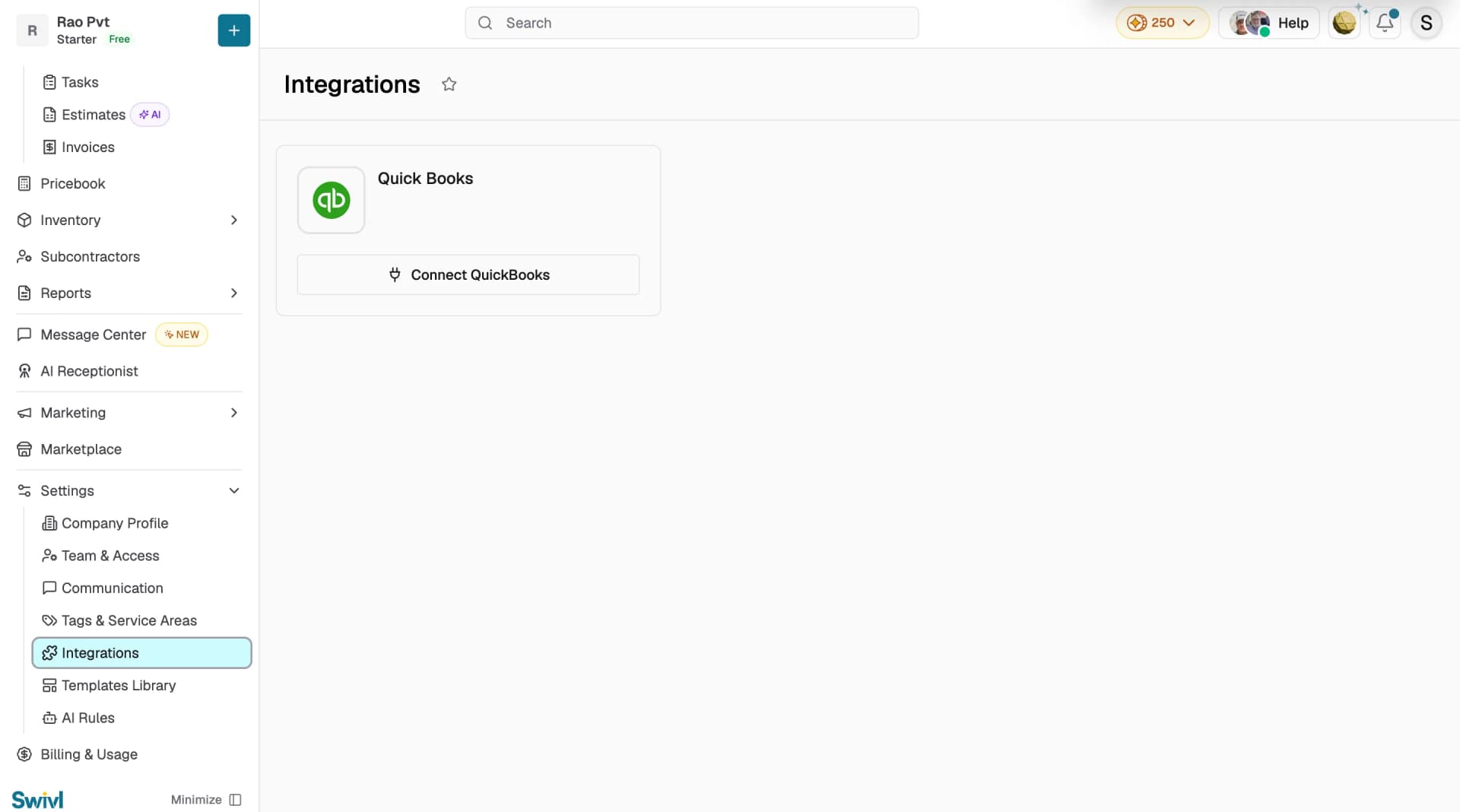
Go to Settings → Integrations. The page displays a card for each available integration with its current connection status.
Available integrations
Currently, Swivl supports one integration QuickBooks Online.
QuickBooks Online
QuickBooks Online is Swivl's accounting integration. Once connected, Swivl will:
- Import customer and pricebook details from QuickBooks into Swivl once at the point of connection
- Sync invoices, payments, and customer data from Swivl back to QuickBooks automatically on an ongoing basis
- Map QuickBooks accounts and tax codes to Swivl's financial categories
The QuickBooks card on the Integrations page shows your current connection status:
Status | What you see |
|---|---|
Not connected | Connect QuickBooks button |
Connected | Connected badge with the linked company name and a Disconnect button |
Note: QuickBooks Online is currently the only integration available in Swivl.
Tips
- Only one QuickBooks company can be connected to your Swivl account at a time disconnect the current one before connecting a different company.
- Integration changes affect all users in your Swivl account, not just the user who made the connection.