
Settings
Connecting QuickBooks Online
Connect QuickBooks Online to Swivl to sync customer data, invoices, and payments between both platforms.
Overview
The QuickBooks Online integration lets you keep your financial data in sync between Swivl and QuickBooks. Once connected, Swivl imports your customer and pricebook details from QuickBooks once, then syncs all relevant data from Swivl back to QuickBooks going forward.
Who can access this
- Super Admin: full access
Before you connect
- You need an active QuickBooks Online account with admin permissions.
- Make sure you are signed in to the correct QuickBooks company before starting.
- Only one QuickBooks company can be linked to your Swivl account at a time.
How to connect QuickBooks
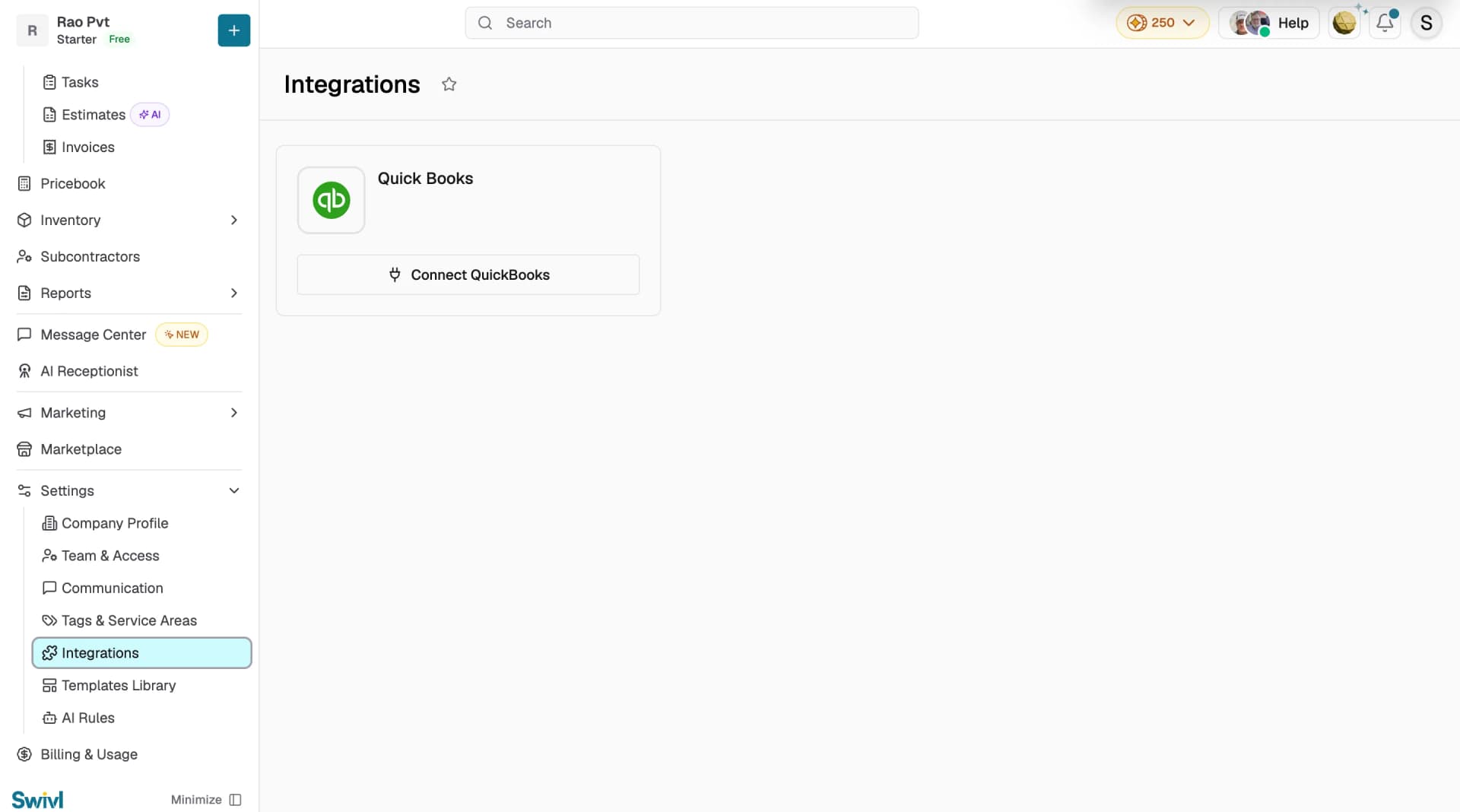
- Go to Settings → Integrations and click Connect QuickBooks.
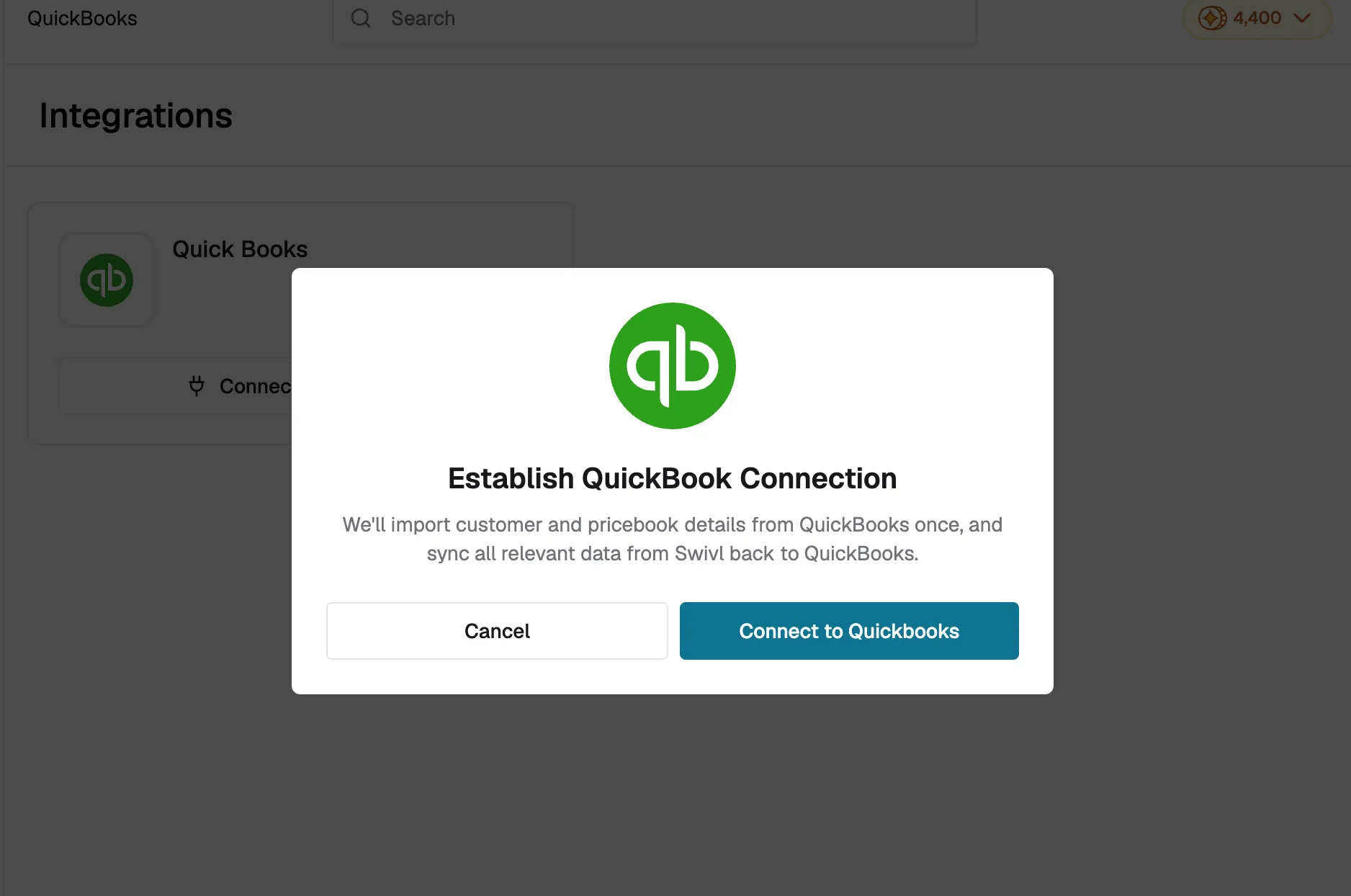
- A confirmation dialog appears, click Connect to Quickbooks to proceed.
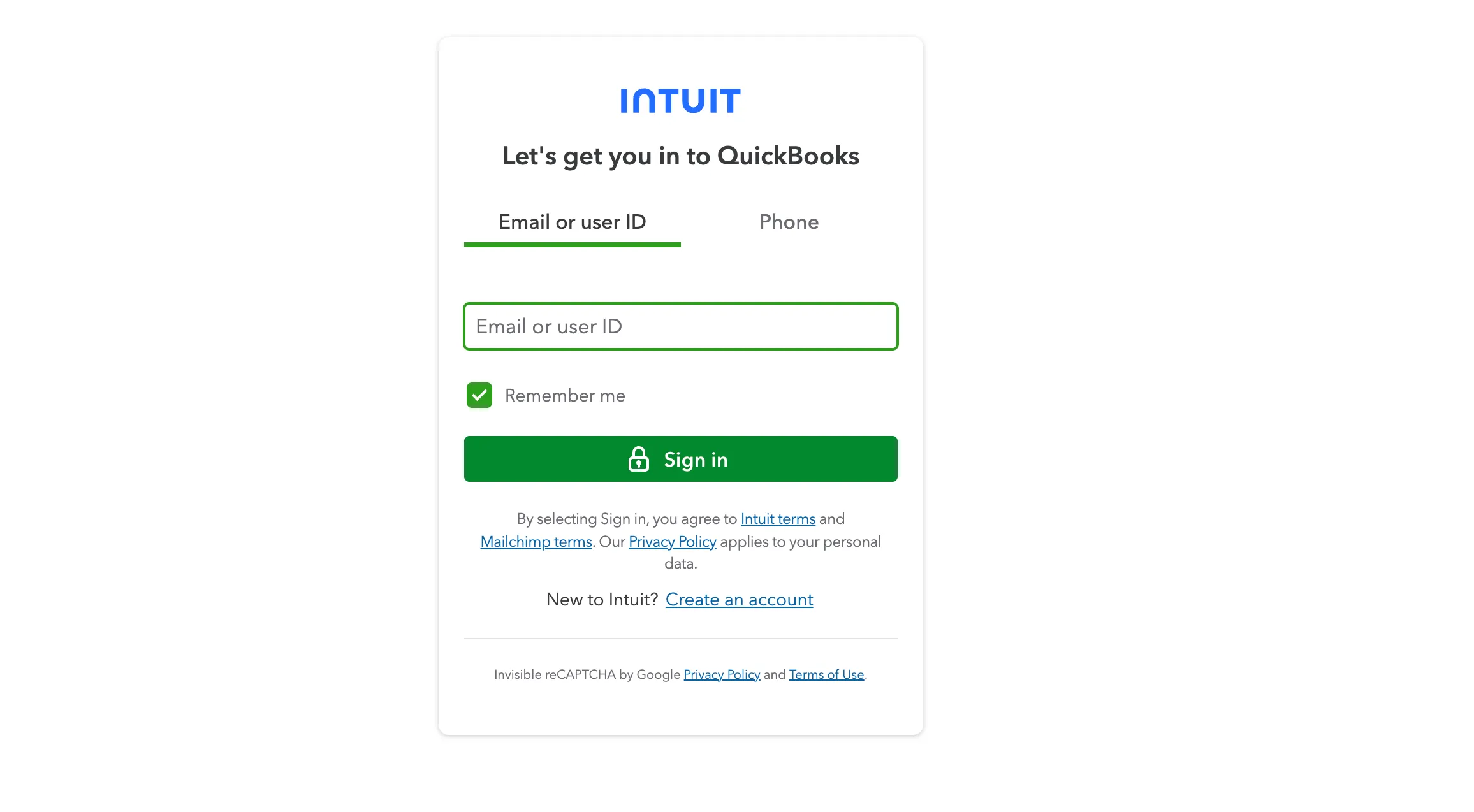
- Sign in to your Intuit account and authorise Swivl to access your data.
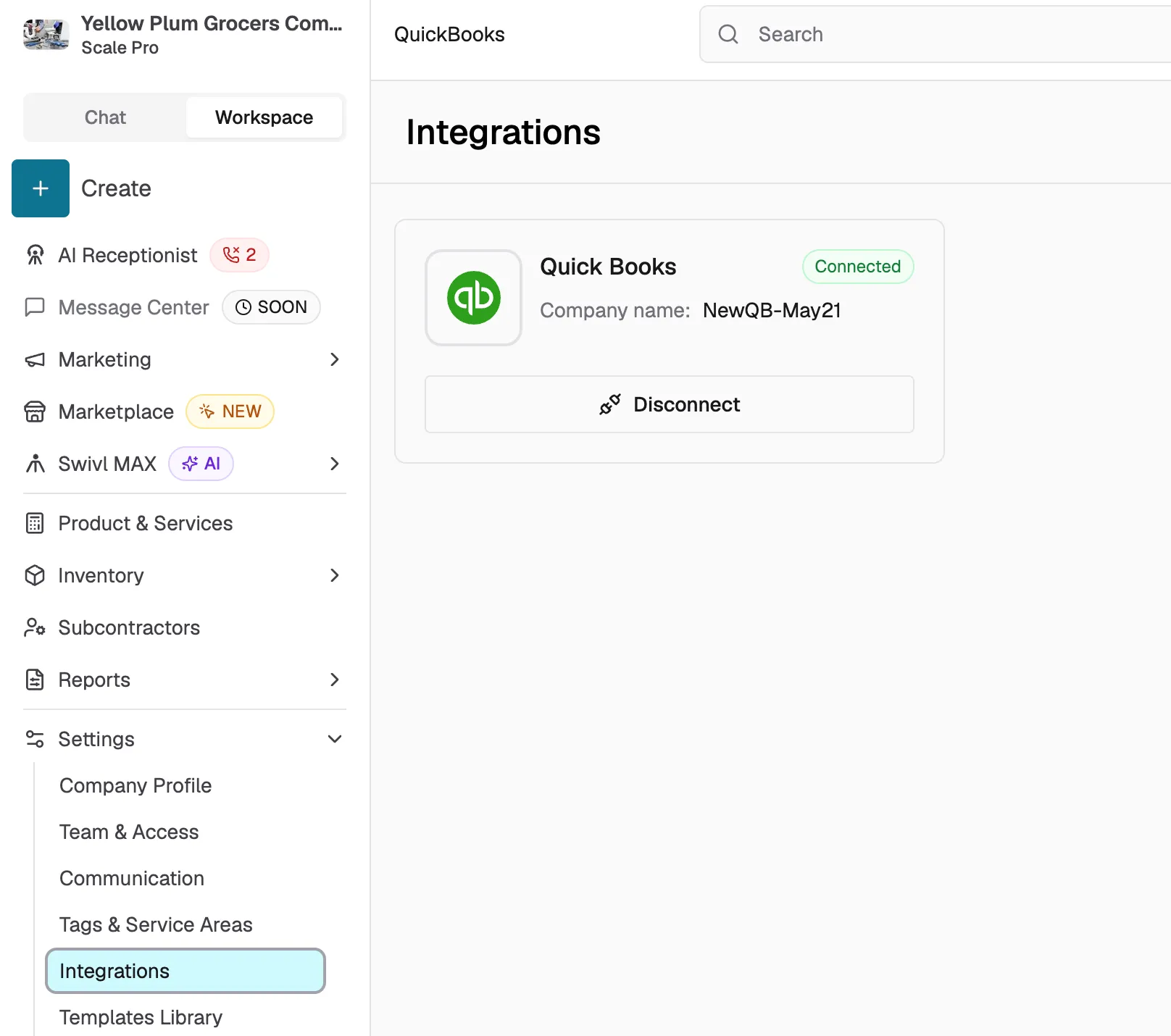
- Once authorised, you are redirected back to Swivl. The QuickBooks card displays a green Connected badge and your company name.
Verifying the connection
Once connected, the QuickBooks card on the Integrations page displays:
- A green Connected badge.
- Your QuickBooks company name.
- A Disconnect button.
Disconnecting QuickBooks
If you need to disconnect your QuickBooks account:
- Go to Settings > Integrations.
- Click Disconnect on the QuickBooks card.
- A confirmation dialog appears warning that new data will no longer sync with QuickBooks.
- Click Confirm to disconnect.
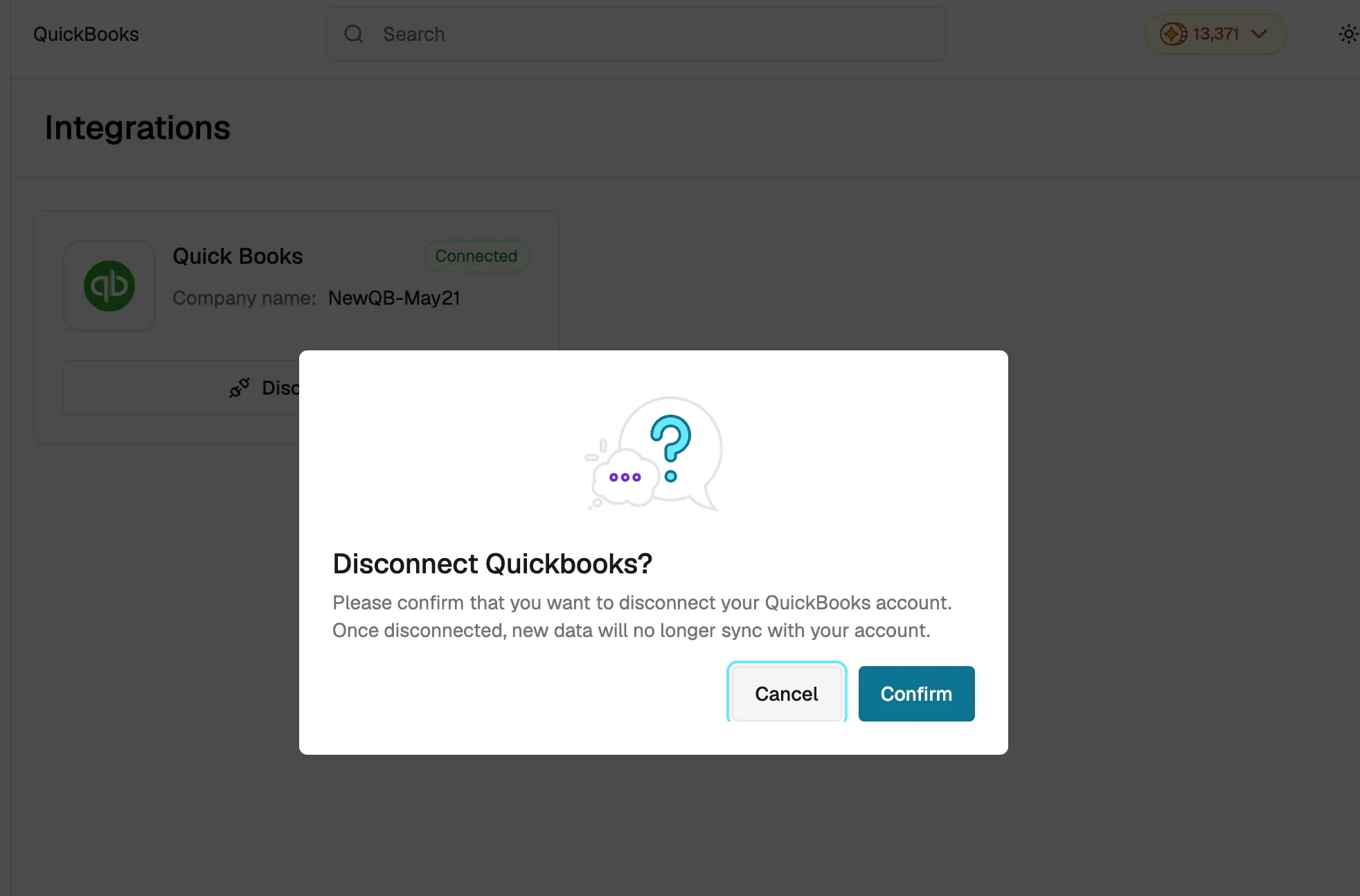
After disconnecting, any previously synced data remains in both systems, but no new data will be exchanged.
Tips
- If the connection fails, try clearing your browser cache and attempting the authorization again.
- You must disconnect your current QuickBooks company before connecting a different one.
- After connecting, give the initial import a few minutes to complete before checking for synced data.
- If you see an error saying "QuickBooks connection already exists," disconnect the existing connection first.