
Pricebook Overview
The Pricebook stores all the products and services your business offers.Add items, set pricing across three tiers, and use them across estimates and invoices.
Overview
The Pricebook stores all the products and services your business offers. Add items, set prices across Premium, Standard, and Economy, and pull them directly into estimates and invoices.
Who can access this
Super Admin: full access to create, edit, and delete products and services.
Products & Services Table
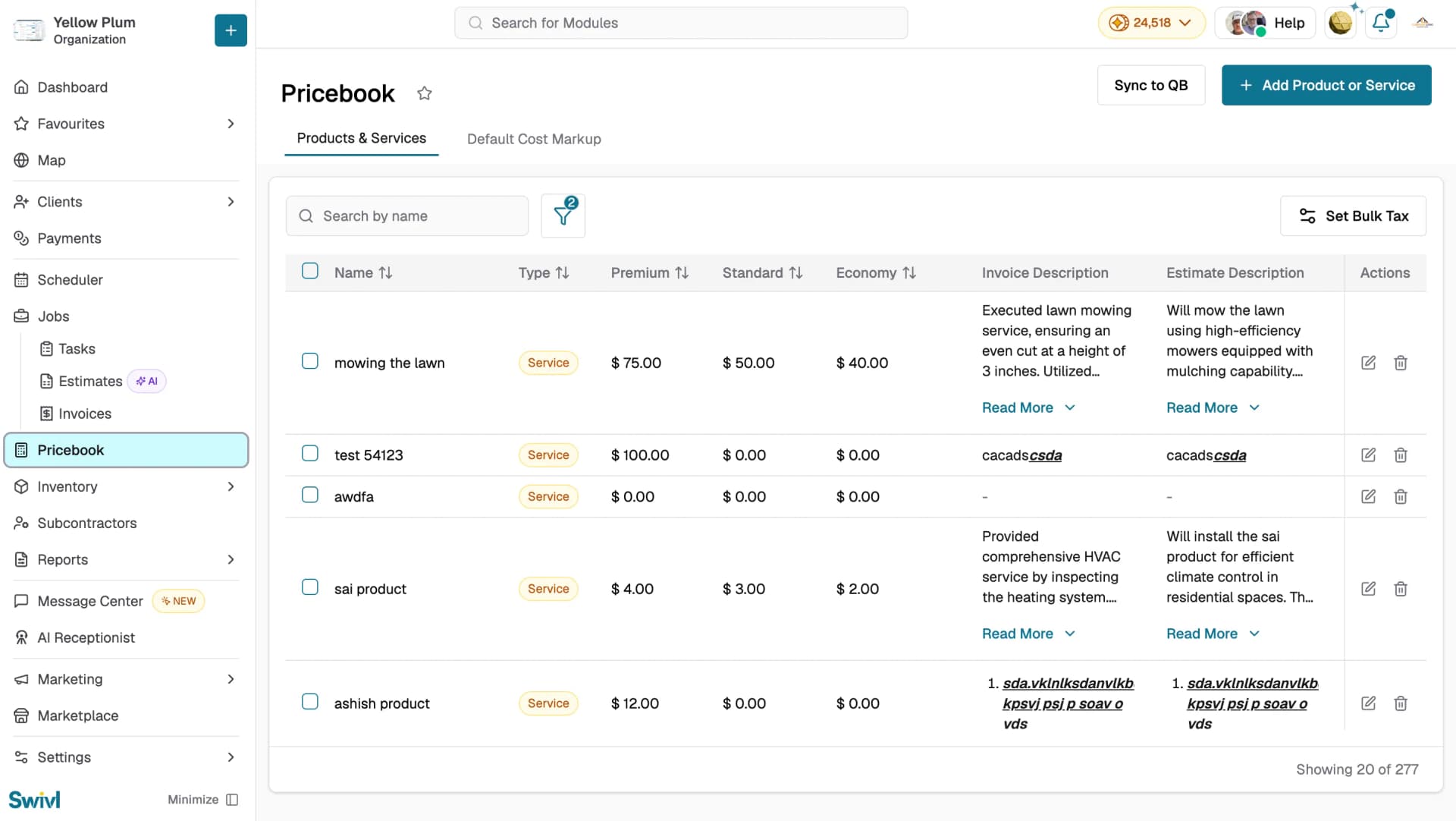
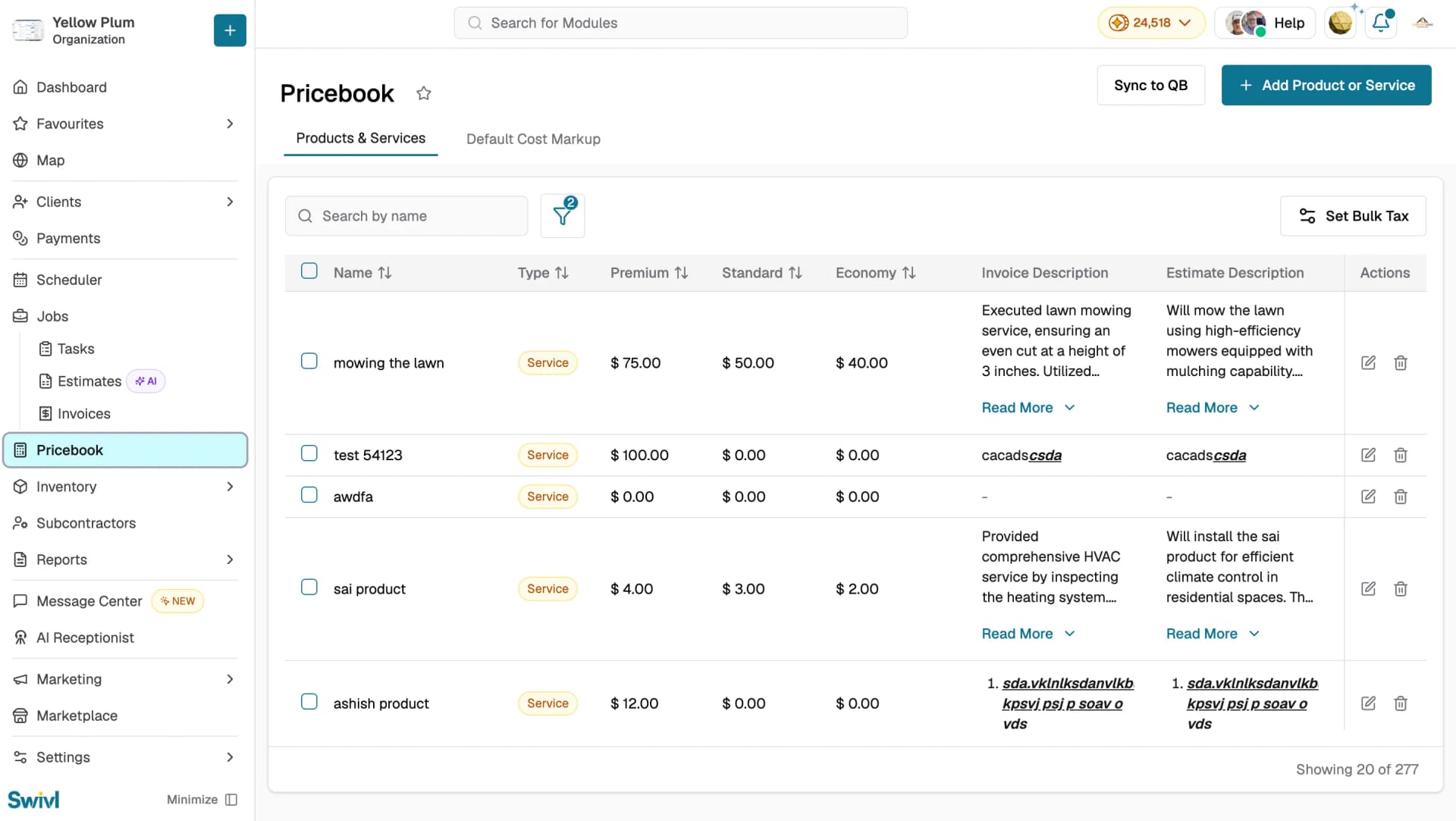
The Products & Services table gives you a full overview of everything in your Pricebook.
Column | Description |
|---|---|
Name | The name of the product or service. |
Type | Whether the item is a Product or a Service. |
Premium | The highest price point for the item. |
Standard | The mid-range price point for the item. |
Economy | The lowest price point for the item. |
Invoice Description | A short description of the work completed, used on invoices. |
Estimate Description | A short description of the proposed work, used on estimates. |
Actions | Edit or delete the item. |
Click the sort arrows next to Name, Type, Premium, Standard, or Economy to reorder the list.
Long descriptions are truncated in the table. Click Read More to expand the full text.
Use Search by name to find a specific item, or the filter icon to narrow the list. The count at the bottom right shows how many items are currently displayed out of your total Pricebook.
Adding a Product or Service
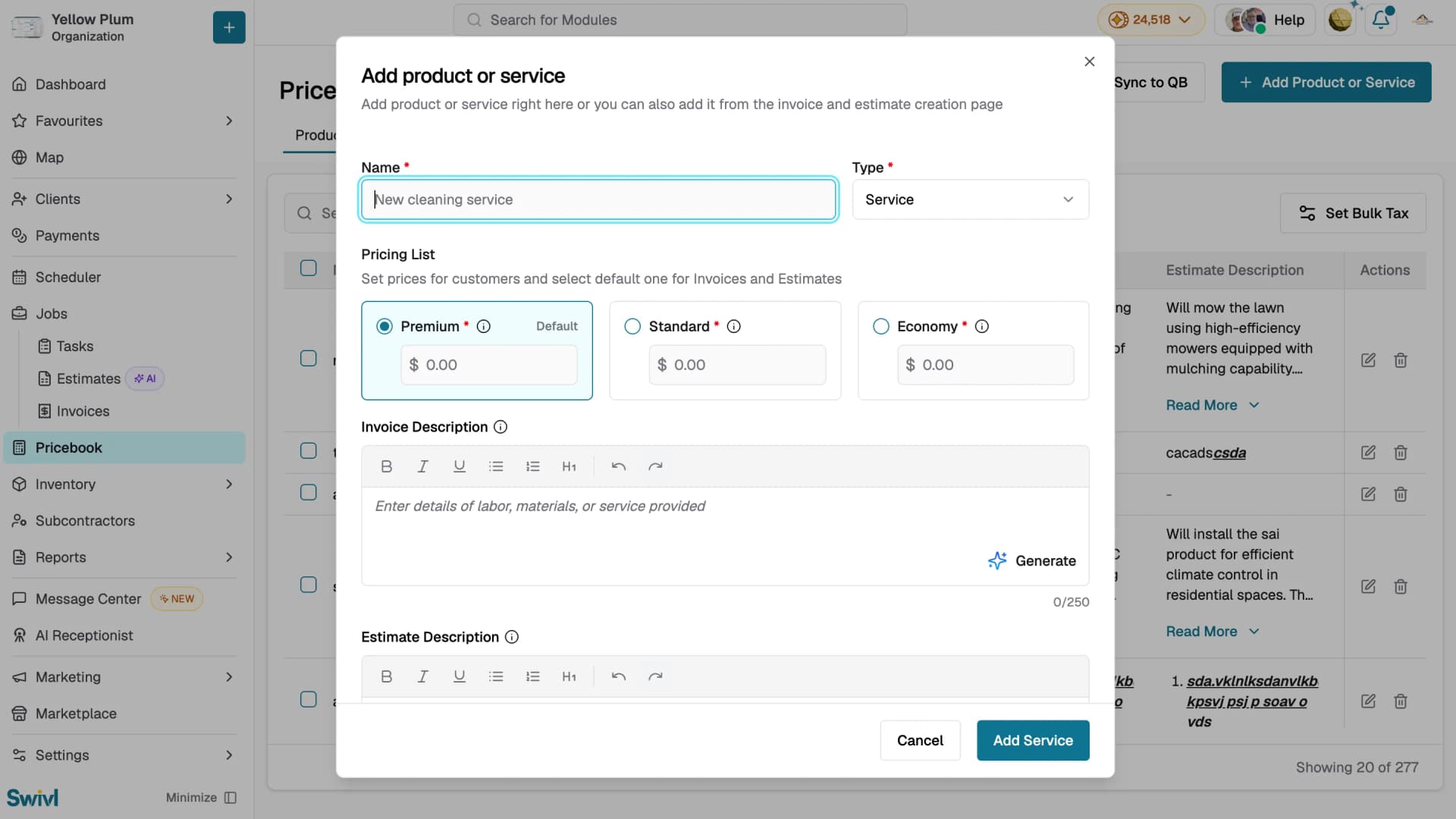
You can add items from the Pricebook, or directly from the invoice and estimate creation pages.
To add a new item from the Pricebook:
- Click Add Product or Service
- Enter the Name
- Select the Type, either Product or Service
- Under Pricing List, set prices for Premium, Standard, and Economy
- Select the radio button on the tier you want as the Default, this is the price applied automatically when the item is added to an estimate or invoice
- Add an Invoice Description and Estimate Description, or click Generate to let AI write them. Each field holds up to 250 characters and supports bold, italic, underline, bulleted and numbered lists, and headings
- Turn on Is it Taxable? if the item is subject to tax
- Click Add Service or Add Product to save.
Editing a Product or Service
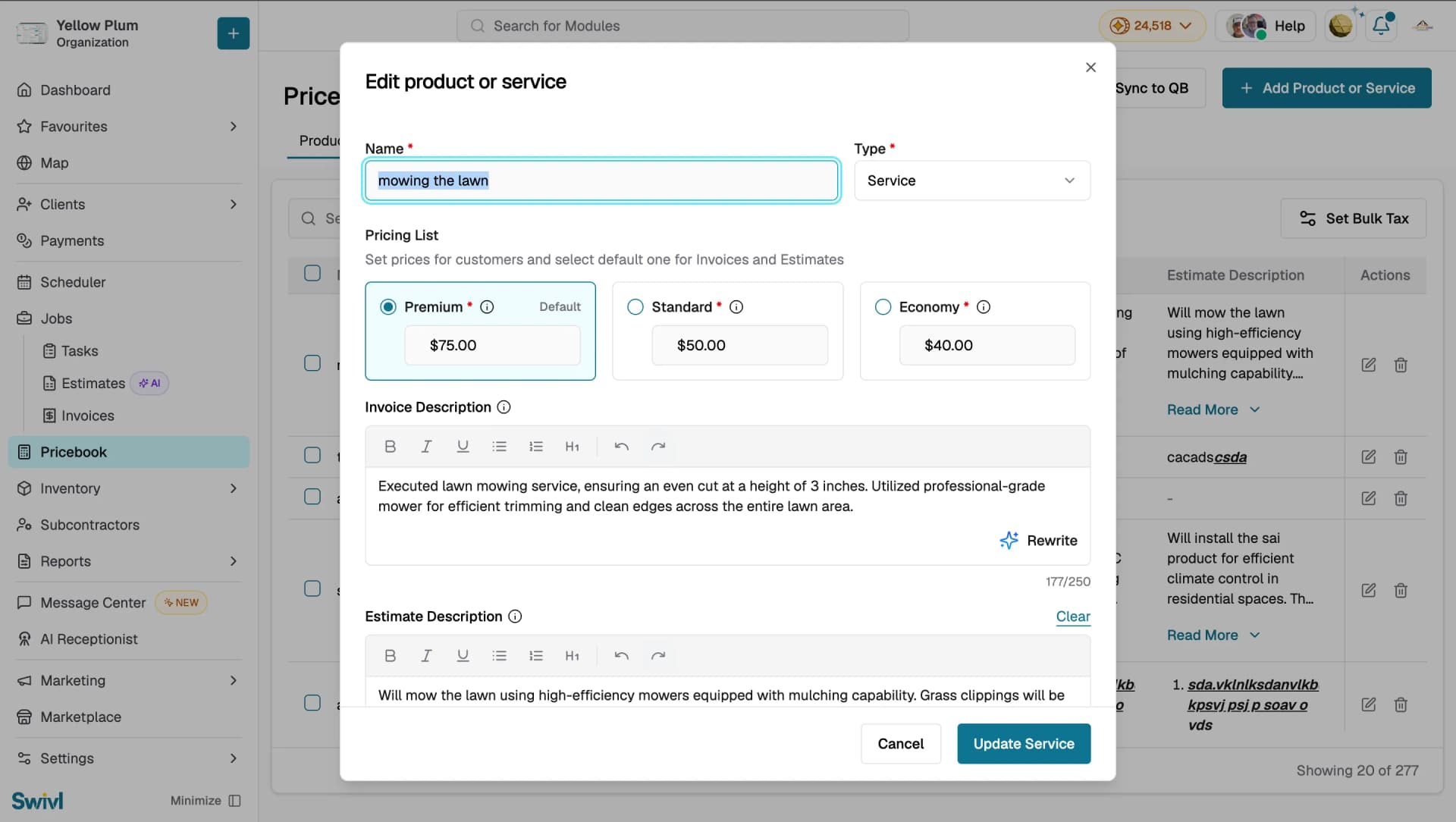
To update an existing product or service:
- Go to Pricebook
- Click the edit icon on the item you want to update
- In the Edit product or service window, update the Name, Type, or any of the Premium, Standard, and Economy prices
- Select a different radio button under Pricing List to change which tier is the Default
- Edit the Invoice Description or Estimate Description, or click Rewrite to let AI update them. Click Clear above a field to empty it and start over
- Turn Is it Taxable? on or off as required
- Click Update Service or Update Product to apply the changes
Deleting a Product or Service
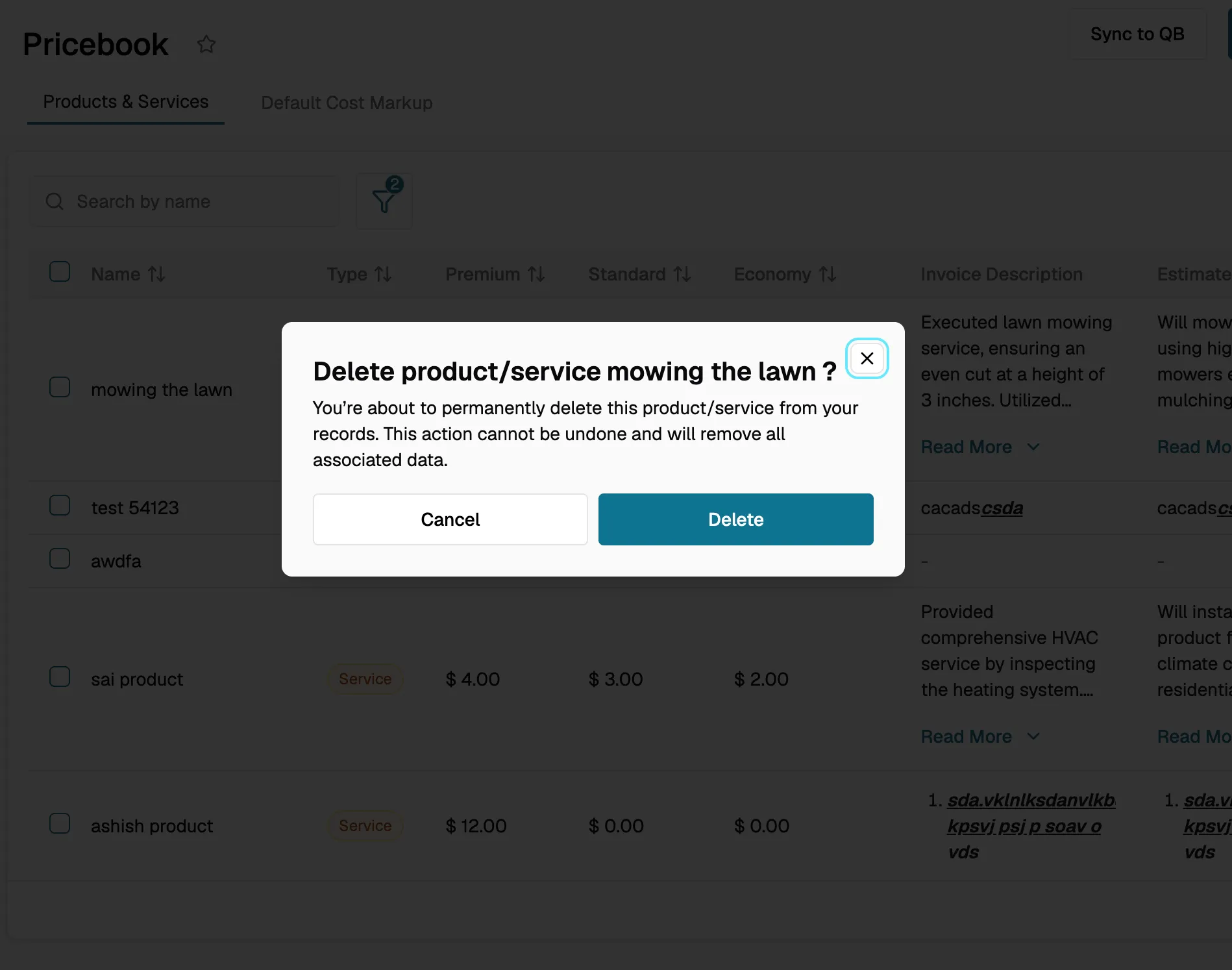
Deleting a product or service is permanent. It removes the item and all associated data, and it cannot be undone.
- Go to Pricebook
- Click the delete icon on the item you want to remove
- Review the confirmation message, which names the item you are about to delete
- Click Delete to confirm, or Cancel to keep the item
Default Cost Markup
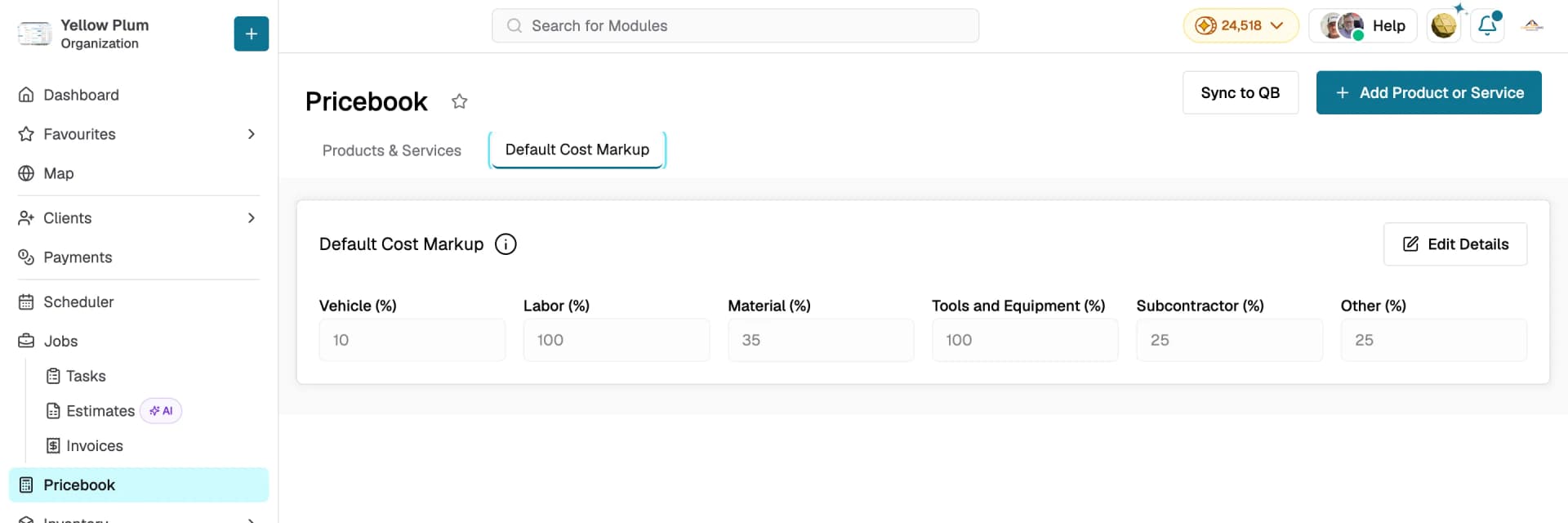
The Default Cost Markup sets the default markup percentage applied to each cost category across your estimates and invoices.
To update the markup:
- Click the Default Cost Markup tab
- Click Edit Details
- Update the percentage for any category and save
Category | Description |
|---|---|
Vehicle (%) | Markup applied to vehicle-related costs |
Labor (%) | Markup applied to labor costs |
Material (%) | Markup applied to material costs |
Tools and Equipment (%) | Markup applied to tools and equipment costs |
Subcontractor (%) | Markup applied to subcontractor costs |
Other (%) | Markup applied to any other costs |
Setting Bulk Tax
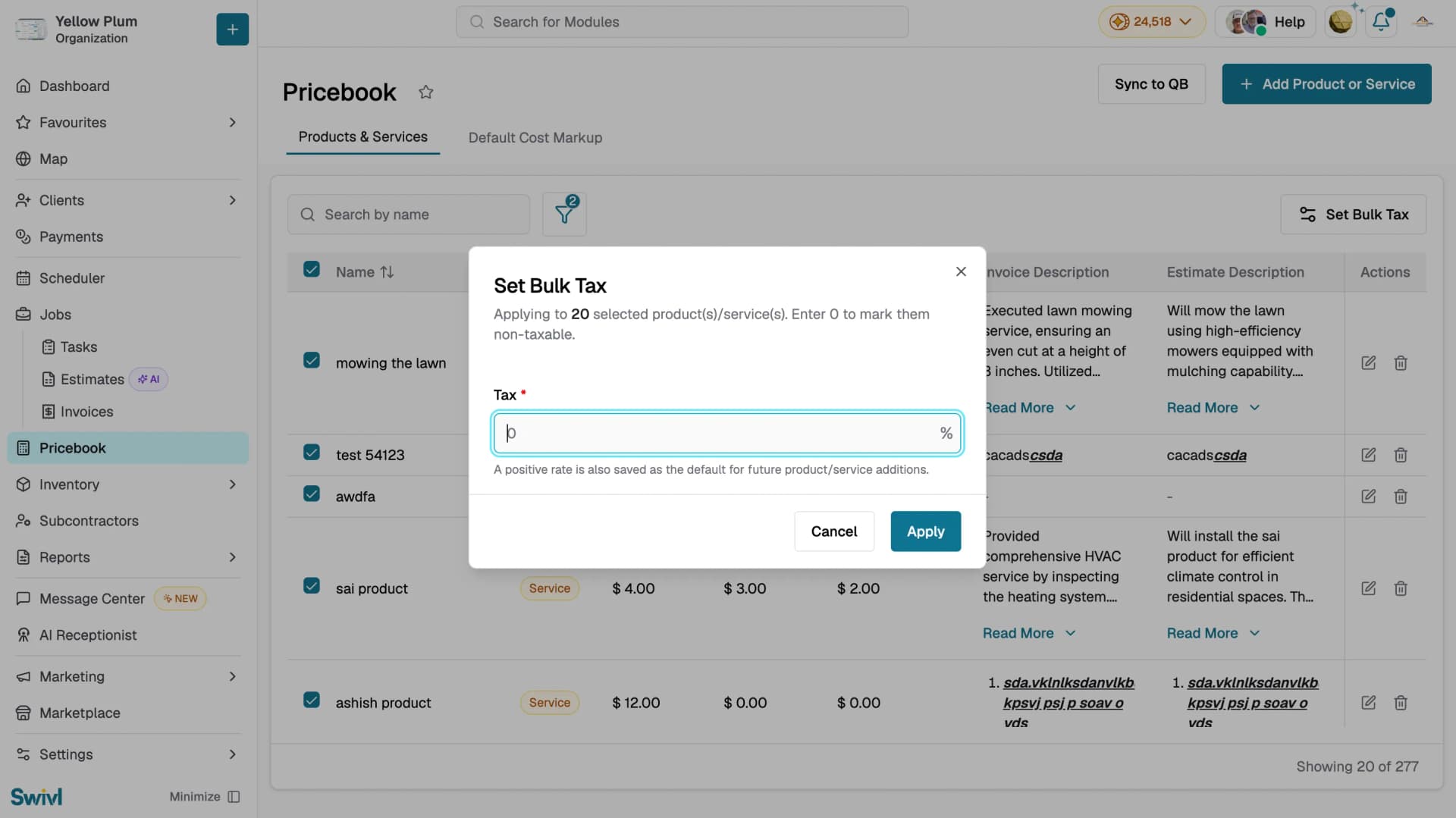
Use Set Bulk Tax to apply a tax rate to multiple products and services at once.
- Tick the checkboxes next to the items you want to update, or tick the header checkbox to select all.
- Click Set Bulk Tax in the top-right corner.
- Enter the Tax rate to apply to the selected items. Enter 0 to mark them non-taxable.
- Click Apply.
A positive rate is also saved as the default for any products or services you add later.
Sync to QB
Sync your Pricebook directly to QuickBooks with one click.
- Click Sync to QB in the top-right of the Pricebook page
- A notification confirms that the export is in progress
- You will receive a notification when the sync is done
Tips
- Use Generate when adding a new item to let AI write the Invoice and Estimate descriptions for you. It saves time and keeps descriptions consistent.
- Set the Default tier carefully, it's the price automatically applied when the item is added to an estimate or invoice.
- Keep descriptions well under the 250-character limit, they appear directly on customer-facing estimates and invoices.
- Use Rewrite on existing items to refresh outdated descriptions with AI.
- Use Set Bulk Tax with a rate of 0 to quickly mark a batch of items non-taxable.
- Keep your Default Cost Markup percentages up to date to ensure accurate job costing across estimates and invoices.
- Click Sync to QB regularly to keep your QuickBooks pricebook in sync with Swivl.
Your Pricebook keeps all your products, services, and pricing in one place, ready to use across every estimate and invoice you send.