
Task Scheduler Overview: Calendar and List View
The Task Scheduler gives you a real-time view of everything your team has scheduled. See who is working on what, spot gaps in the schedule, and manage tasks directly from the calendar.
Overview
The Task Scheduler gives you full visibility into your team's schedule. View tasks by day, week, or month, spot unscheduled or unassigned work, and create, reschedule, or reassign tasks directly from the calendar.
Who can access this
Role | Access |
|---|---|
Super Admin | Full access to all Task Scheduler features |
Admin | Full access to all Task Scheduler features |
Lead Technician | Can view the calendar in a limited capacity (their own schedule) |
Technician | Can view their own scheduled tasks on the calendar |
How to Access the Task Scheduler
Navigate to Scheduler in the left sidebar. The scheduler has two tabs:
- Calendar: the visual calendar view (default).
- List: a table-based list of scheduled tasks.
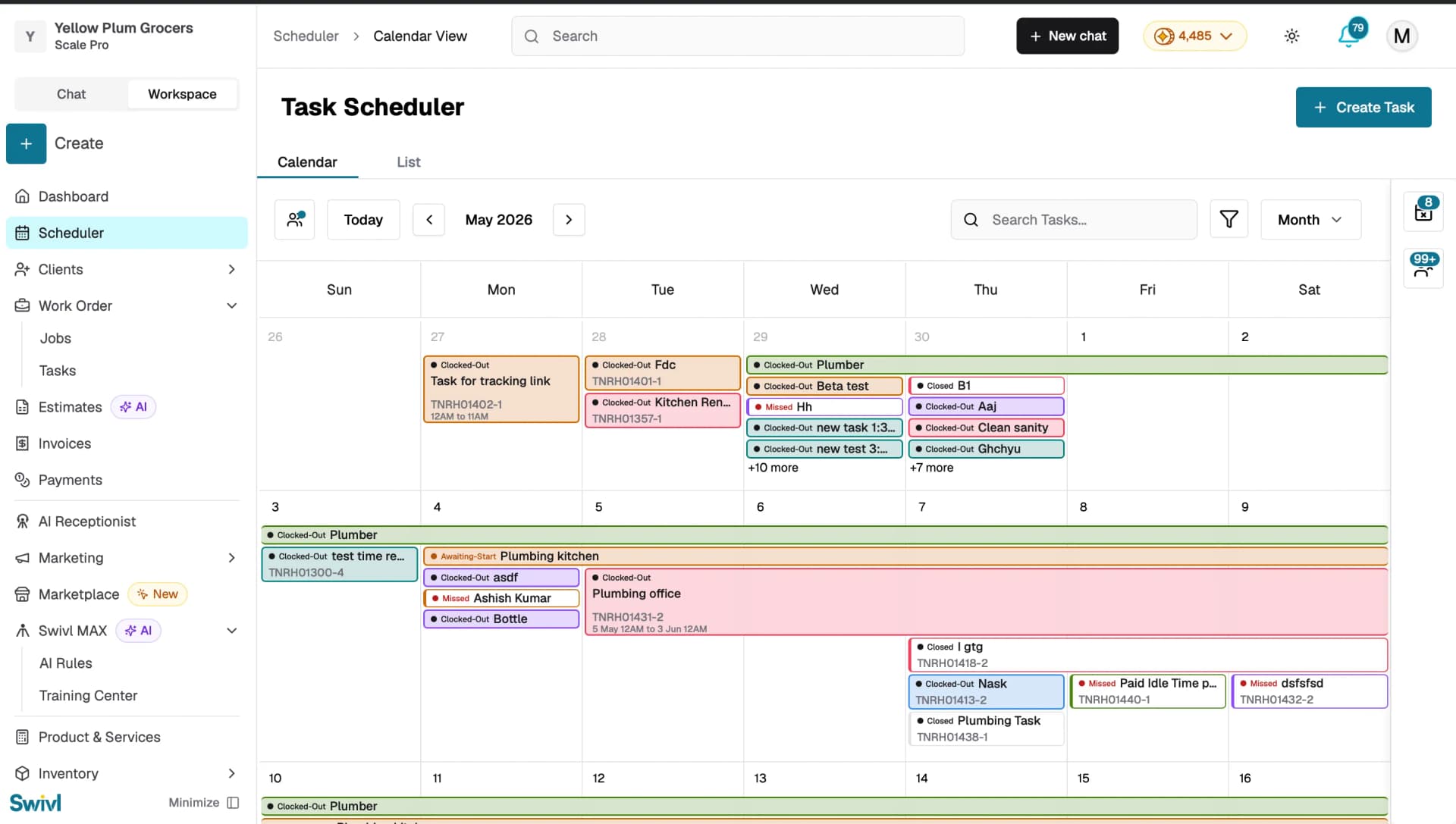
You can also create a new task directly from this screen by clicking + Create Task in the top right.
What You Will See
Calendar Area
The main area displays tasks as colored blocks on a calendar grid.
Each block shows:
- Task status such as Clocked-Out, Missed, Closed, or Awaiting-Start.
- Task name and task number.
- Time range.
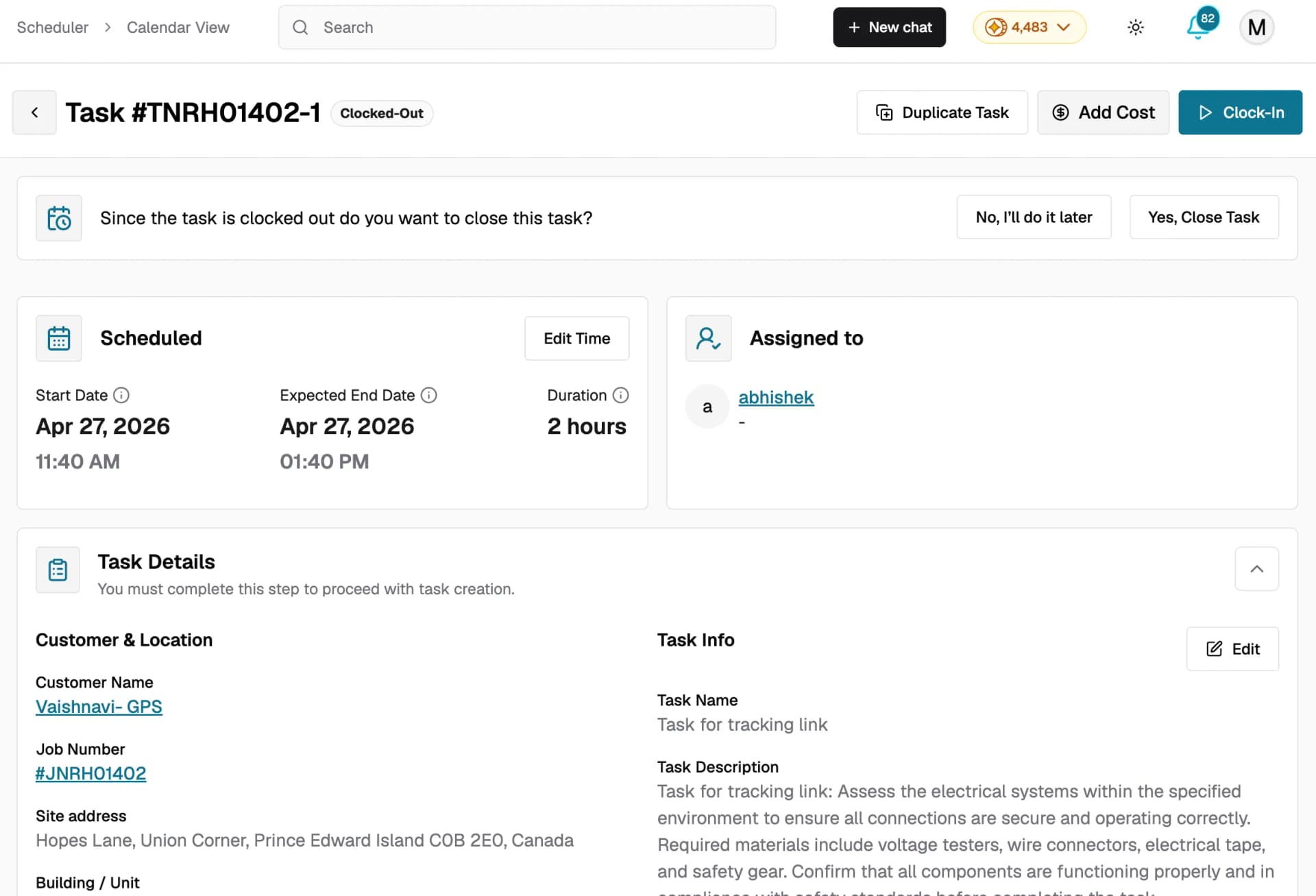
Click any task block to open the full task detail view where you can view task information, edit the schedule, assign technicians, add costs, and more. For a detailed walkthrough, see Tasks.
Team Filter Sidebar
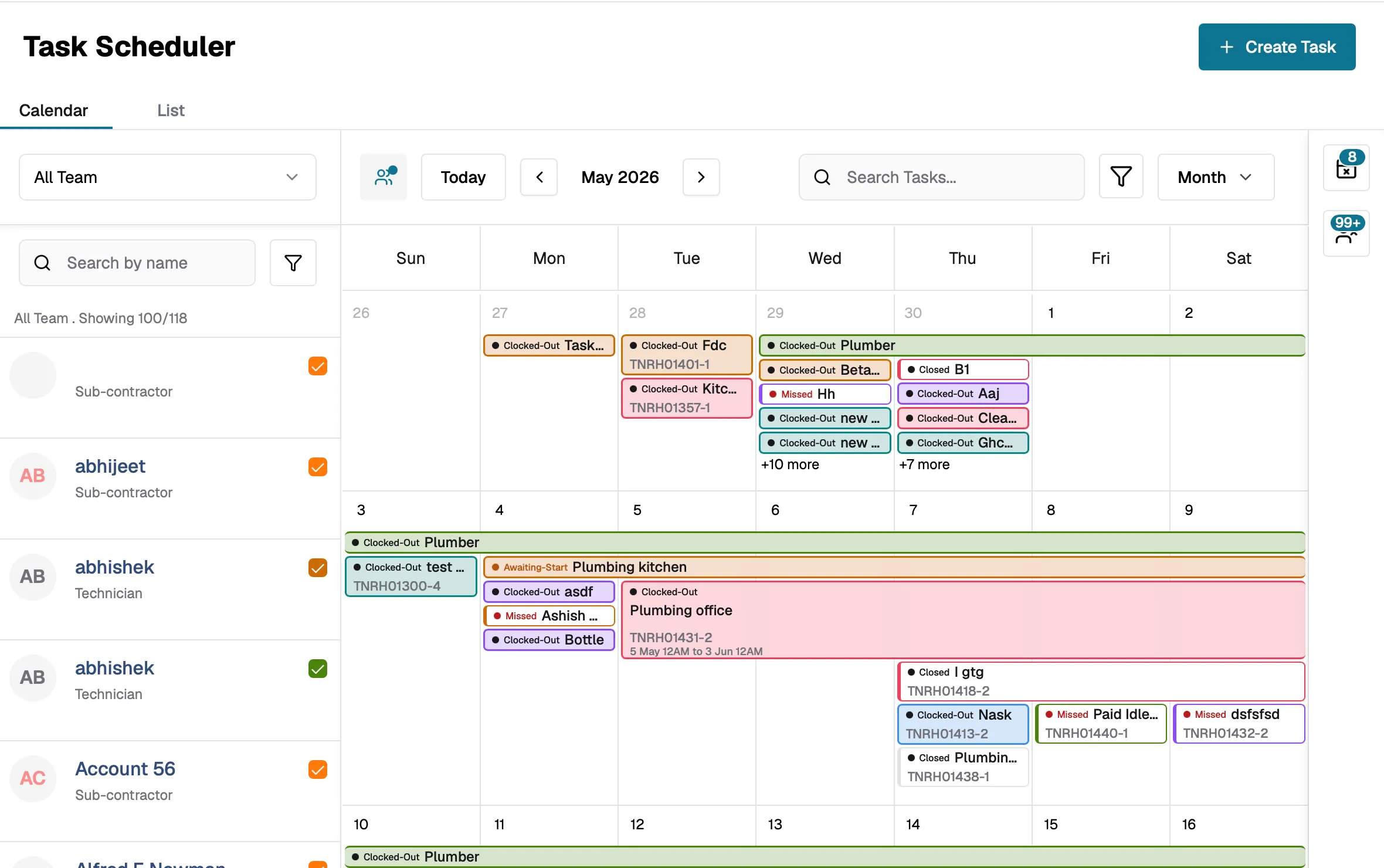
On the left, a sidebar lists all your team members, technicians and subcontractors.
You can:
- Click the team icon at the top of the calendar to show or hide the sidebar.
- Use the All Team dropdown to filter by team type.
- Search for a specific team member by name.
- Check or uncheck team members to show or hide their tasks on the calendar.
- See color-coded checkboxes matching each person's tasks on the calendar.
Navigation bar
The calendar toolbar includes the following:
- Team icon: show or hide the team filter sidebar.
- Today: jump back to the current date.
- Date navigation arrows: move forward or backward in time.
- Search Tasks: search for a specific task by name or number.
- Filter icon: filter tasks by specific criteria.
- Month dropdown: switch between Day, Week, and Month views.
- Unscheduled Tasks icon: displayed on the right side with a count badge. Click to open a drawer showing tasks that have not been scheduled yet.
- Unassigned Tasks icon: displayed next to Unscheduled Tasks with a count badge. Click to open a drawer showing tasks that have not been assigned to a team member.
List View
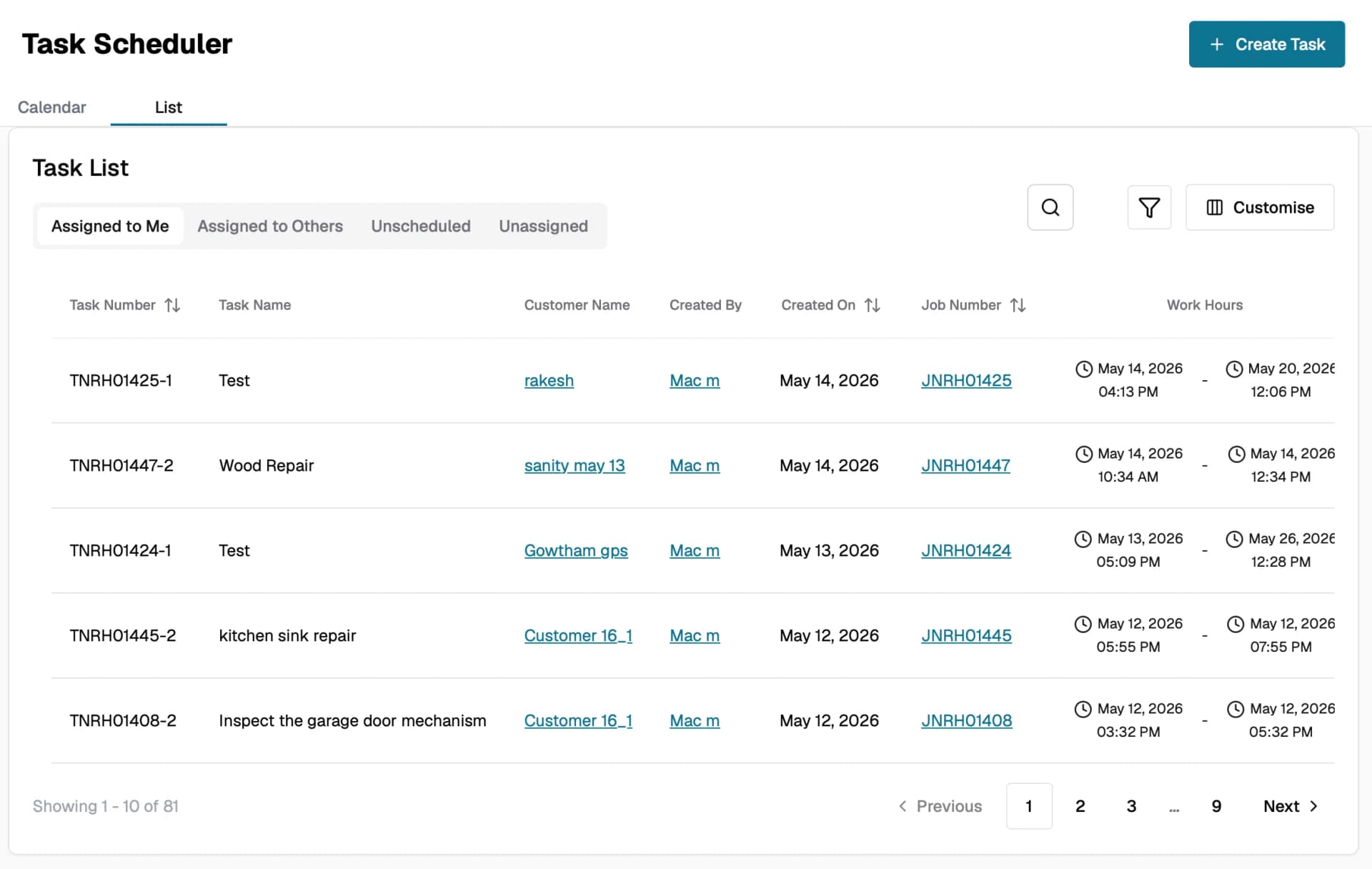
Click the List tab to switch to a table-based view of all tasks. The list is divided into four sub-tabs:
- Assigned to Me: tasks assigned to you.
- Assigned to Others: tasks assigned to other team members.
- Unscheduled: tasks that have not been scheduled yet.
- Unassigned: tasks that have not been assigned to a team member.
Each row shows the Task Number, Task Name, Customer Name, Created By, Created On, Job Number, and Work Hours.
You can Search, Filter, and use Customise to show or hide columns based on your preference.
Tips
- Use the Unscheduled Tasks and Unassigned Tasks icons to quickly identify work that needs attention before the day begins.
- Color-coding is assigned automatically per team member, making it easy to scan the calendar and see how workload is distributed across your team.
- The Task Scheduler updates in real time, any changes made by other users appear immediately without needing to refresh.
- Use the Search Tasks bar to quickly locate a specific task without scrolling through the calendar.