
AI Website Builder
Launch your business website without the hassle. Swivl AI Website Builder builds a professional, branded site for your field service business in minutes, using your existing company information.
Overview
The Swivl AI Website Builder powered by Swivl MAX helps you create a professional website for your field service business in minutes, no technical skills needed. It uses your company profile and configured services to automatically generate your site's content and layout.
How to Create Your Website
Go to Marketing → AI Website Builder and click Create Website.
You can create your website in two ways : New or Migration.
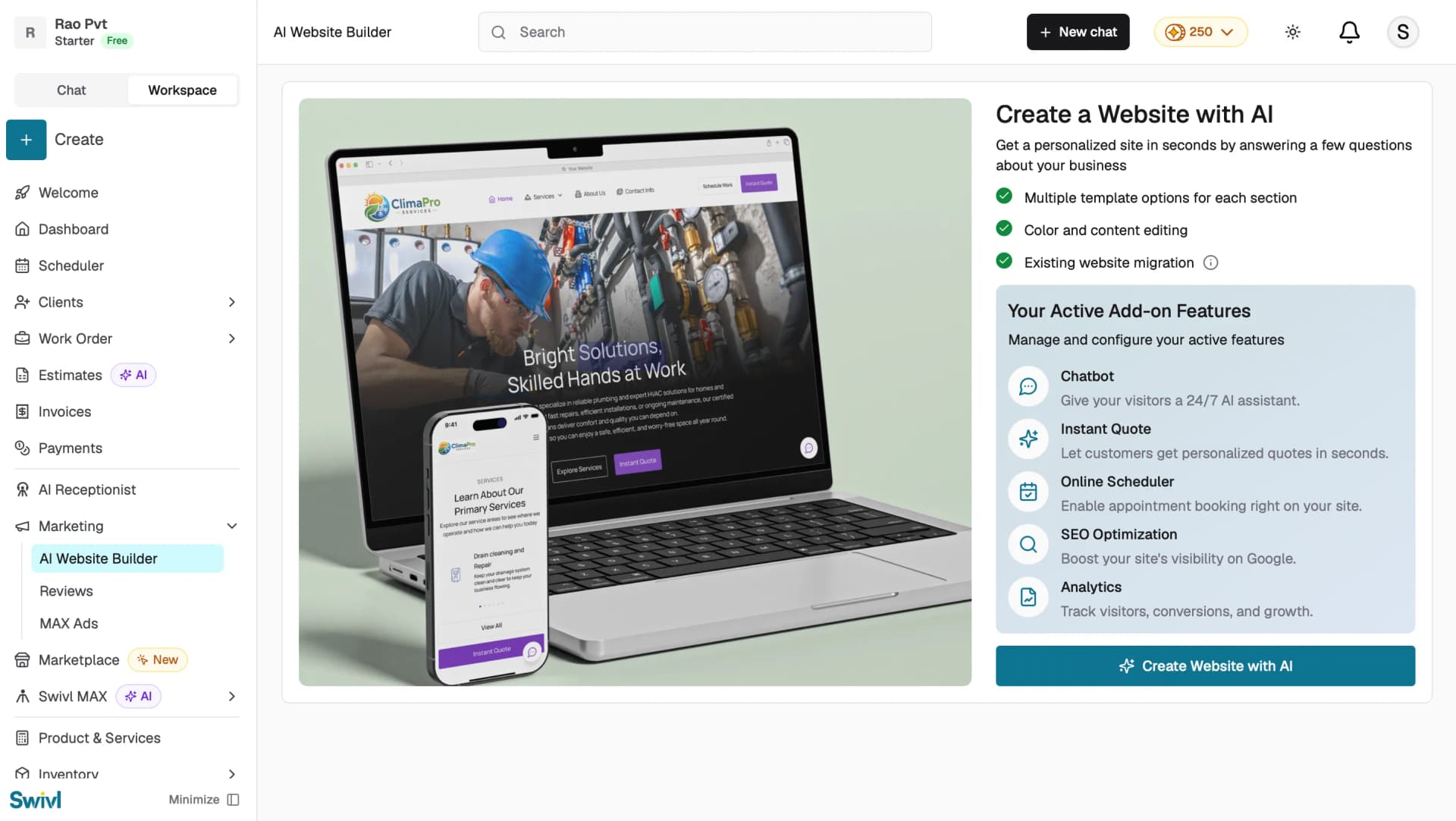
New
- Use this option to build your website from scratch using AI.
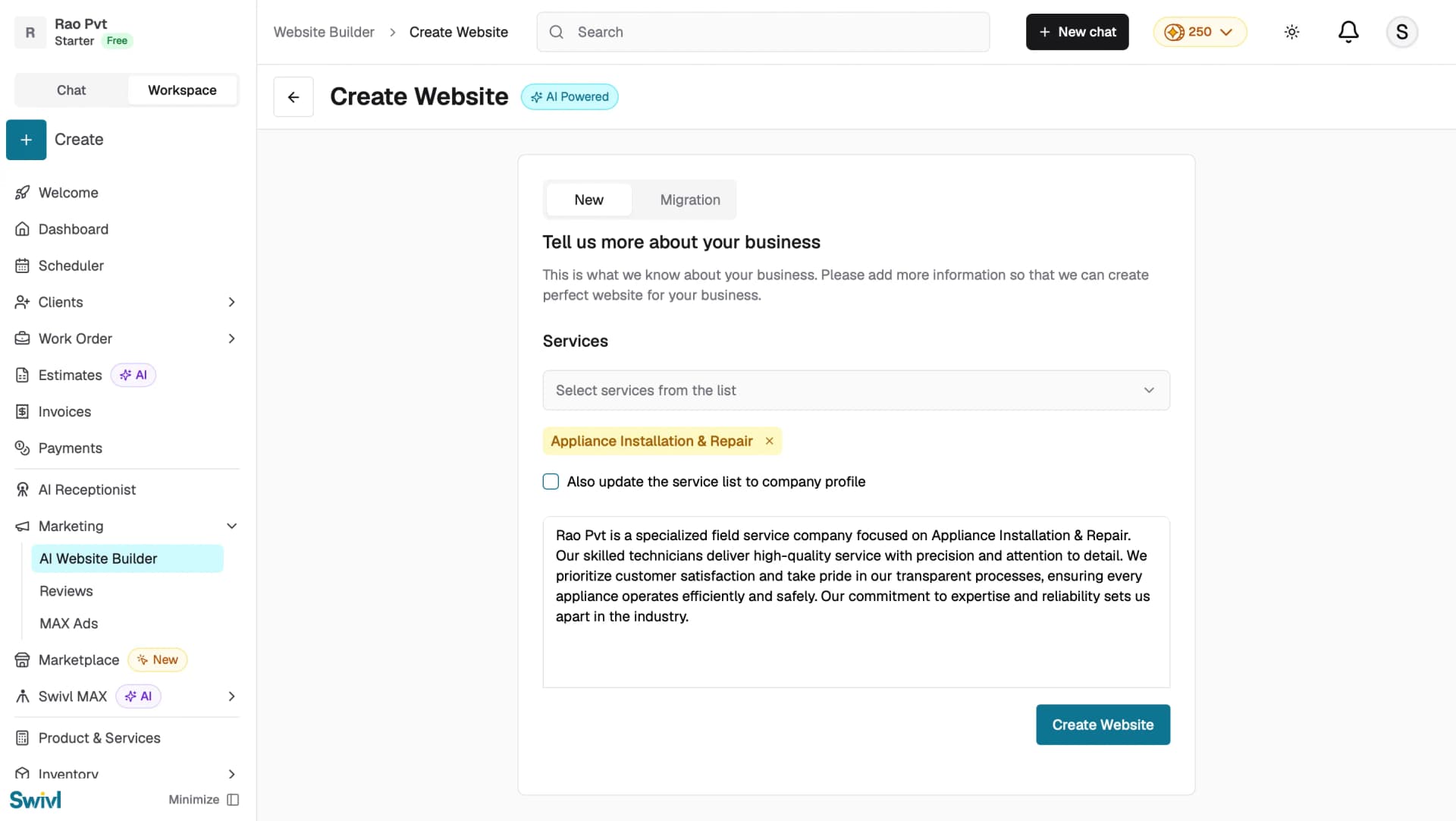
- Select your services from the list.
Note: Also select the check box if you need to sync these services to your company profile.
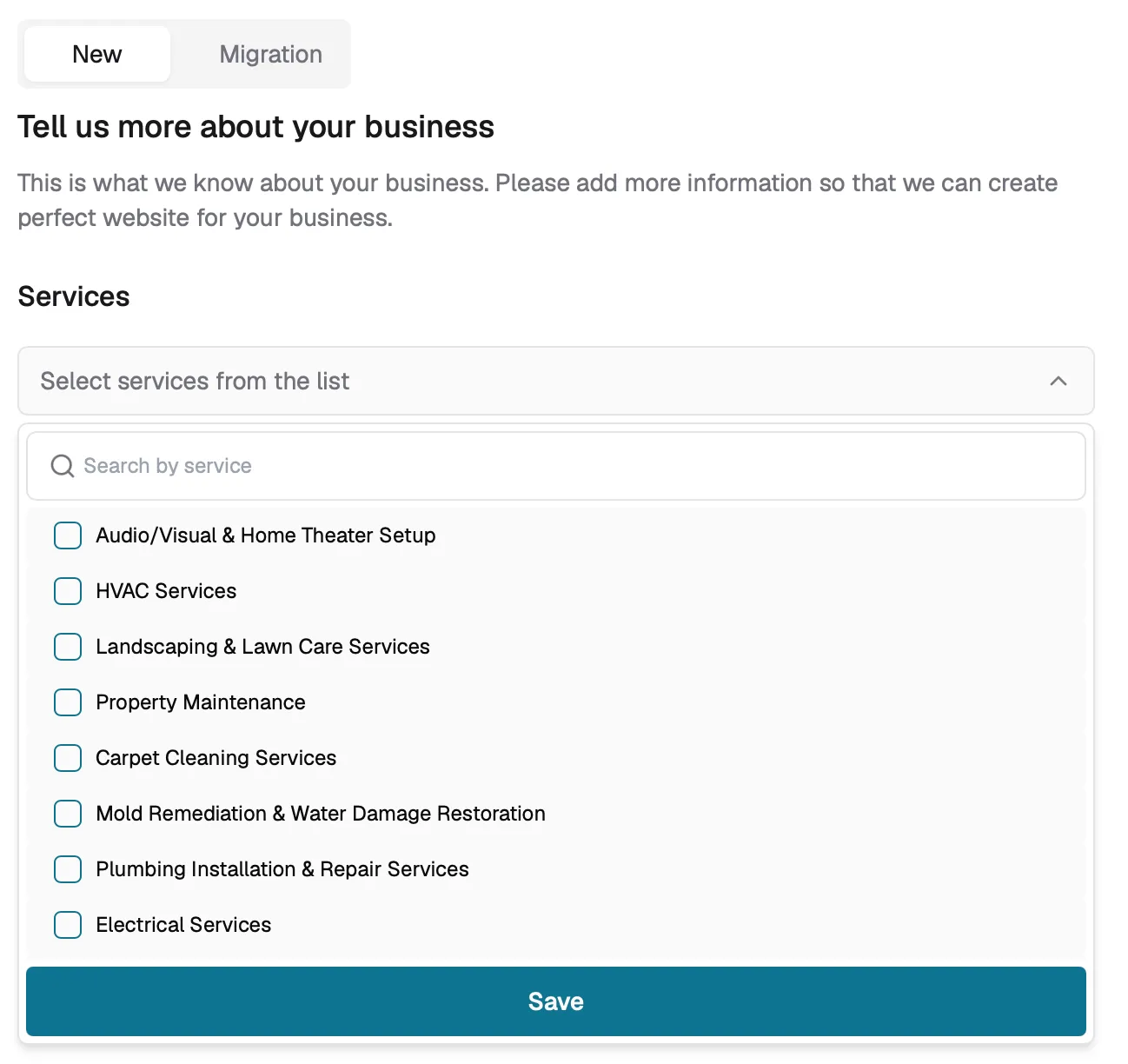
- Review the auto-filled business description , edit it if needed.
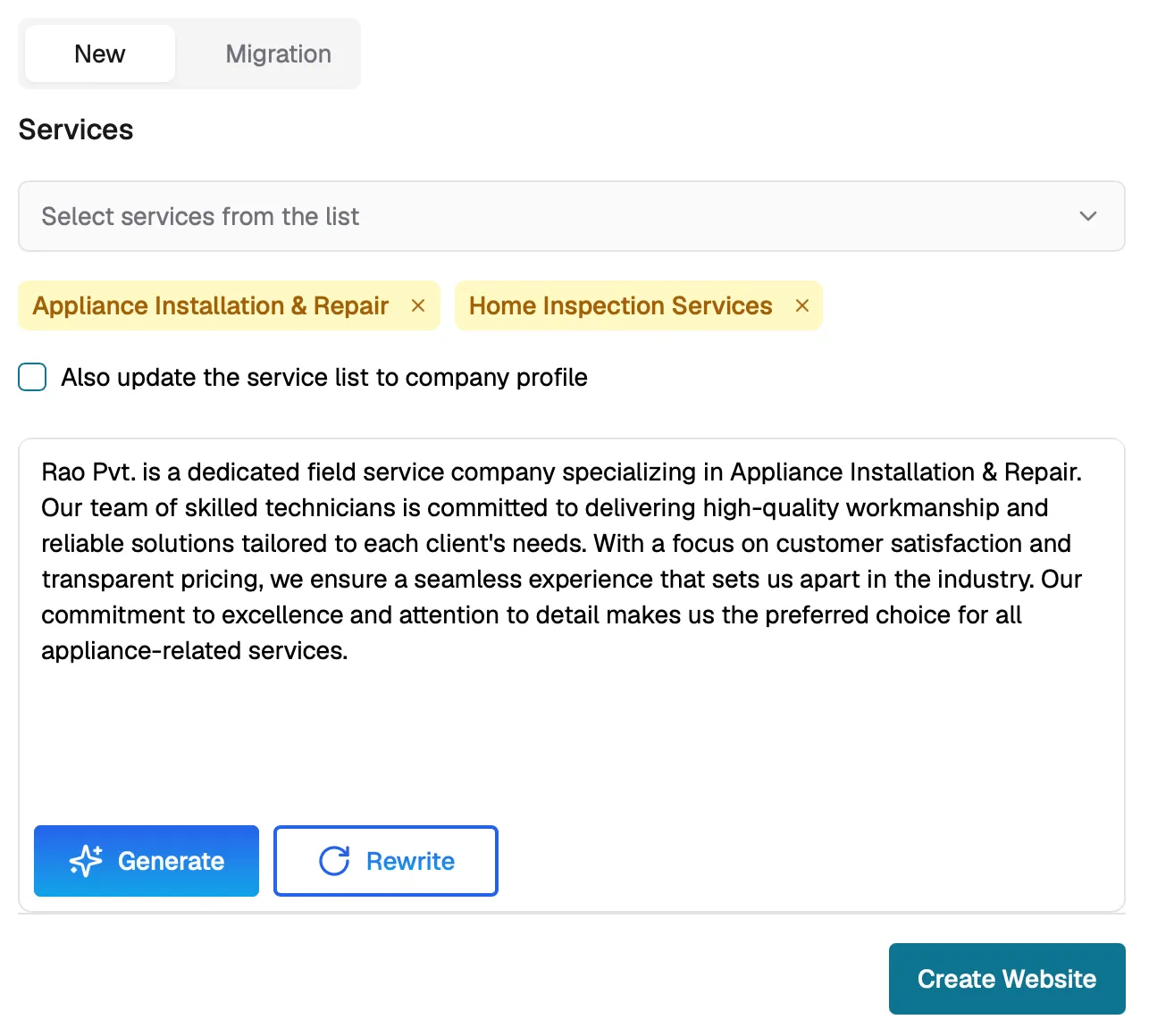
- Click Create Website to let the AI generate your site.
Migration
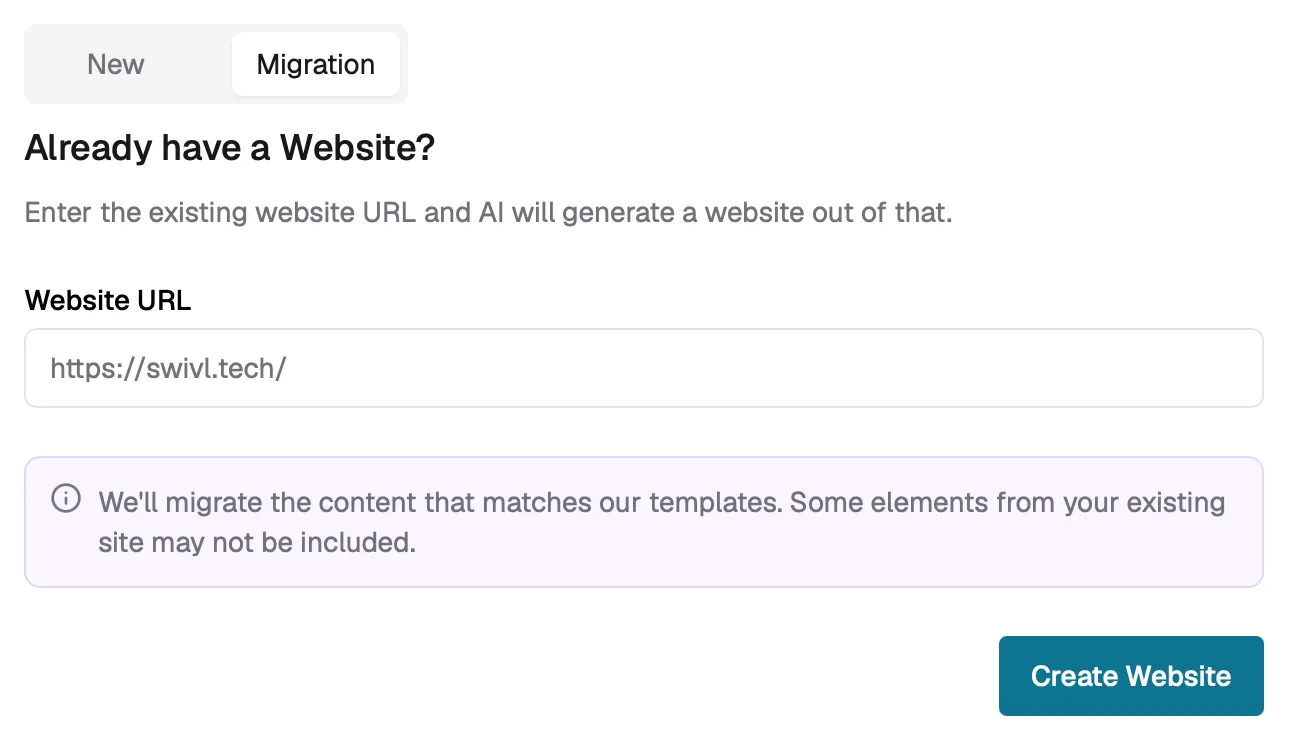
Use this option if you already have an existing website and want to bring it into Swivl.
- Click the Migration tab.
- Enter your existing website URL.
- The AI will extract your content and rebuild it using Swivl's templates.
Note: The migrated content will be restructured and presented using Swivl's own templates. The look and feel of your new site will follow Swivl's design.
Editing Your Website
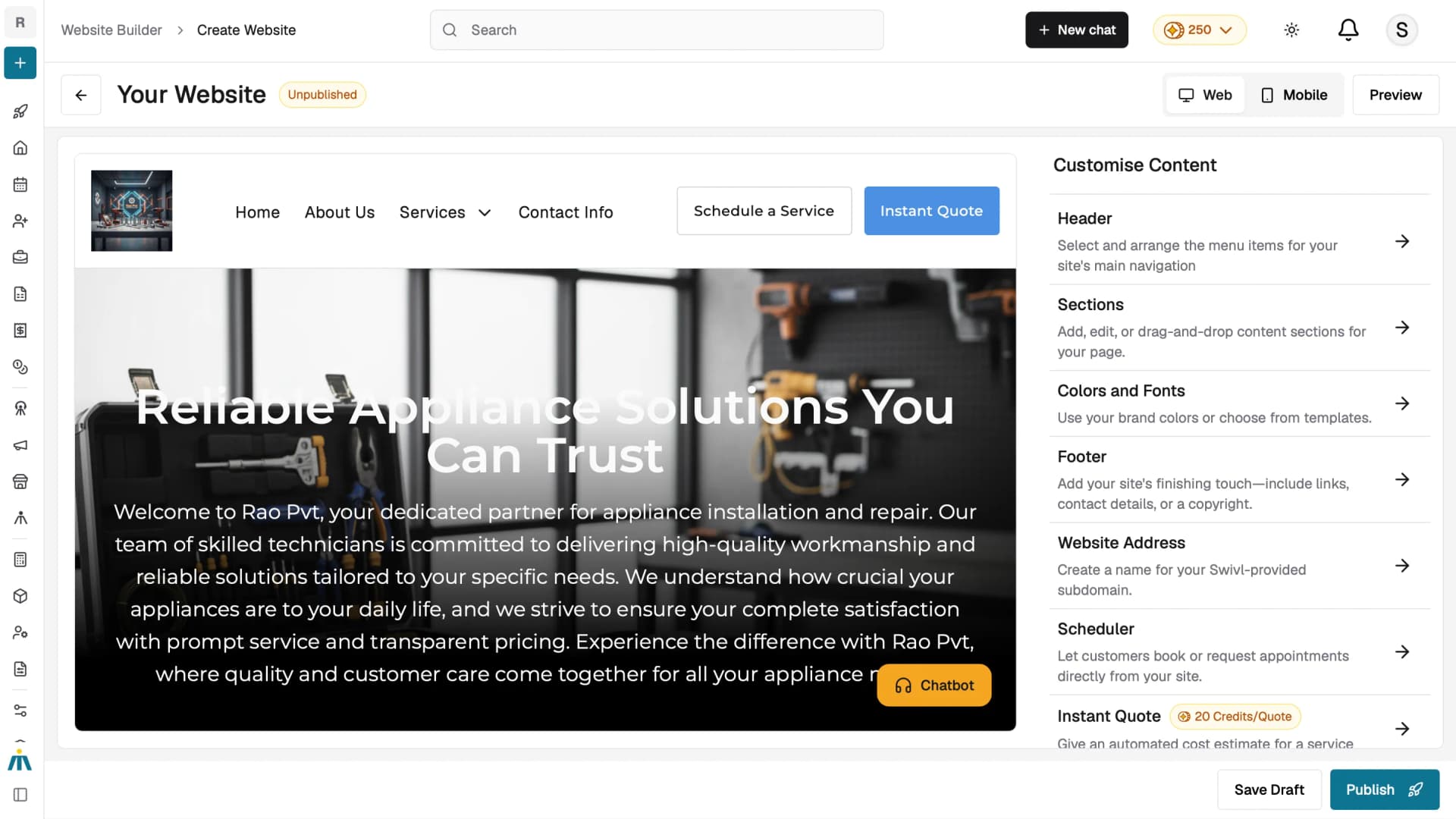
Once your website is generated, you can customize it from the Customize Content panel on the right side of the editor.
- Header : Select and arrange the menu items for your site's main navigation.
- Sections : Add, edit, or drag-and-drop content sections for your page.
- Colors and Fonts : Use your brand colors or choose from templates.
- Footer: Add links, contact details, or a copyright notice.
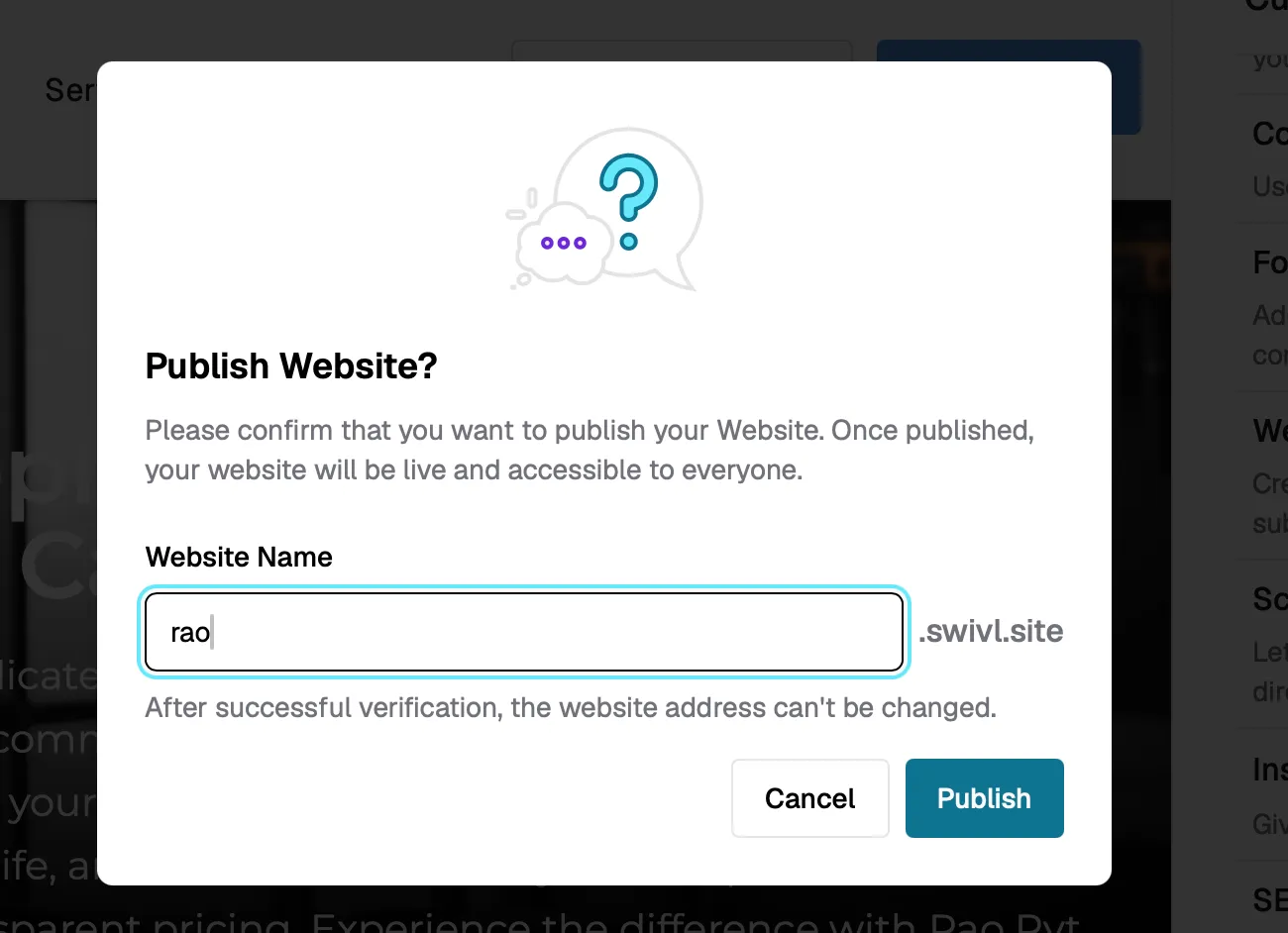
- Website Address: Create a name for your Swivl-provided subdomain.
- Chatbot : Enable a 24/7 AI assistant to engage with visitors on your site.To get started, see Chatbot.
- Scheduler : Let customers book or request appointments directly from your site.For a detailed walkthrough, see Scheduler.
- Instant Quote : Give customers an automated cost estimate for a service.For more information, see Instant Quote.
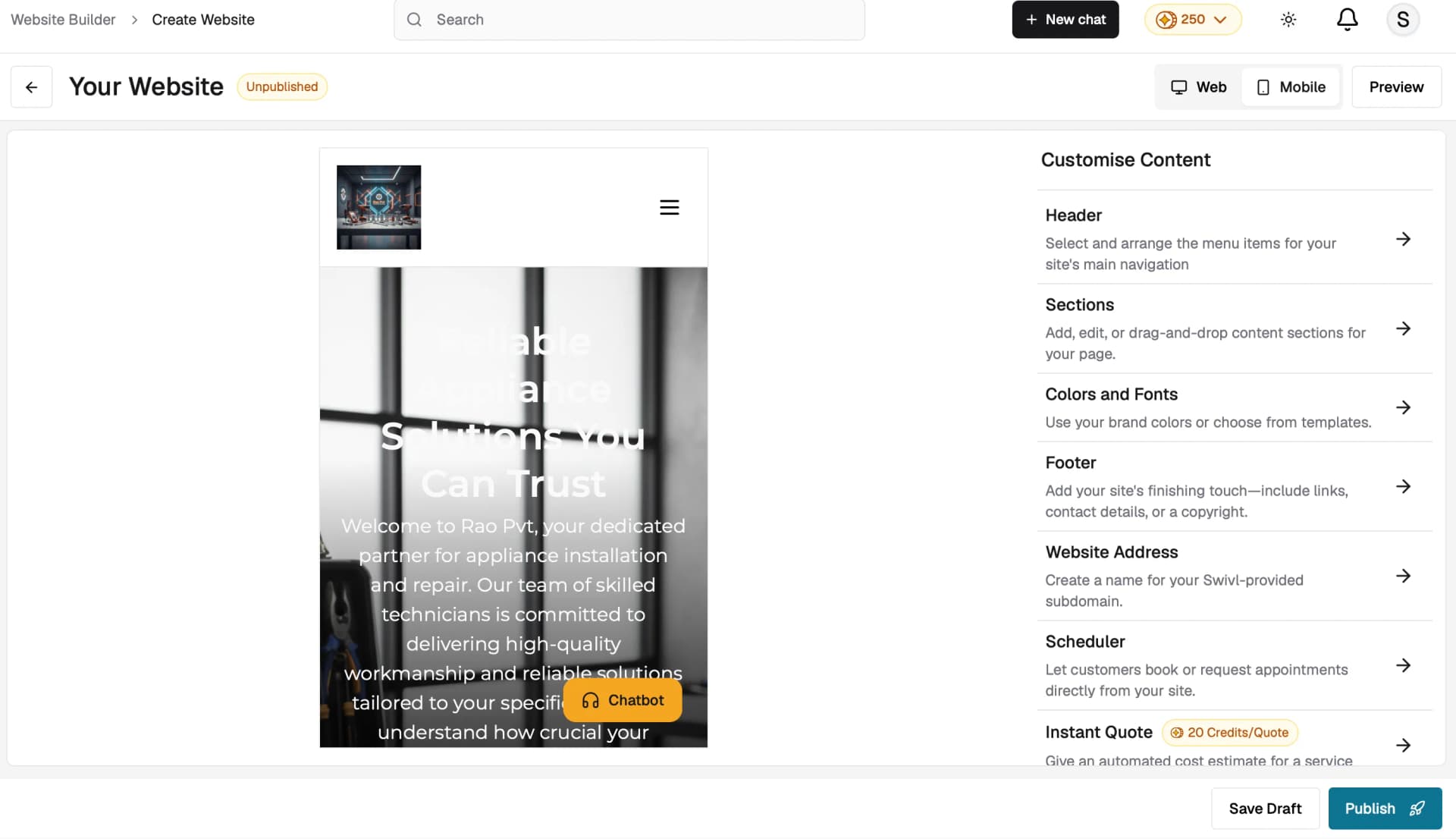
You can toggle between Web and Mobile views to preview how your site looks on different devices. Click Preview to see the full site before publishing.
When you are ready, click Publish to make your website live, or Save Draft to continue editing later.
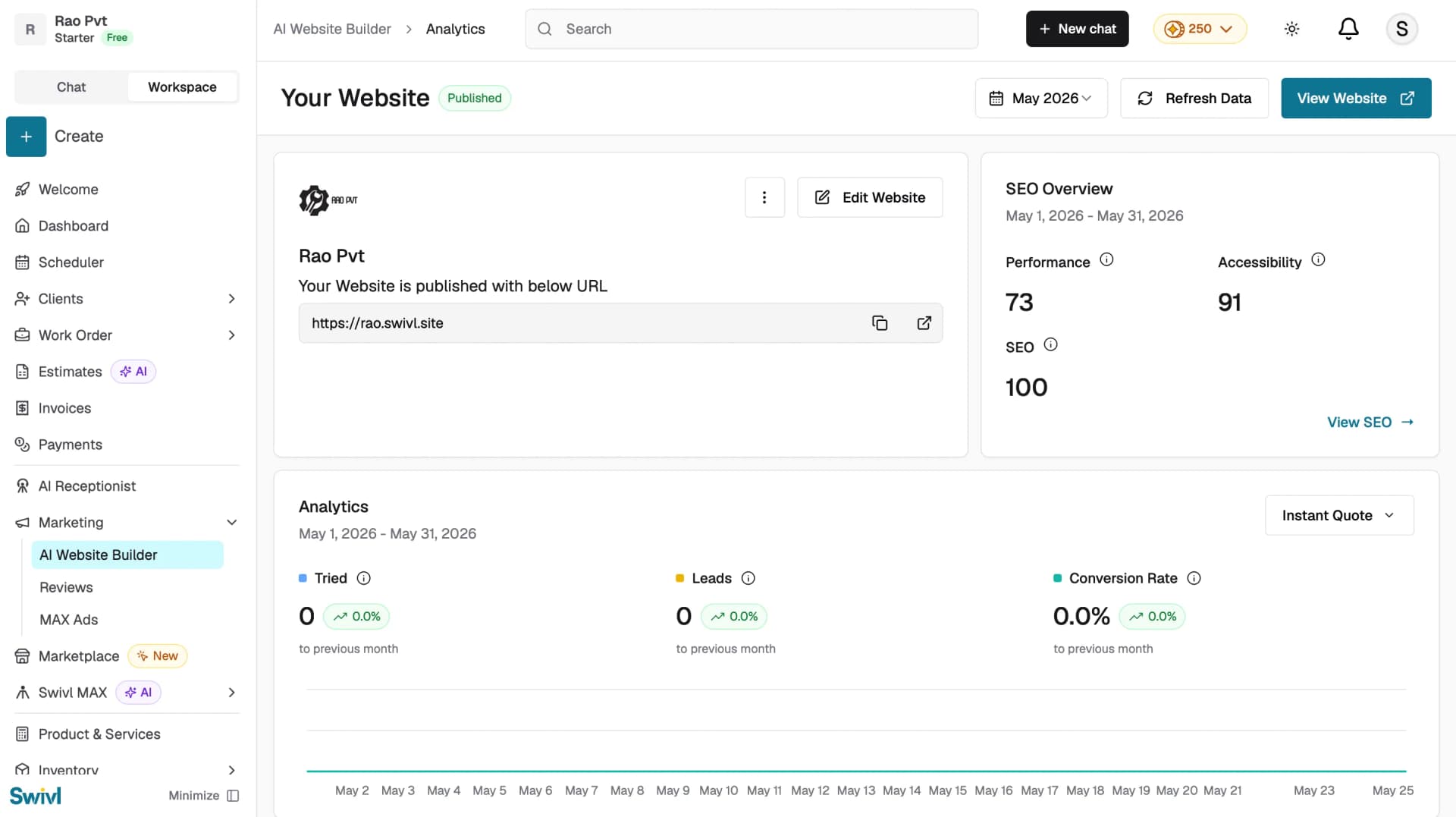
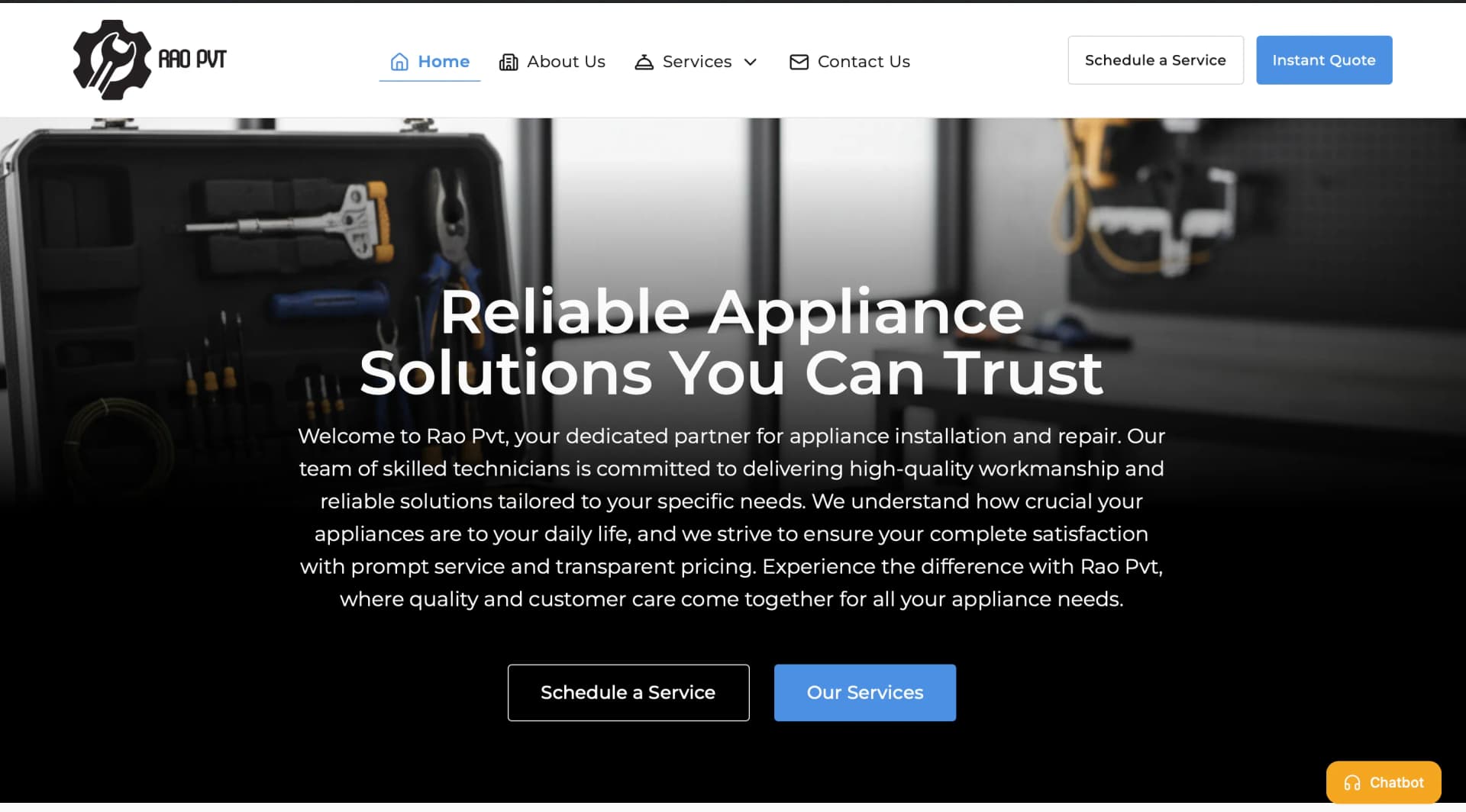
Managing Your Website
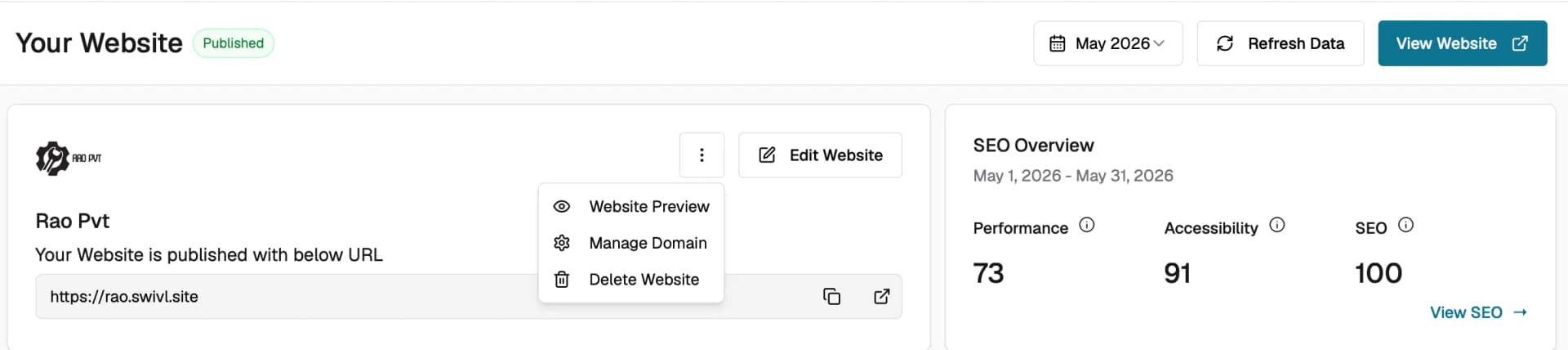
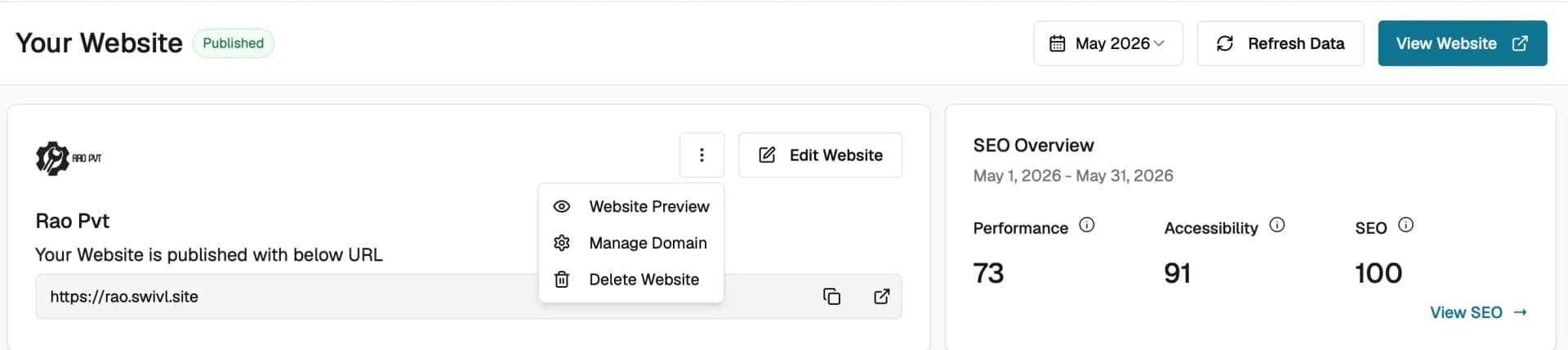
Once your website is published, click the three-dot menu on your website card to access the following options:
- Website Preview : View your live website.
- Manage Domain : Connect a custom domain to your website.
- Delete Website: Permanently delete your website.
Setting Up a Custom Domain
By default your website is hosted on a Swivl subdomain (e.g. yourname.swivl.site). To connect a custom domain:
- Click the three-dot menu and select Manage Domain.
- Enter your custom domain in the Website Domain field and click Add.
- In your domain provider's console, add an A Name record with the following details:
- Name → @
- Value → 44.246.57.237
- TTL → Any available value
- Swivl will start the linking process and update you with the status.
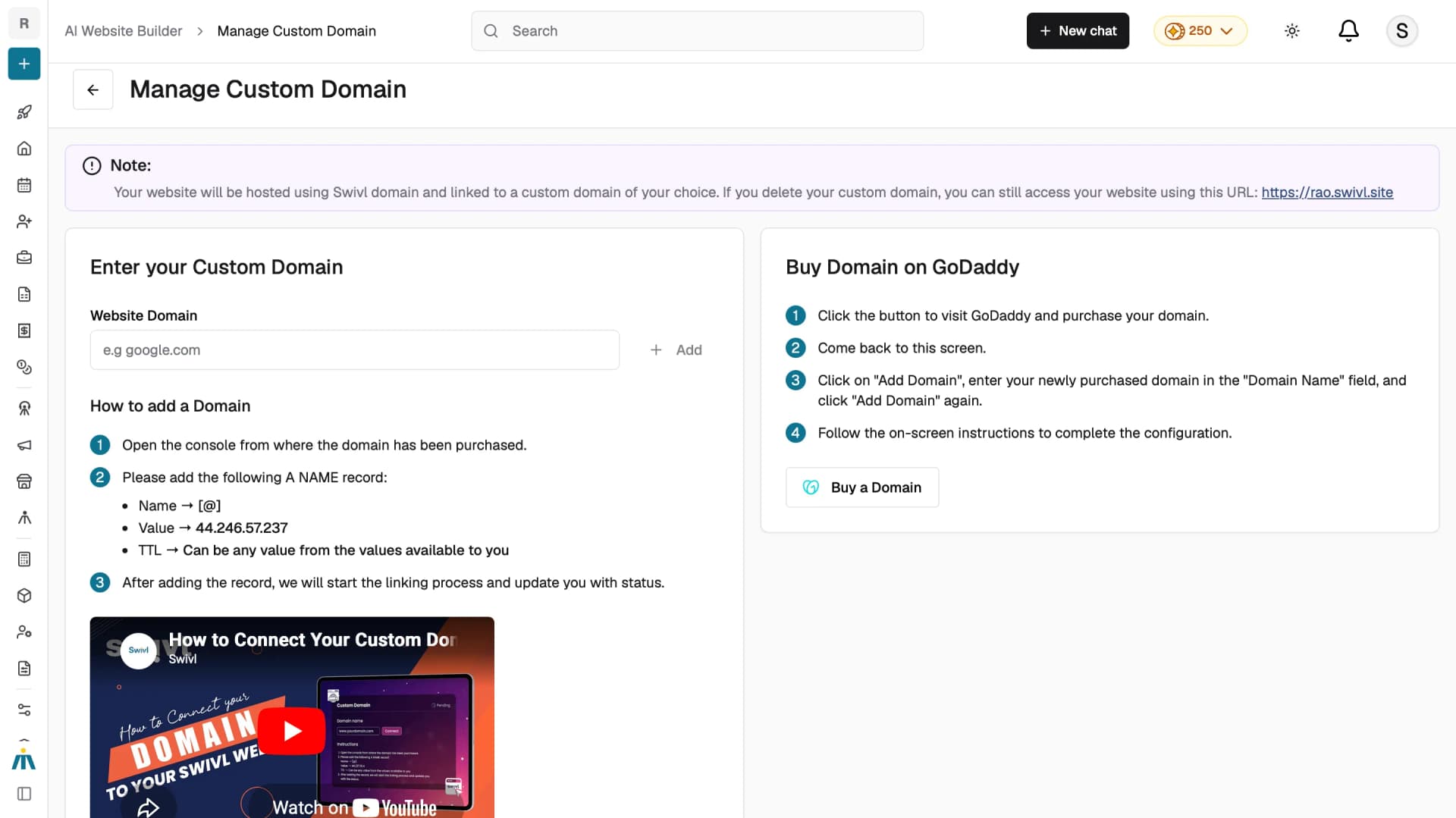
Don't have a domain yet? Click Buy a Domain purchase one through GoDaddy. For more information click Connecting a Custom Domain
SEO Overview
Once your website is published, you can view your site's Performance, Accessibility, and SEO scores directly from the Website Builder dashboard. For a detailed walkthrough, see SEO Optimization.
Analytics
Track how your Instant Quote feature is performing , including Tried, Leads, and Conversion Rate — directly from the Website Builder dashboard. For a detailed walkthrough, see Analytics.
Tips
- Make sure your company profile is complete- name, logo, and services before creating your website. The AI uses this information to generate your content.
- Use the Preview button to check how your site looks on both desktop and mobile before publishing.
- You can only have one website at a time regardless of your plan.
- Save as Draft if you are not ready to publish , you can return and continue editing at any time.
- If you are migrating an existing website, review the extracted content carefully as it may be adjusted to fit Swivl's templates.
- You can delete your website at any time and start fresh from scratch.