
AI Estimator Rules: Customise How Max Builds Estimates
AI Estimator rules control how Max generates estimates. Set pricing logic, define what to include or exclude, and ensure every estimate aligns with your business standards.
Overview
AI Estimator rules tell Max exactly how to price and build estimates. Configure them once and every AI-generated estimate will follow your company's pricing standards and service policies automatically.
Who can access this
- Super Admin: can create, edit, toggle, and delete rules.
- Admin: can view rules only. Creating or modifying rules requires full access to both Work Order and Finance.
- Lead Technician / Technician: no access.
Where to manage rules
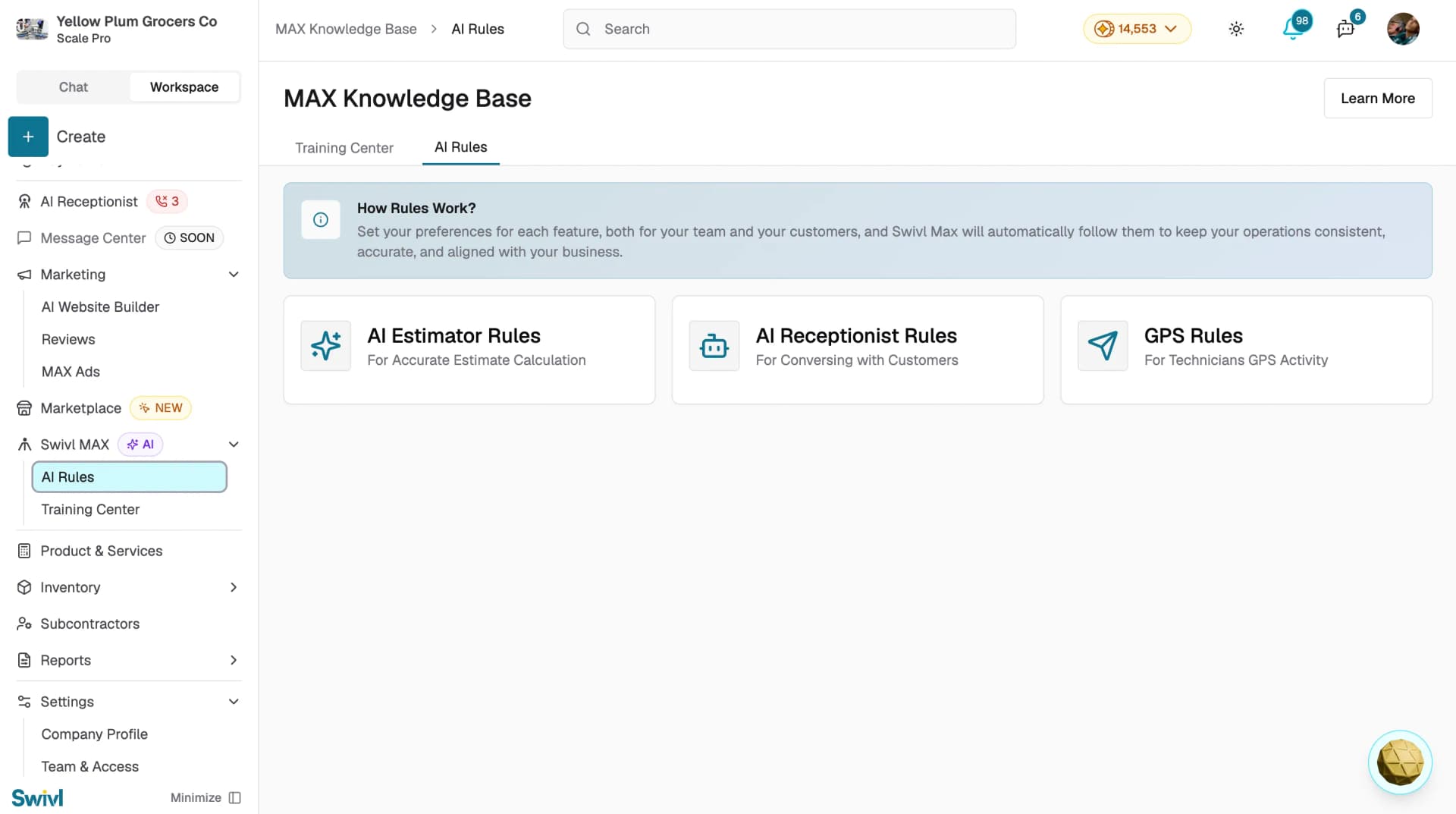
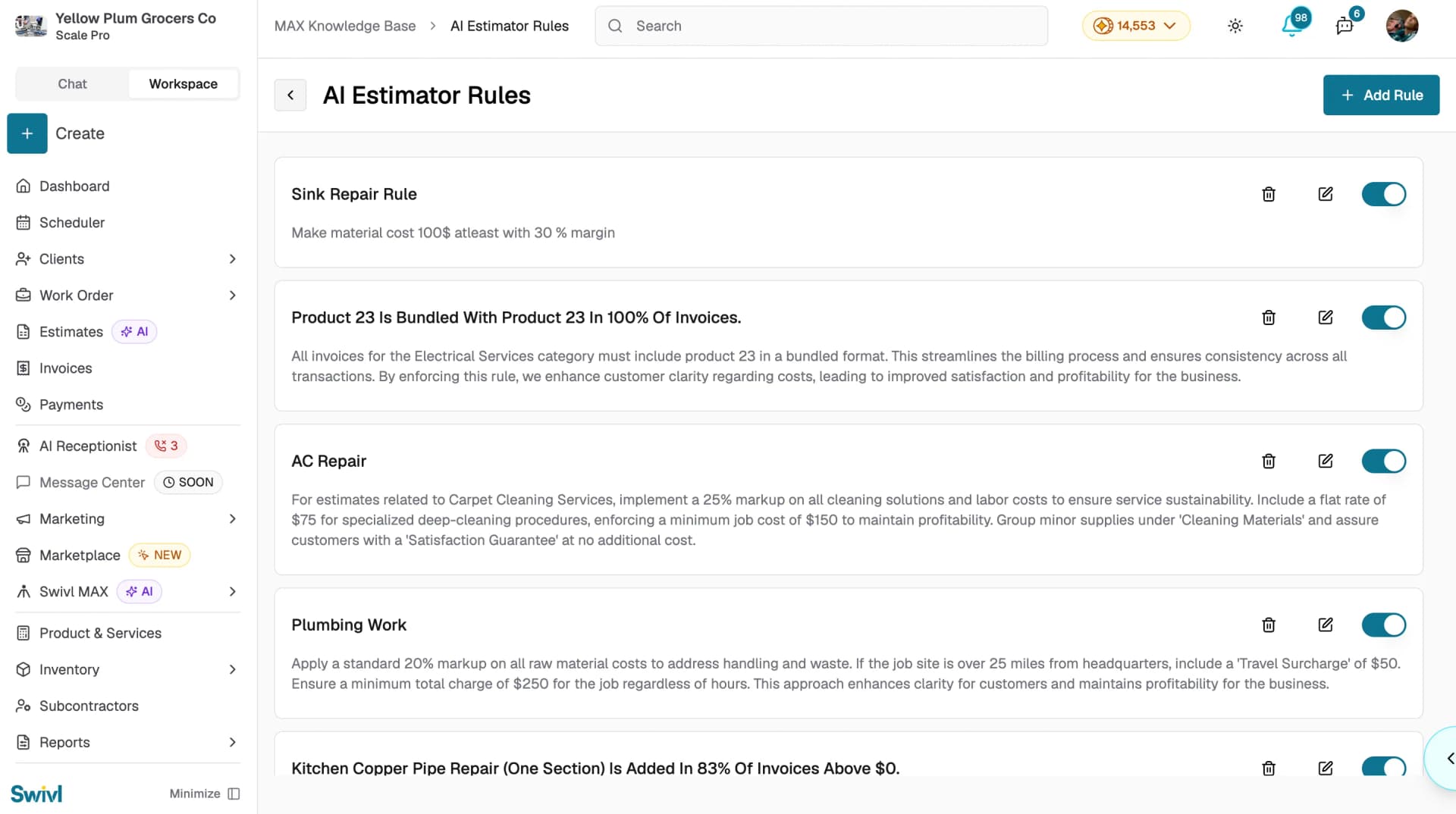
Go to Swivl MAX → AI Rules → AI Estimator Rules to add, edit, toggle, and delete rules.
Adding a rule
- Go to Swivl MAX → AI Rules → AI Estimator Rules
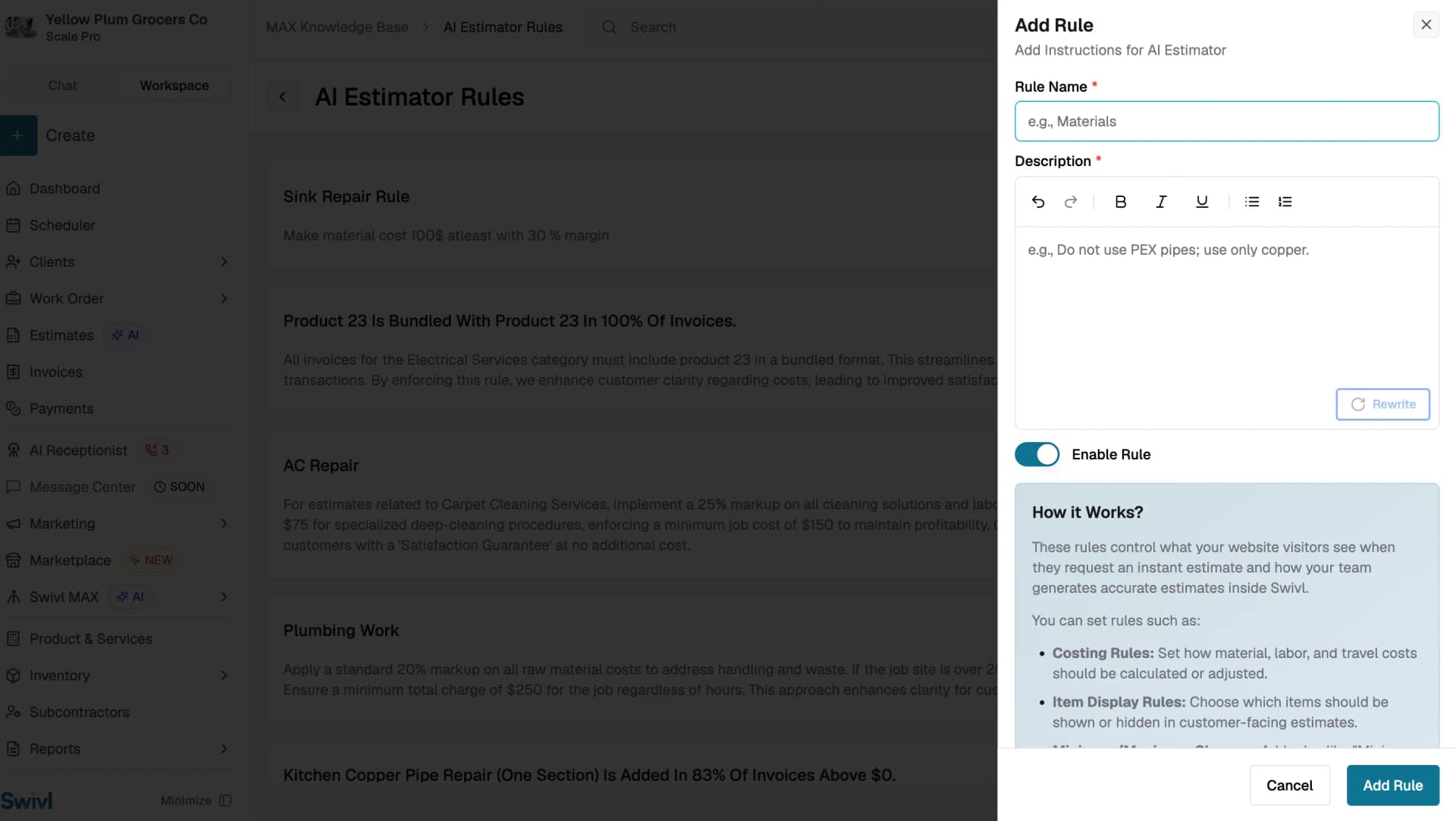
- Click + Add Rule in the top-right corner
- Fill in the following fields:
- Rule Name: a short, descriptive name such as "Materials Markup" or "Minimum Job Charge"
- Description: the detailed instruction Max should follow
- Enable Rule toggle: on by default. Turn off to save the rule without activating it yet
- Click Add Rule to save
What kinds of rules can I create?
Rule Type | Example |
|---|---|
Costing Rules | Set how material, labor, and travel costs should be calculated or adjusted |
Item Display Rules | Choose which items should be shown or hidden in customer-facing estimates |
Minimum/Maximum Charges | "Minimum job charge is $150" or "Trips over 20 miles add $50" |
Service-Specific Rules | "For water heater installs, show warranty details" |
You can also write freeform instructions for example: "Do not use PEX pipes; use only copper."
Using AI to improve your rule description
After typing a description, click Rewrite to let Max rewrite it for clarity and completeness making it easier for the AI to follow..
Editing a rule
- Go to Swivl MAX → AI Rules → AI Estimator Rules
- Click the edit icon on the rule card
- Update the name, description, or enabled state
- Click Save Rule
Toggling a rule on or off
Each rule card has an Enable Rule toggle on the right. Turning a rule off keeps it saved but stops Max from applying it to new estimates useful for seasonal rules or temporary overrides.
Deleting a rule
- Click the delete icon on the rule card
- Confirm the deletion
Deleted rules cannot be recovered if you might need the rule again, consider toggling it off instead.
Tips
- Start with 3–5 foundational rules markup percentages, minimum charges, and preferred suppliers then add more as you identify gaps.
- Write rules in plain, specific language Max interprets them literally.
- Review rules periodically and toggle off any that are outdated to avoid conflicting instructions.
- Use Rewrite after writing a description to make sure Max interprets your rule correctly.