
Adding a New Subcontractor
Adding a subcontractor creates a profile in Swivl that stores their contact details, addresses, managers, and supporting documents. Once added, the subcontractor can be assigned to jobs and tasks.
Overview
Adding a subcontractor to Swivl gives your team everything they need to assign and manage outside contractors. Each profile stores contact details, addresses, managers, and supporting documents all linked and ready to use when assigning work.
Who can access this
Role | Access / Permissions |
|---|---|
Super Admin | Full access to create and edit subcontractor accounts |
Admin | Full access (same as Super Admin) |
Lead Technician | Cannot create or edit subcontractor accounts |
Technician | Cannot create or edit subcontractor accounts |
How to add a subcontractor
- Navigate to Subcontractors from the left sidebar
- Click + New Subcontractor at the top right of the page
- Complete the form sections described below
- Click Save at the bottom of the page
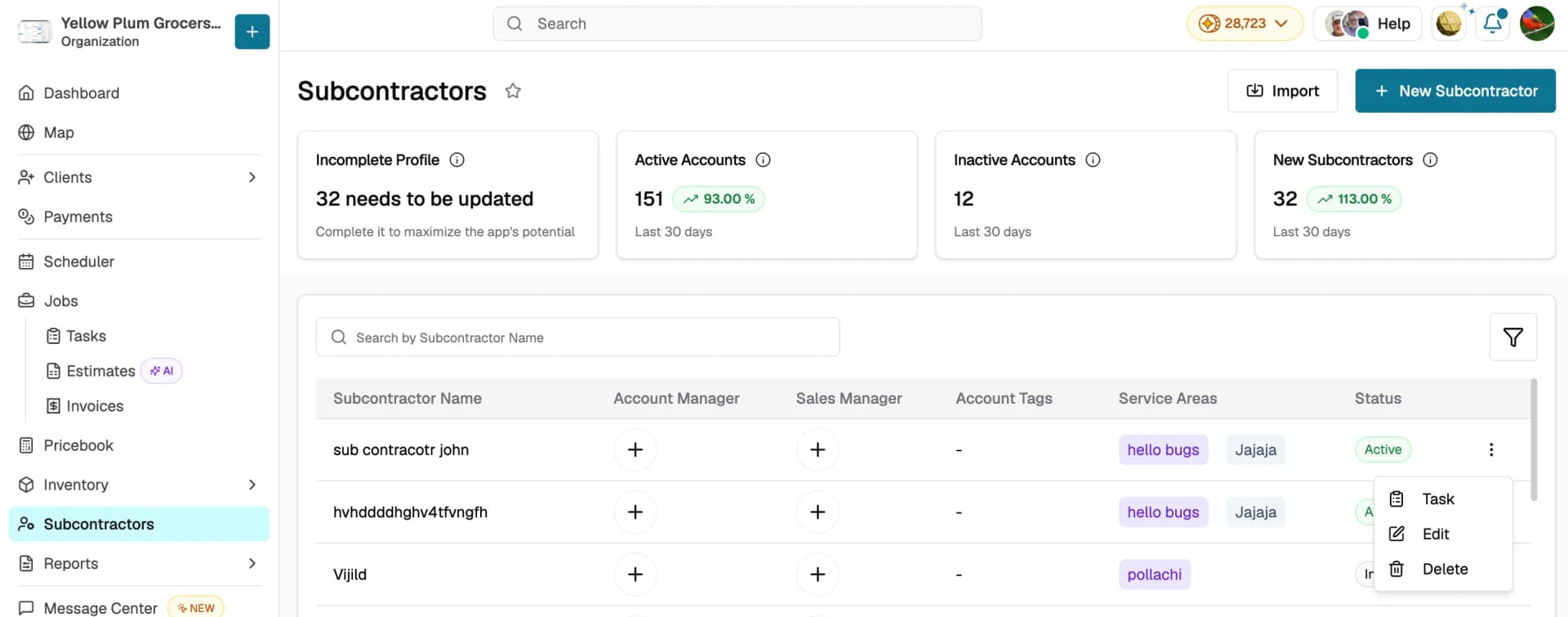
You will see a success message and be returned to the subcontractor list.
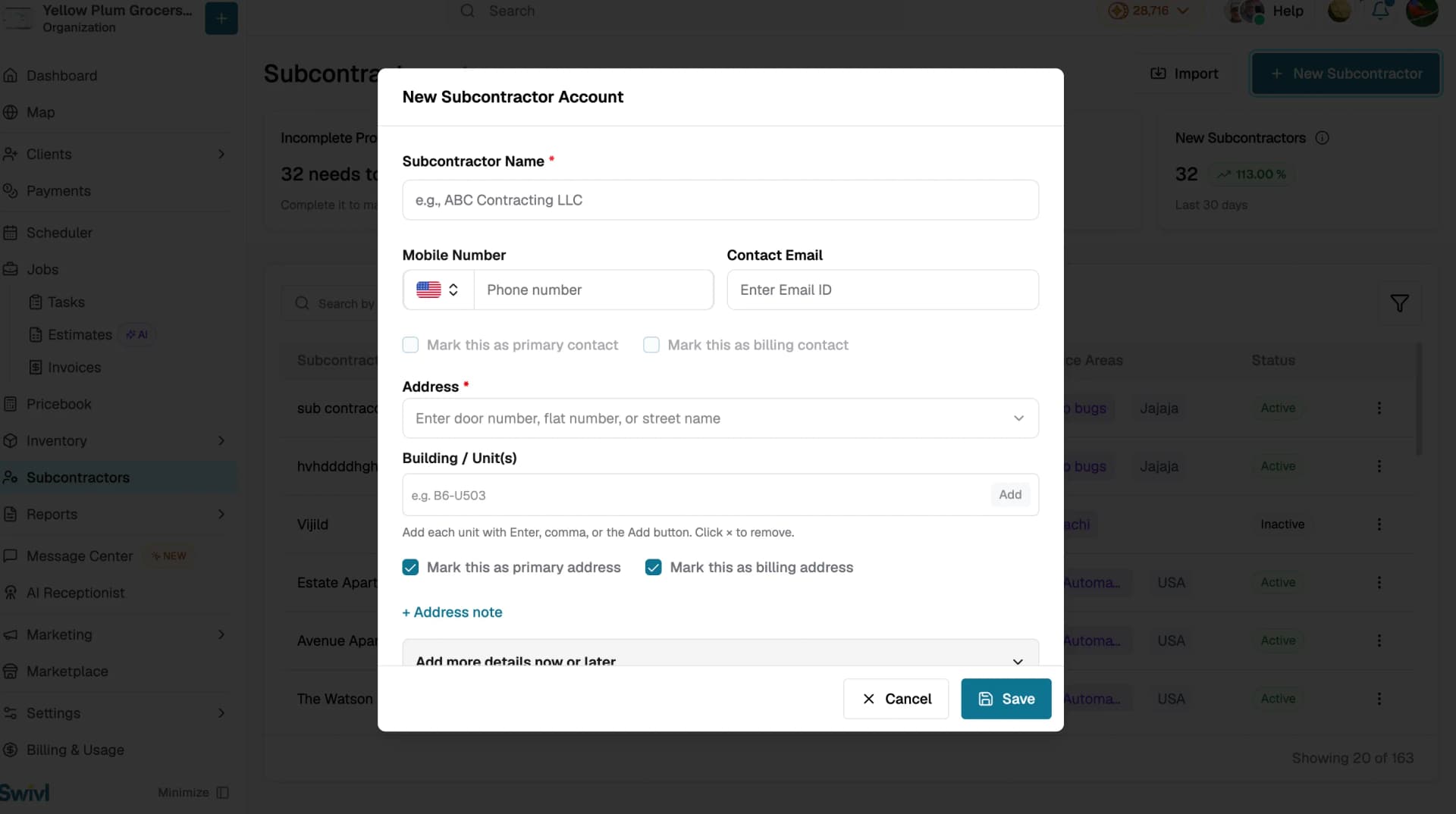
Complete the New Subcontractor Account form:
- Subcontractor Name (required), plus a Mobile Number and Contact Email for the main contact. Tick the checkboxes to mark them as the primary or billing contact.
- Address (required) : start typing and select a suggestion. Add Building / Unit(s) and an Address note if needed, and mark it as the primary or billing address.
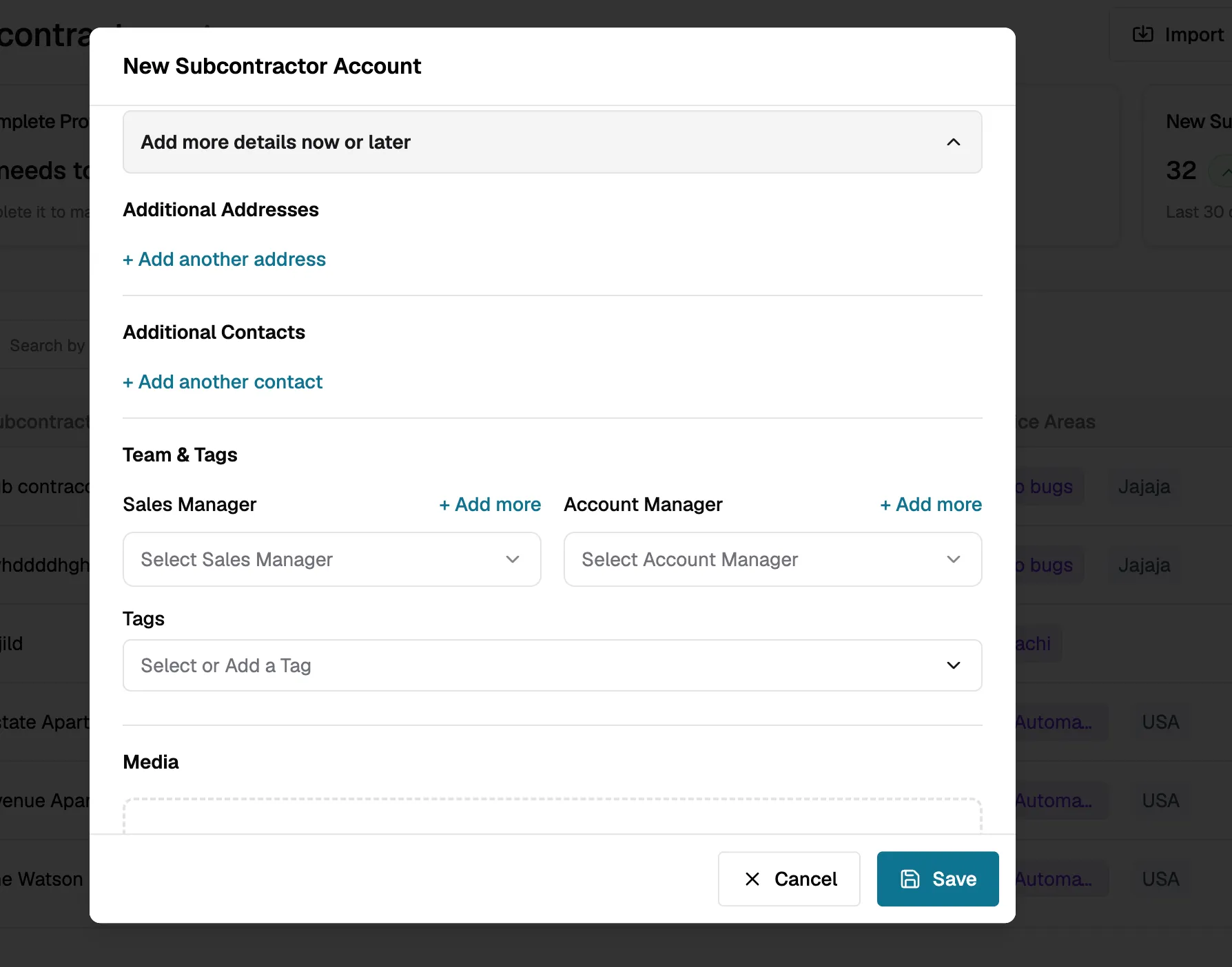
- Expand Add more details now or later for optional extras: additional addresses and contacts, Sales and Account Managers, Tags, and Media. You can also add these after saving.
Editing a Subcontractor
- From the subcontractor list, click the three-dot menu on the row you want to update
- Select Edit
- Make your changes and click Save
Deleting a Subcontractor
- Click the three-dot menu on the subcontractor's row
- Select Delete
- Confirm the deletion in the dialog that appears
Note: The Delete option is only available for active subcontractor accounts. Inactive accounts cannot be deleted from the list view.
Tips
- When you start typing a name that matches an existing account, Swivl shows a suggestion click it to navigate to that account instead of creating a duplicate
- Assign both a Sales Manager and an Account Manager so your team always knows who owns the relationship
- Upload insurance and licence documents to the subcontractor profile so they are easy to find during audits
- You can also create a subcontractor on the fly while adding costs to a job, Swivl will prompt you to fill in the details