
Time reports overview
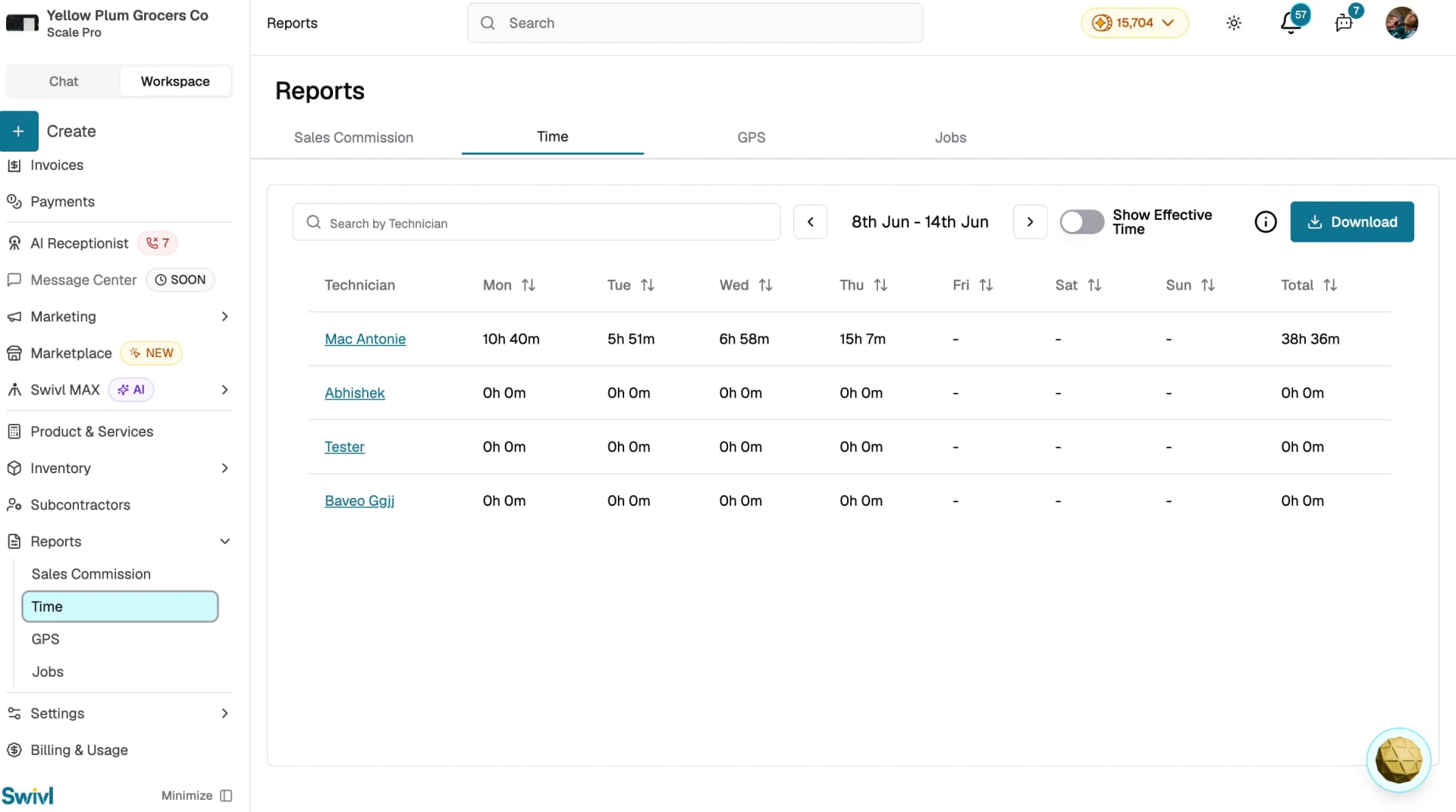
The Time report provides a weekly view of how many hours each technician has logged. It displays a grid with one column per day of the week, plus a weekly total, making it easy to spot overtime, missing entries, or uneven workloads at a glance.
Overview
The Time report provides a weekly view of how many hours each technician has logged. It displays a grid with one column per day of the week (Monday through Sunday) plus a weekly total, making it easy to spot overtime, missing entries, or uneven workloads at a glance.
Who can access this
- Super Admin: full access to all technicians' time data.
- Admin: full access to all technicians' time data.
- Lead Technician: can view their own time entries.
- Technician: can view their own time entries.
Navigating the Time report
- Go to Reports in the main navigation.
- Select the Time tab.
- The table lists all technicians with their hours for the current week.
Understanding the table
Each row represents one technician. The columns are:
Column | Description |
|---|---|
Technician | The team member's name click to open their profile. |
Mon – Sun | Hours logged for each day, displayed as hours and minutes (e.g., 3h 45m). |
Total | The sum of all hours logged for the week. |
Effective time
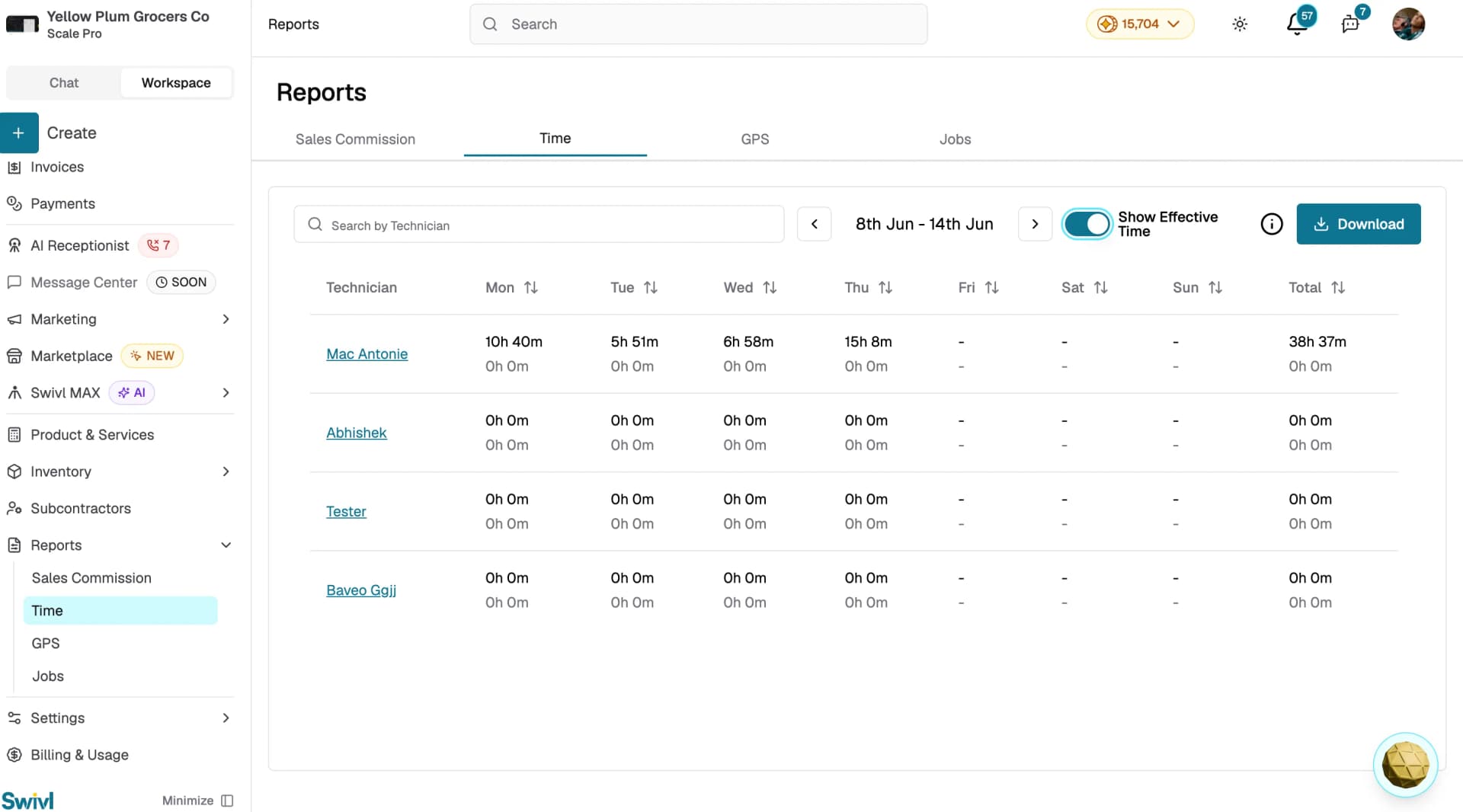
Toggle the Show Effective Time switch to display a second row beneath each day's hours. Effective hours represent the time marked as Paid Activity in the GPS report useful for comparing total clocked time against billable time.
Navigating between weeks
Use the arrow buttons on either side of the date range to move forward or backward one week at a time. The date range updates automatically as you navigate.
Searching for a technician
Use the Search by Technician bar to find a specific technician by name. The table narrows to matching results instantly.
Sorting
Click the sort icon on any day column or the Total column to sort technicians by hours worked in ascending or descending order.
Drilling into a technician's details
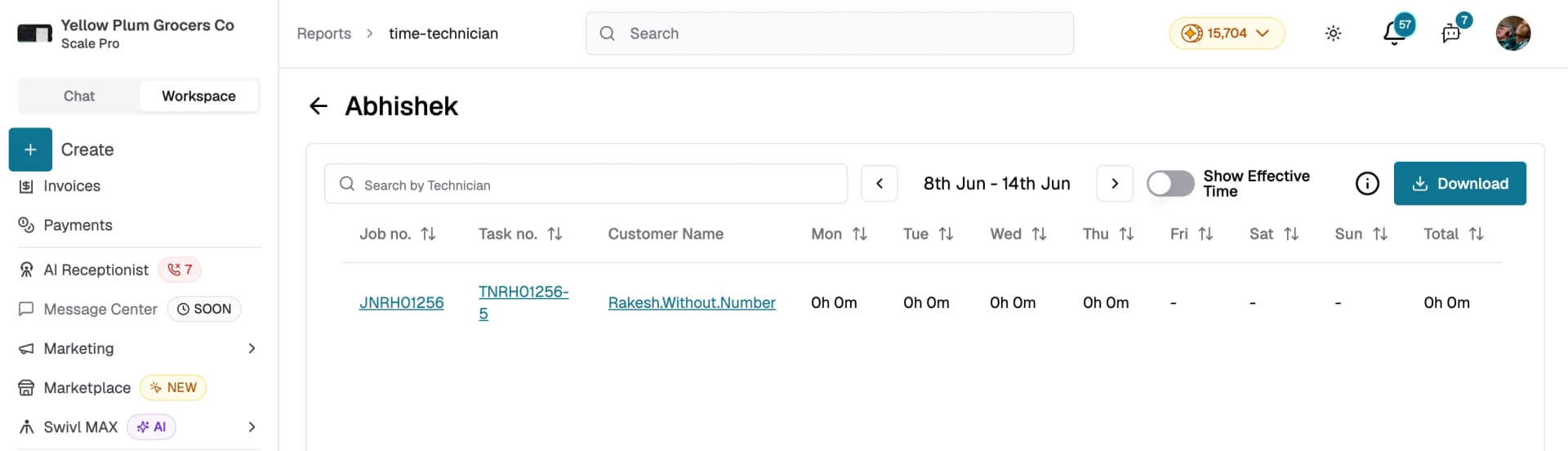
Click any technician's name to open their individual time detail view. This breaks down their hours by Job Number, Task Number, and Customer Name for each day of the selected week.
Downloading the report
Click Download to export the current week's time data as an Excel file. If Show Effective Time is enabled, effective time values will be included in the export.
Tips
- Use the Show Effective Time toggle to quickly identify discrepancies between clocked hours and paid hours.
- Sort by Total to find technicians with the highest or lowest hours for the week.
- If a technician shows 0h 0m for a day they were scheduled to work, follow up to ensure they clocked in correctly.
- Download the report at the end of each pay period to keep records for payroll.