
Job reports overview
The Job report combines estimated costs, actual costs, billing, collections, profit, and accuracy metrics into a single view to help you track profitability and manage outstanding balances.
Overview
The Job report gives you a financial overview of every job in your system. It combines estimated costs, actual costs, billing, collections, profit, and accuracy metrics into a single view, with summary cards at the top and a detailed table below. Use it to track profitability, identify under-estimated jobs, and manage outstanding balances.
Who can access this
- Super Admin : full access to all job report data.
Navigating the Job report
- Go to Reports from the left sidebar
- Select the Jobs tab
- The report opens with summary cards at the top and a detailed table below Summary cards
At the top of the page, you will see up to six summary cards:
Card | Description |
|---|---|
Profit | Total profit across all jobs with the average per job |
Collected | Total amount collected from customers with the average |
Accuracy | Total dollar accuracy between estimated and actual costs with average |
Estimated | Total estimated costs across all jobs with the average |
Actual | Total actual costs with the average |
Billed | Total billed amount with the average |
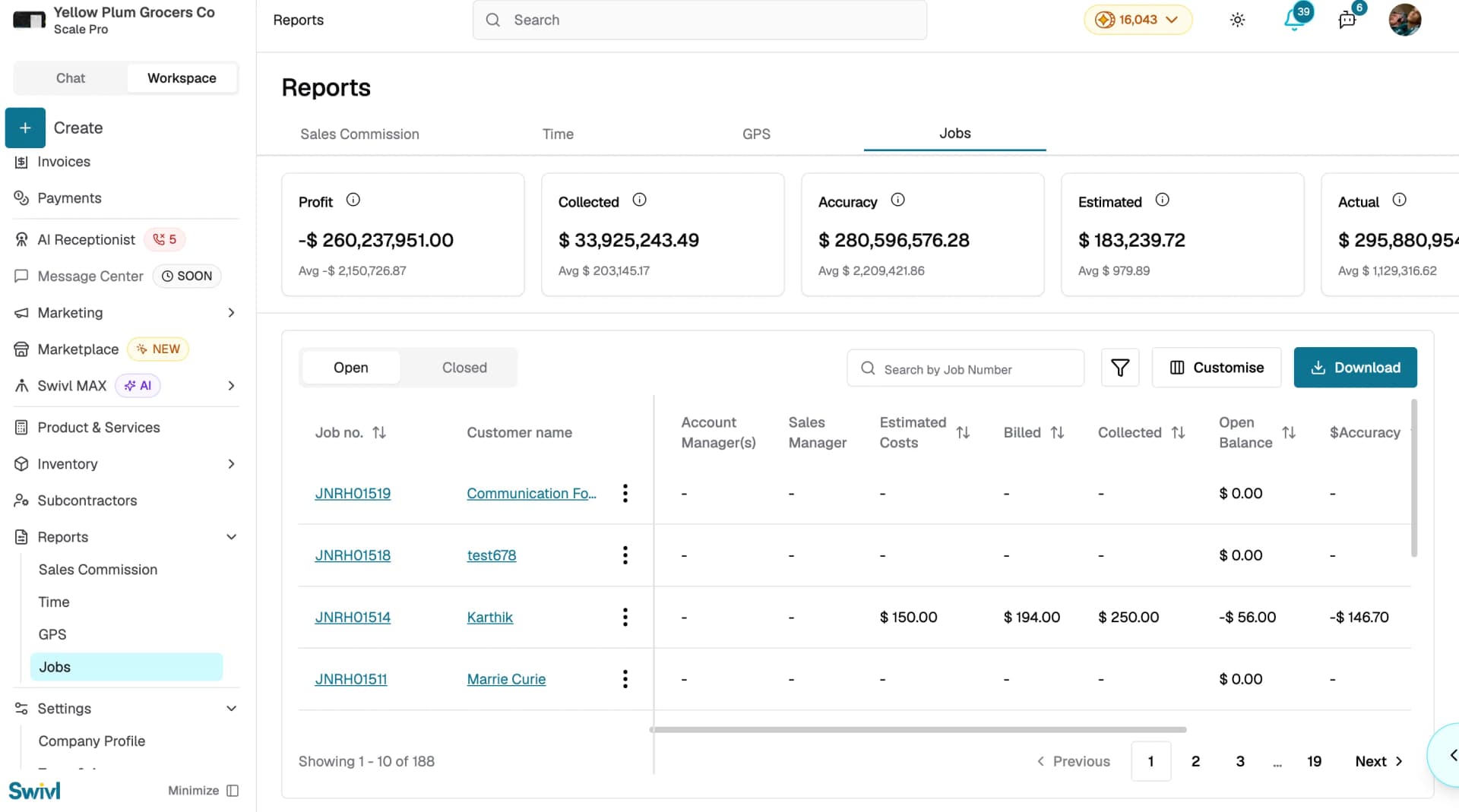
These cards update based on the data in the current view.
Open and Closed tabs
The table is split into two tabs:
- Open: jobs that are still in progress
- Closed: completed jobs
Table columns
The table includes two fixed columns that are always visible:
- Job no: the job number with a clickable link to the job details. Use the actions menu to quickly view invoices, estimates, costs, or receive a payment
- Customer Name: the customer's name linking to their profile
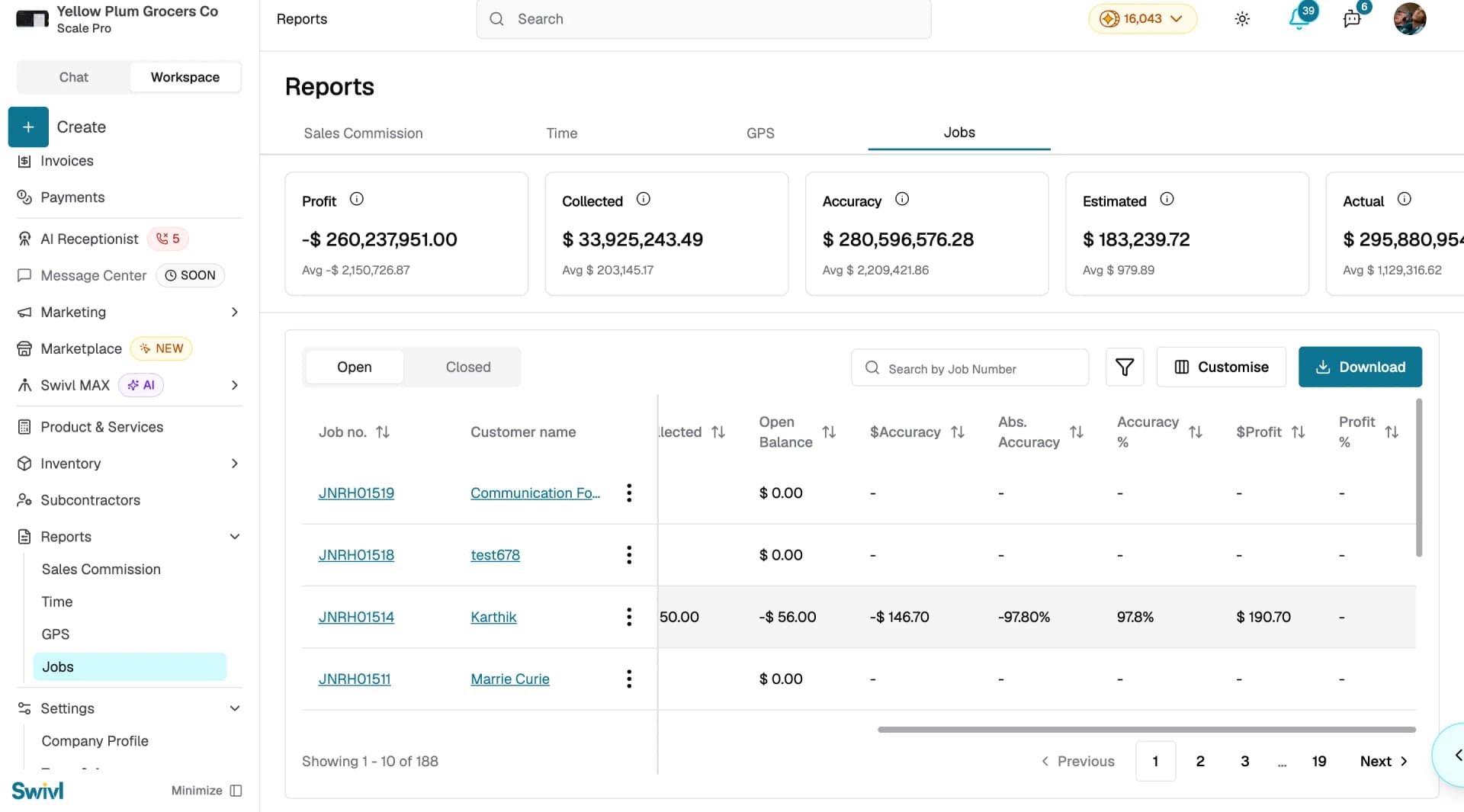
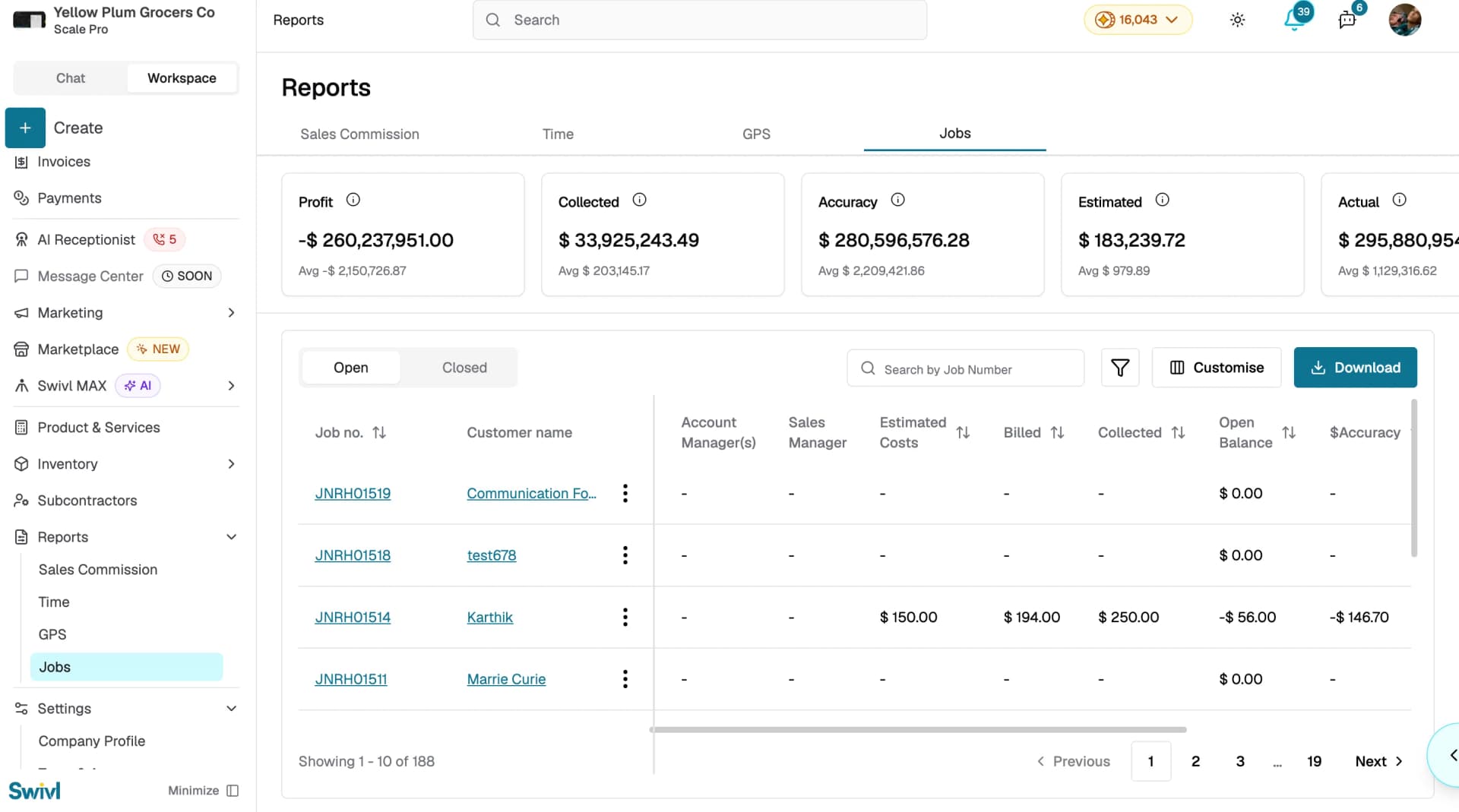
Additional columns can be toggled on or off using the Customise button.
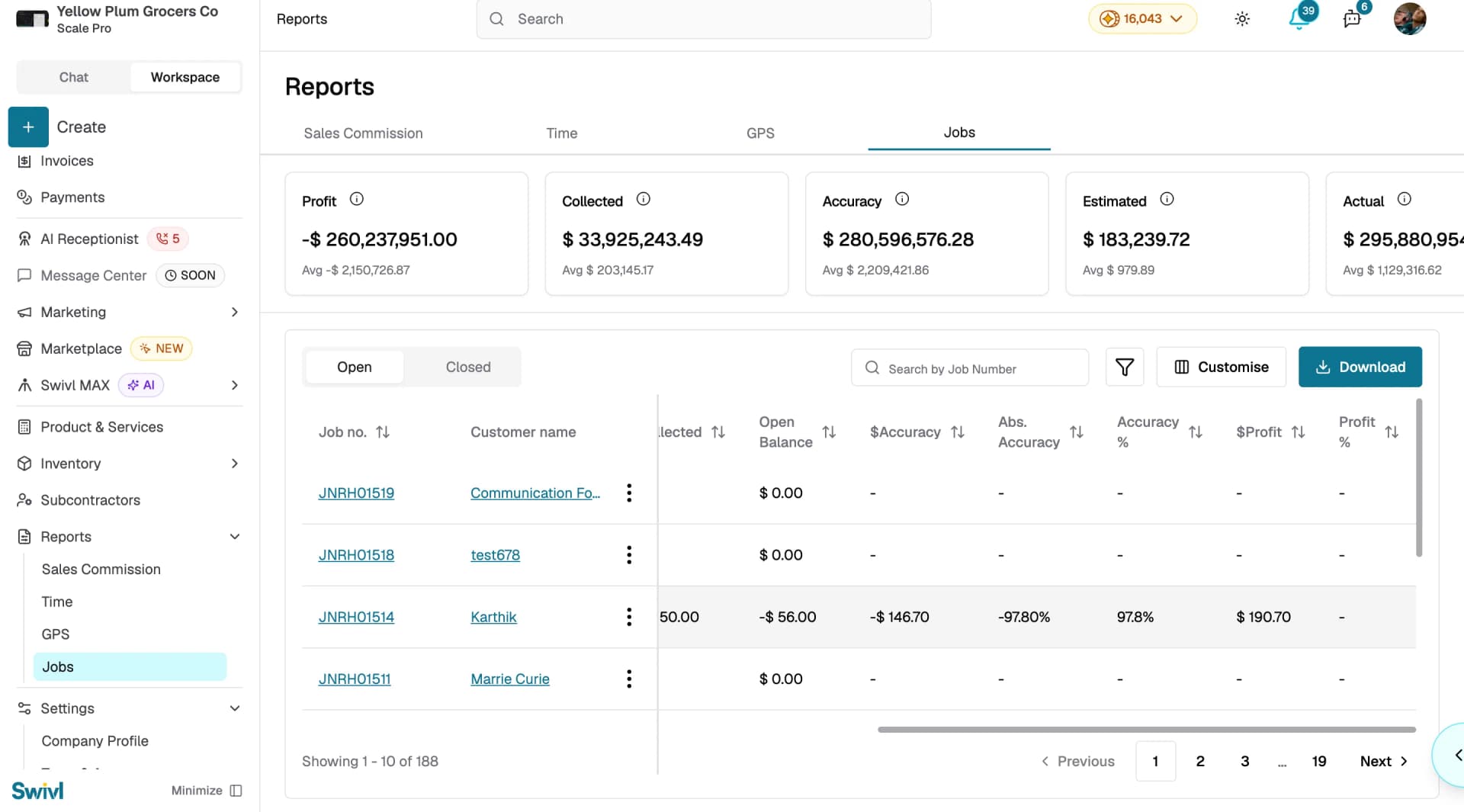
Column | Description |
|---|---|
Job Created On | Date the job was created |
Job Lead | The person leading the job |
Job Tag(s) | Tags assigned to the job |
Job Service Area(s) | Service areas assigned to the job |
Job Site Address | The location where work is performed |
Account Manager(s) | Managers assigned to the customer account |
Sales Manager | The sales manager for the job |
Estimated Costs | The estimated cost of the job |
Billed | The total amount billed to the customer |
Collected | The total amount collected |
Open Balance | The remaining unpaid balance |
$Accuracy | Dollar difference between estimated and actual costs |
Abs. Accuracy | Absolute accuracy percentage |
Accuracy % | Accuracy as a percentage |
$Profit | Dollar profit on the job |
Profit % | Profit as a percentage |
Searching, filtering, and sorting
- Use the Search by Job Number bar to find a specific job
- Click the Filter icon to narrow results by date range, job tags, service areas, account managers, sales managers, and more
- Click any sortable column header to sort the table in ascending or descending order
Receiving payments
From the actions menu on any job row, select Receive Payment to open a payment slider where you can record a customer payment directly from the report.
Downloading the report
Click the Download button to export the job report as an Excel file. The export includes all visible columns and respects your current filters and tab selection.
Tips
- Use the summary cards to get a quick health check on your business before diving into individual job details.
- Sort by Profit % to identify your most and least profitable jobs.
- Filter by Job Service Area(s) to compare profitability across different territories.
- Review the Open Balance column regularly to follow up on outstanding payments.